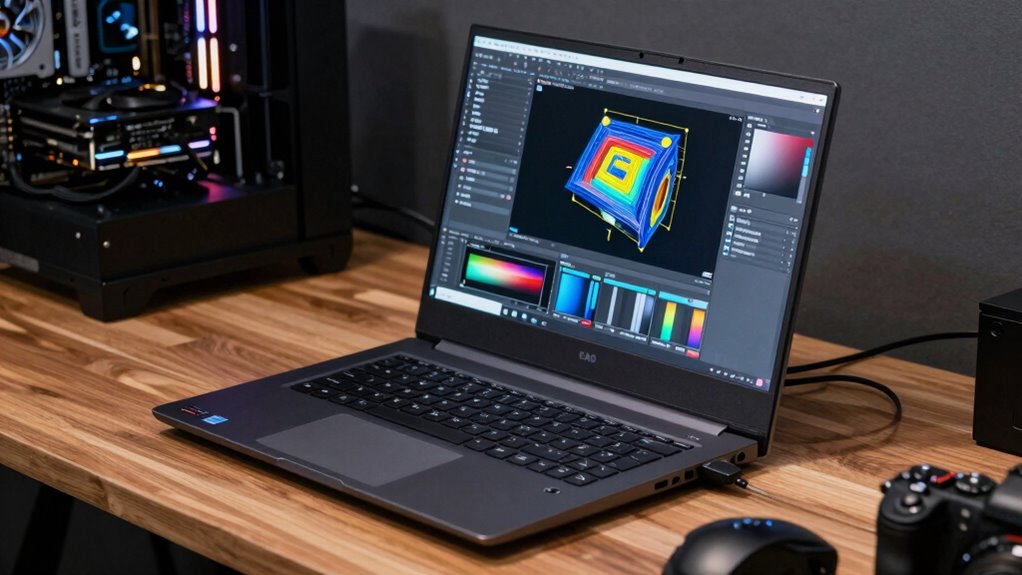

A high-end GPU isn’t always necessary for CAD workstation laptops. If your work involves simple modeling, basic visualization, or lightweight tasks, mid-tier or integrated graphics can handle it well. However, if you’re dealing with complex 3D models, detailed rendering, or large assemblies, a powerful GPU becomes vital. To make the best choice, consider your workload, software requirements, and hardware balance—more insights await to help you optimize your setup.
Key Takeaways
- High-end GPUs are essential for complex 3D modeling, rendering, and real-time visualization tasks in CAD.
- For basic modeling and 2D drafting, mid-tier or integrated GPUs often suffice.
- Upgrading GPU benefits workflow when experiencing lag, crashes, or slow viewport updates with demanding projects.
- GPU power alone isn’t enough; balanced system cooling, RAM, and CPU also impact CAD performance.
- Over-investing in a powerful GPU without addressing other bottlenecks can lead to underutilized hardware.
What Do You Need to Know About GPUs in CAD Workstations?
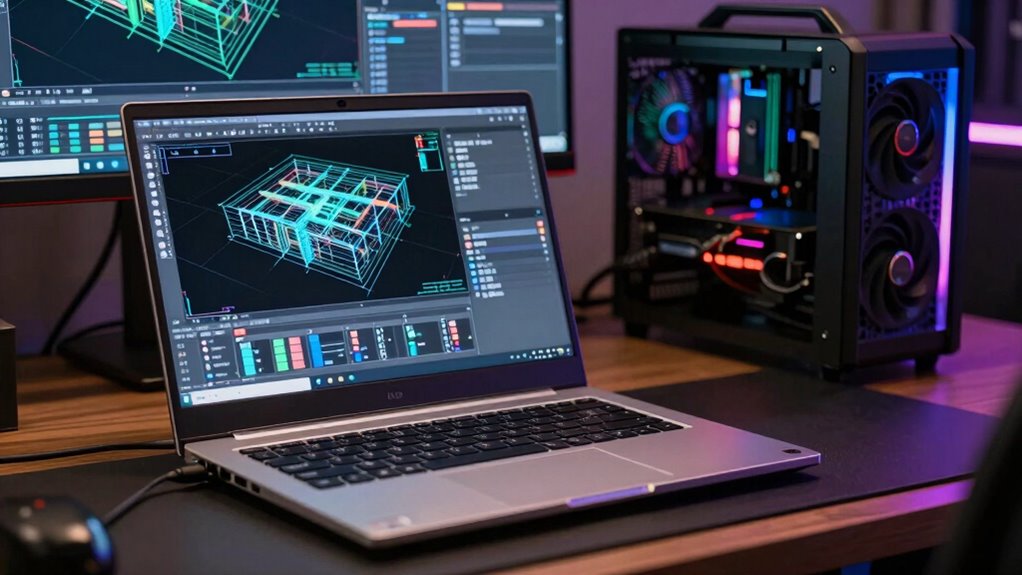
Understanding the role of GPUs in CAD workstations is essential for choosing the right hardware. Your GPU handles rendering complex models and real-time visualization, so performance depends on its capabilities. Pay attention to GPU cooling, as effective cooling maintains peak performance and prolongs hardware life. Proper cooling solutions are crucial to prevent thermal issues and ensure consistent performance. Poor cooling can cause overheating, leading to thermal throttling and reduced productivity. Additionally, GPU noise is an important factor; quieter GPUs create a more comfortable workspace, especially during long design sessions. Some high-performance GPUs generate more noise due to larger fans or active cooling systems, but modern designs often minimize this. Effective thermal management techniques are vital for maintaining optimal GPU operation and preventing damage. Proper airflow and heat dissipation are key components of this management, ensuring your workstation stays cool under load. Maintaining adequate ventilation can significantly improve overall system stability and lifespan. Additionally, ensuring proper power delivery helps the GPU operate reliably under demanding workloads. By understanding these aspects, you ensure your workstation remains efficient, cool, and quiet—crucial for a seamless CAD experience.
Do CAD Tasks Really Require a High-End Graphics Card?
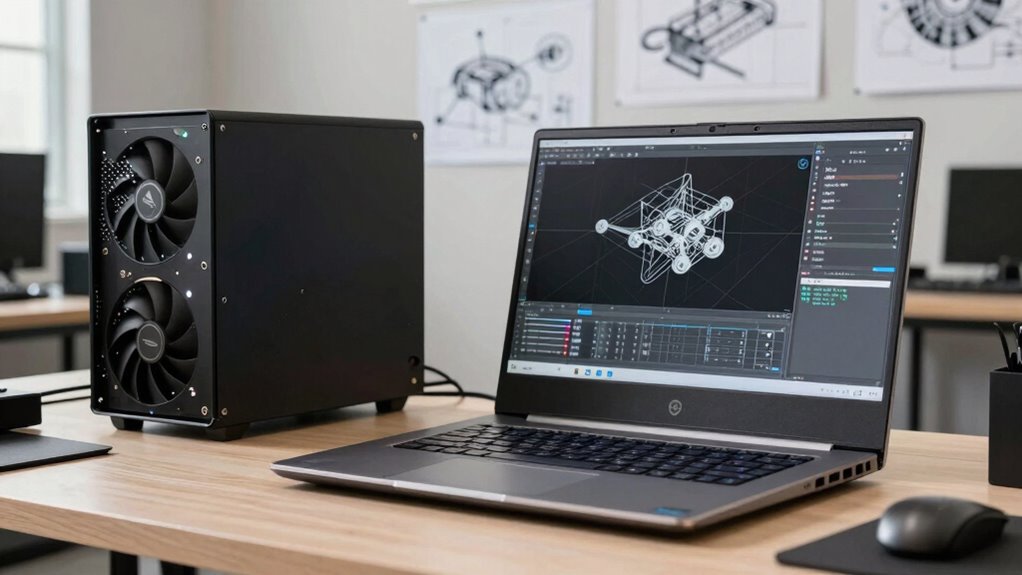
Think about the CAD software you use and whether it’s optimized for high-end GPUs. Consider how complex your designs are and if they demand powerful graphics for smooth performance. Also, evaluate if clear display and visualization are essential for your work, or if lower-tier cards can handle your needs.
CAD Software Compatibility
While many assume that only high-end graphics cards can handle demanding CAD software, the reality is more nuanced. Compatibility between your hardware and the CAD programs you use plays a vital role. Most CAD software is designed to work with a range of hardware, including mid-tier GPUs, as long as your system meets the minimum requirements. Regular software updates often improve hardware compatibility, fixing bugs and optimizing performance for various graphics cards. Before investing in a high-end GPU, check the software vendor’s recommended specifications and verify your hardware aligns. In many cases, a mid-range graphics card suffices for standard CAD tasks, especially if your software is up-to-date. This approach can save you money without sacrificing essential performance. Additionally, understanding GPU capabilities can help you make informed decisions about hardware upgrades for CAD workstations.
Complexity of Designs
Many users assume that complex, detailed CAD designs automatically demand a high-end graphics card, but that’s not always the case. The complexity of your design influences the type of GPU power needed, especially with advanced rendering techniques. For instance, models with intricate geometries may benefit from hardware acceleration, which offloads rendering tasks to the GPU, improving performance. However, not all detailed models require top-tier graphics cards; some CAD tasks rely more on CPU performance or RAM. If your workflow involves basic modeling or simple visualizations, a mid-range GPU can handle it efficiently. Ultimately, understanding your specific design complexity helps determine whether investing in a high-end GPU makes a real difference or if other components are more critical.
Display and Visualization
Does a high-end graphics card truly improve your CAD display and visualization experience? Not necessarily. While such cards can enhance color accuracy and support higher display resolutions, these benefits are often unnecessary for many CAD tasks. If your work involves detailed modeling or rendering with complex textures, a good GPU can help, but for standard drafting, integrated graphics might suffice. High display resolution improves clarity and allows for more precise work, but beyond a certain point, it doesn’t require top-tier graphics power. Consider your specific needs: if you prioritize accurate color representation and sharp visuals, a mid-range GPU paired with a high-quality display can deliver excellent results without overspending. Ultimately, the right GPU depends on your workflow, not just raw power.
Mythbusting: Do You Need an Expensive GPU for CAD?
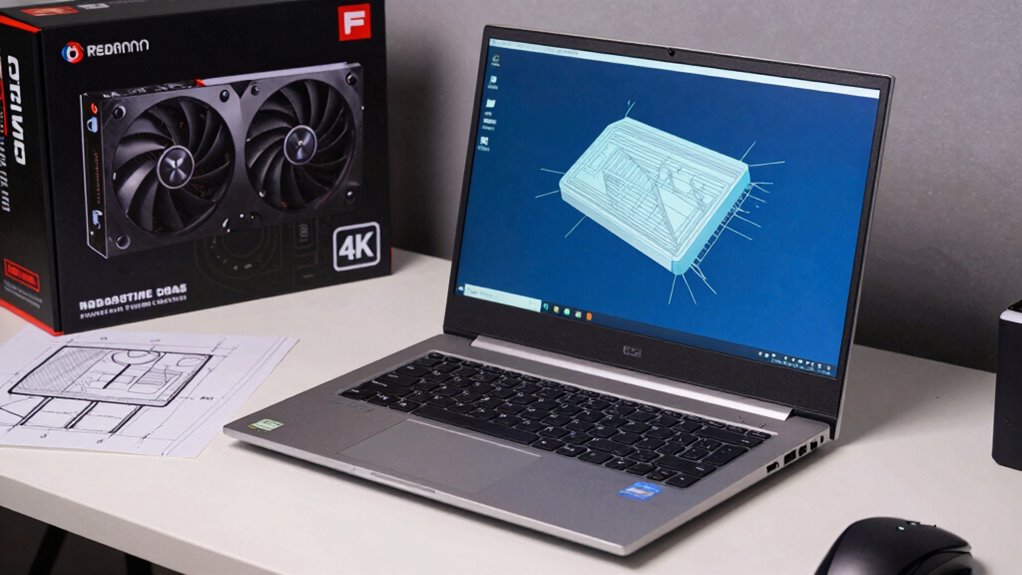
You might assume that high-end GPUs are indispensable for smooth CAD performance, but that’s not always true. Expensive GPUs don’t guarantee better results if your system isn’t properly cooled; inadequate GPU cooling can cause throttling, reducing performance regardless of GPU cost. Additionally, keeping your drivers updated is vital—outdated drivers can introduce bugs, crashes, or slowdowns that make even a powerful GPU underperform. Many CAD tasks are CPU-bound or rely more on RAM and storage speed than on top-tier graphics cards. If your workflow doesn’t involve complex 3D modeling or rendering, investing in an ultra-expensive GPU may be unnecessary. Focus instead on balanced components, proper cooling, and regular driver updates to ensure your CAD workstation runs smoothly without overspending. Moreover, understanding the GPU Myth can help you make more informed decisions tailored to your specific needs.
How to Assess Whether Your CAD Workload Needs a Better GPU
Evaluating whether your CAD workload demands a more powerful GPU involves analyzing the specific tasks you perform regularly. Start by identifying if your work involves complex 3D modeling, rendering, or simulations, which typically benefit from higher GPU performance. Check your current hardware compatibility, ensuring your existing GPU can handle these tasks efficiently. Additionally, consider if your projects require features supported by specific branding strategies, such as workstation-oriented GPUs from NVIDIA Quadro or AMD Radeon Pro, which are optimized for CAD workflows. If you notice slow viewport updates, frequent crashes, or rendering delays, it’s a sign you might need an upgrade. Remember, not every CAD task demands top-tier graphics; understanding your workload’s intensity is key to assessing whether your GPU is up to the task.
When Is It Time to Upgrade Your CAD Laptop’s GPU?
You should consider upgrading your CAD laptop’s GPU when your performance demands grow or your software requires more advanced graphics capabilities. As your projects become more complex, a faster GPU can keep your workflow smooth and efficient. Staying current guarantees compatibility with the latest software updates and features, preventing bottlenecks. Additionally, modern kitchen technology emphasizes automation and precision, highlighting the importance of having up-to-date hardware to fully leverage new features and innovations.
Performance Demands Increase
As your CAD projects grow more intricate and detailed, the demands on your laptop’s GPU increase substantially. You’ll notice longer rendering times, lag during viewport navigation, and occasional crashes. When these issues become frequent, it’s a clear sign that your GPU is struggling to keep up. Upgrading your GPU can boost performance, but verify your laptop’s cooling system handles the extra heat. Consider reputable GPU branding known for durability and better thermal management.
| Project Size | GPU Cooling Needs | Rendering Speed | Viewport Smoothness | Stability |
|---|---|---|---|---|
| Small | Moderate | Fast | Smooth | Stable |
| Medium | Good | Faster | Very smooth | Reliable |
| Large | Essential | Much faster | Seamless | Consistent |
| Very Large | Critical | Near real-time | Zero lag | Critical |
| Complex | Necessary | Maximum | Flawless | Essential |
Software Compatibility Requirements
When software updates introduce new features or enhance existing ones, your CAD laptop’s GPU may need an upgrade to stay compatible and perform ideally. Over time, hardware limitations can prevent your system from supporting the latest software updates, causing compatibility issues or reduced functionality. If you notice errors, lag, or missing features after a software update, it’s likely your GPU is no longer up to the task. Staying current with hardware requirements ensures your CAD tools run smoothly and leverage new capabilities. Ignoring these updates can lead to performance bottlenecks or crashes, especially as software developers tighten compatibility standards. Upgrading your GPU when necessary keeps your workstation aligned with evolving software demands and maintains productivity without frustration. Additionally, understanding the importance of software compatibility and staying informed about AI-powered tools can help you make more strategic hardware upgrade decisions.
Are Integrated or Mid-Range GPUs Sufficient for Your CAD Projects?
While integrated or mid-range GPUs might seem appealing for CAD work, their capabilities often fall short for more complex projects. If you’re considering budget laptops or gaming GPUs, be aware of their limits. For simpler tasks, such as 2D drawings or basic 3D modeling, they may suffice. But for demanding tasks, you’ll face issues like slow rendering and reduced stability. Consider these points:
- They handle basic CAD functions but struggle with large assemblies.
- Gaming GPUs can boost performance but lack optimized drivers for professional CAD software.
- Budget laptops often cut corners on GPU power, impacting workflow efficiency.
If your projects grow in complexity, investing in a higher-end GPU becomes essential to avoid bottlenecks.
Signs It’s Worth Investing in a High-Performance GPU for CAD
Recognizing the signs that you need a high-performance GPU can save you time and frustration in your CAD projects. If your work involves complex models, detailed rendering, or large assemblies, a powerful GPU guarantees smooth hardware compatibility and reduces lag. Pay attention to increased render times or frequent crashes, which indicate your current setup struggles with demanding tasks. Additionally, if your projects demand real-time visualization or interactive manipulation of large datasets, a high-performance GPU becomes essential. Be mindful of power consumption; a high-end GPU may draw more power, so ensure your laptop’s power supply and cooling system can handle it. Investing in a top-tier GPU is worthwhile when your workflows are hindered by hardware limitations, and your projects require consistent, reliable performance. Understanding GPU capabilities can further help you determine when an upgrade is necessary.
Should You Spend More on a GPU or Optimize Other System Components?
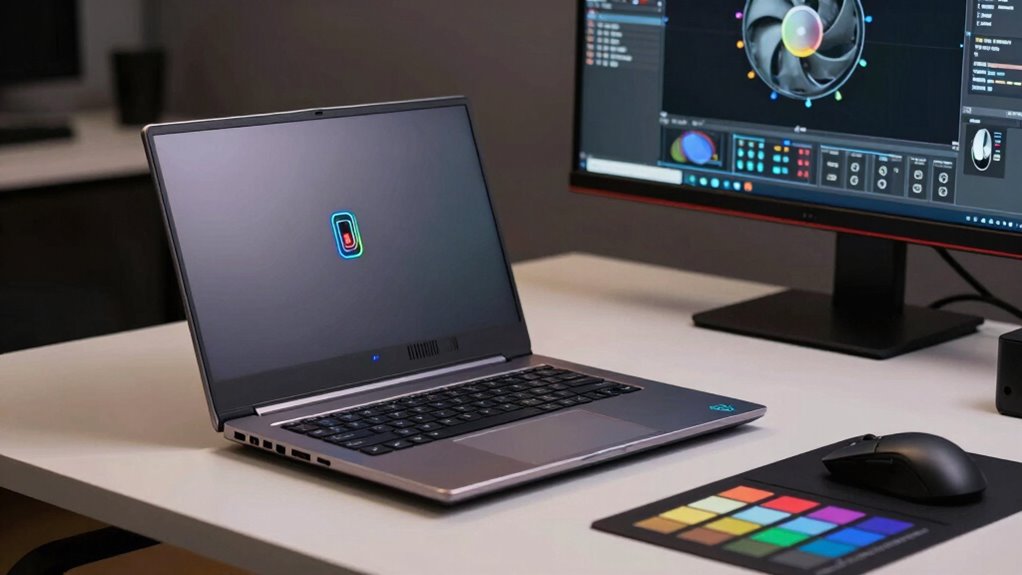
If your CAD workflow is still sluggish despite upgrading your GPU, it might be time to contemplate optimizing other system components. When working within budget constraints, investing heavily in a high-end GPU isn’t always the best move. Instead, consider these options:
- Upgrade RAM to handle larger models and multitasking more efficiently.
- Improve storage speed with an SSD, reducing load and save times.
- Select a case with better airflow and aesthetic appeal, ensuring your system runs cool and looks good.
Focusing on these areas can deliver noticeable performance gains without overspending on a GPU. Sometimes, balancing system components yields better results than simply chasing the latest graphics card. This smarter approach helps you get the most out of your CAD workstation without sacrificing aesthetics or breaking your budget.
Tips to Improve CAD Performance Without Overinvesting in GPU Power
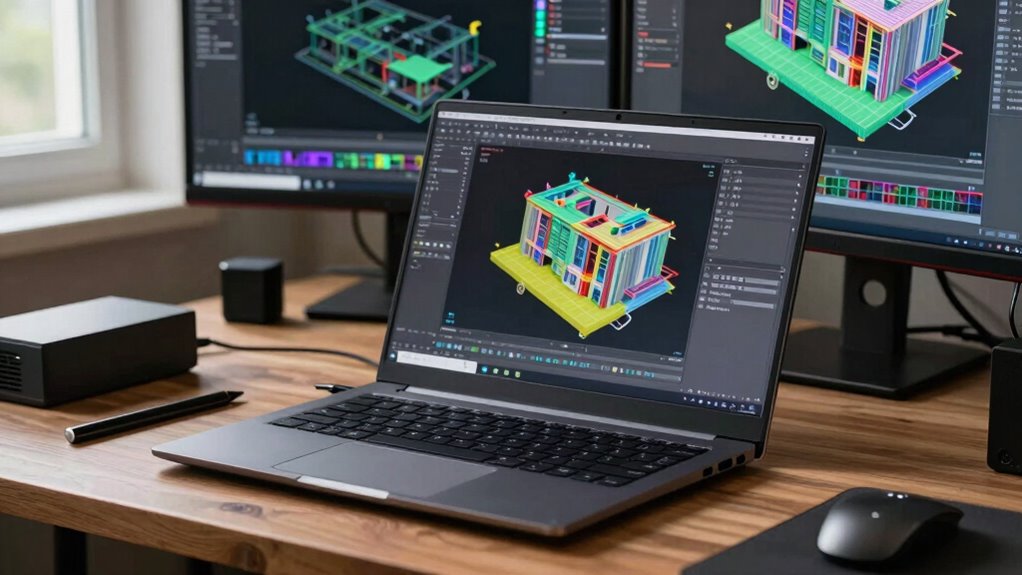
You can boost your CAD performance considerably without overspending on a high-end GPU by optimizing other key system components. Focus on ensuring your CPU is fast and multi‑core, as it handles many computational tasks. Increase RAM capacity to prevent bottlenecks during complex modeling. Solid-state drives (SSDs) speed up data access, reducing lag. Additionally, pay attention to GPU aesthetics; a visually appealing GPU can boost confidence but doesn’t necessarily improve performance. Be cautious with GPU branding—purchasing based solely on brand reputation might lead to overspending. Instead, select a GPU that balances performance with your actual CAD needs. System optimization strategies help you maximize efficiency without unnecessary investment, ensuring your workstation runs smoothly and cost-effectively. For example, optimizing GPU utilization can further enhance your workflow without additional hardware costs.
Optimizing system cooling can also help maintain consistent performance during intensive tasks, preventing thermal throttling that hampers productivity.
Making Smarter Choices: Choosing the Right GPU for Your CAD Needs
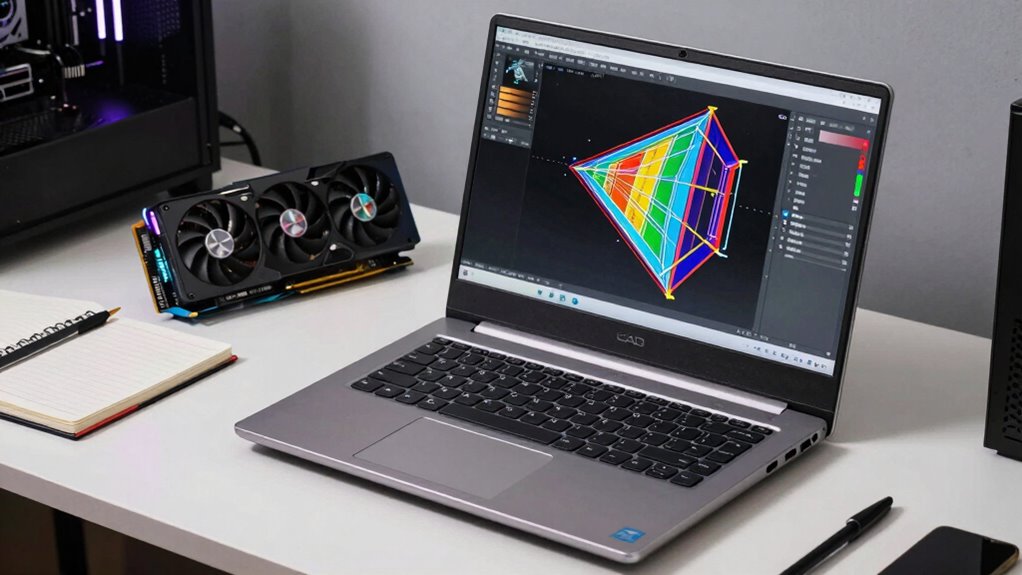
Choosing the right GPU for your CAD needs requires understanding your specific workload and performance requirements. To make smarter choices, consider these factors:
- Color accuracy: If your projects demand precise color representation, prioritize GPUs with better color fidelity, even if they consume more power.
- Power consumption: Balance performance with efficiency; high-power GPUs may deliver better graphics but can drain batteries faster and generate more heat.
- Workload complexity: For simple tasks, lower-tier GPUs suffice, while complex 3D modeling or rendering calls for more powerful options with robust graphics capabilities.
- Reliable connections: Ensuring your hardware components are connected through trustworthy cables helps maintain system stability and prevents data loss or performance issues.
Frequently Asked Questions
How Does GPU Performance Impact CAD Rendering Speed?
Your GPU performance directly affects CAD rendering speed because a powerful GPU accelerates complex graphics tasks, reducing wait times. Durable GPUs ensure consistent performance during intense workloads, while software compatibility ensures your GPU works seamlessly with your CAD programs. If your GPU lacks durability or isn’t compatible, rendering slows down, and you might encounter errors. Upgrading a reliable, compatible GPU boosts efficiency and speeds up your CAD workflows considerably.
Can Integrated GPUS Handle Complex CAD Assemblies Effectively?
Integrated GPUs can handle simple CAD tasks well, but they often struggle with complex CAD assembly complexity due to their limitations. You might notice slow rendering or lag when working on detailed models. For demanding CAD projects, upgrading to a dedicated GPU is advisable, as integrated ones lack the power needed for smooth performance in intricate assemblies. Rely on integrated GPUs only for basic modeling tasks.
What Are the Signs That My GPU Is a Bottleneck?
You notice slow rendering or lag during complex tasks, which signals your GPU might be a bottleneck. Check hardware compatibility to guarantee your GPU supports your CAD software’s requirements, and look out for software optimization issues that could cause performance drops. If your system struggles with real-time visualization or smooth navigation, it’s a clear sign your GPU isn’t keeping up, and upgrading could improve your workflow markedly.
How Do I Balance GPU and CPU for Optimal CAD Performance?
Ever wonder how to balance your GPU and CPU for top CAD performance? Start by monitoring your GPU cooling and CPU bottlenecks—if your CPU runs hot or slows down during intense tasks, upgrade or optimize it first. Conversely, if your GPU struggles despite proper cooling, focus on upgrading your graphics card. Keeping both components in harmony guarantees smooth workflows and prevents bottlenecks that drag down your productivity.
Are There Specific GPU Features That Benefit CAD Workflows?
You benefit from a GPU with ample memory and numerous shader cores for CAD workflows. Larger GPU memory lets you handle complex models without lag, while more shader cores improve rendering speed and visual fidelity. Look for features like CUDA cores for Nvidia or Stream Processors for AMD, which enhance performance. These features ensure smooth navigation, faster rendering, and efficient handling of detailed CAD projects, making your workflow more productive and seamless.
Conclusion
Remember, only about 20% of CAD tasks truly need top-tier GPUs, so evaluate your workload carefully. If you’re working on complex 3D models daily, investing in a high-performance GPU can boost your efficiency. But for simpler projects, optimizing other system parts might serve you better. Think of it like upgrading from a bicycle to a sports car—sometimes, your current setup is enough to get the job done faster and cheaper.