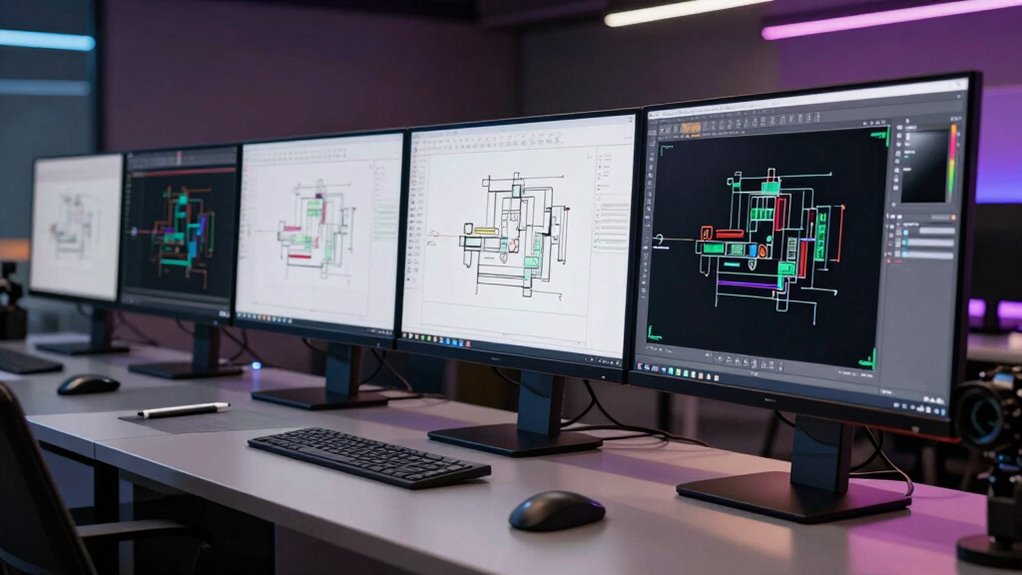

Architects choosing a 24-inch interactive pen display need to balance drawing space, screen detail, color, and desk ergonomics. My lead pick is the Xencelabs Pen Display 24 for its 4K resolution, wide color coverage, and shortcut remote; the XPPen Artist24 FHD is a more straightforward choice if a large drawing surface and flexible mounting matter more than pixel density. Both require a connected computer, so neither replaces a standalone tablet or workstation.

Prime made for students and young adults
- Fast, free delivery for dorm and study essentials
- Prime Video and Amazon Music included
- Member-only deals
The biggest difference is resolution: Xencelabs puts four times as many pixels on a similarly sized screen, which can make fine plan lines and dense interface elements easier to inspect. XPPen counters with a broad stand range, VESA support, and a simpler feature set. I rank them by how well their screen, pen controls, positioning, and workflow support fit architectural tasks, while weighing the tradeoffs each brings to a real desk.
Key Takeaways
- Xencelabs Pen Display 24 is my best overall pick for architects who benefit from 4K detail, hardware calibration support, and programmable shortcuts.
- XPPen Artist24 FHD gives you a large, full-laminated drawing surface with a stand that reaches 90 degrees and VESA mounting support.
- Both displays include a battery-free pen with 8192 pressure levels, but Xencelabs supplies two pens while XPPen includes one P05R stylus.
- The Xencelabs 4K panel is better suited to close inspection of fine drawing detail; XPPen’s FHD resolution can look coarse at this screen size.
- Neither model is a standalone device: each needs a compatible computer and suitable drawing or design software.
| Xencelabs Pen Display 24 with Multi-Axis Stand |  | Best Overall for Detailed Architectural Work | Screen: 24-inch IPS | Resolution: 3840 x 2160 (4K UHD) | Color gamut: 99.43% Adobe RGB; 96.11% DCI-P3 | VIEW ON AMAZON | See Our Full Breakdown |
| XPPen Artist24 FHD 23.8″ Drawing Tablet with Screen |  | Best for Flexible Positioning | Screen: 23.8 inches | Resolution: 1920 x 1080 (FHD) | Color gamut: 132% sRGB | VIEW ON AMAZON | See Our Full Breakdown |
| inch interactive pen display monitor for architect | Screen | Resolution | Color gamut | Pen input |
|---|---|---|---|---|
| Xencelabs Pen Display 24 with | 24-inch IPS | 3840 x 2160 (4K UHD) | 99.43% Adobe RGB; 96.11% DCI-P3 | 8192 pressure levels; tilt recognition |
| XPPen Artist24 FHD 23.8" Drawi | 23.8 inches | 1920 x 1080 (FHD) | 132% sRGB | 8192 pressure levels; 60-degree tilt recognition |
More Details on Our Top Picks
Xencelabs Pen Display 24 with Multi-Axis Stand
I rank the Xencelabs Pen Display 24 first because its 3840 x 2160 panel gives a 24-inch workspace substantially finer screen detail than the XPPen’s FHD display. That difference is useful when tracing thin lines, checking annotations, or keeping tool palettes open without making a drawing feel cramped. Its stated 99.43% Adobe RGB coverage and hardware calibration support also suit architects who move between presentation graphics, material studies, and technical drawings where color consistency matters.
The work setup is unusually well equipped for a pen display. Xencelabs includes two battery-free pens and a Quick Key remote with an OLED display, 40 programmable shortcuts, and a physical dial. Those controls can keep common commands close at hand, while the stand adjusts from 16 to 72 degrees for a range of desk positions. Against the XPPen, it offers a richer control package and more pixels, though the XPPen tilts farther upright and supports VESA mounting.
There are practical costs in space and complexity. This is a large display, and its professional color tools and remote may be more than a hobbyist or occasional plan annotator needs. It also remains a computer-connected monitor, so the display itself does not run CAD or illustration software. For architects who will use its detail and shortcut workflow regularly, those tradeoffs are easier to justify than they are for someone who mainly wants a broad surface for basic sketching.
Pros:- 4K UHD resolution gives finer detail than the XPPen’s FHD panel at a similar screen size.
- Wide Adobe RGB and DCI-P3 coverage with Pantone and SkinTone validation.
- Includes two battery-free pens and a remote with 40 programmable shortcuts and a dial.
- Fanless construction and a stand adjustable from 16 to 72 degrees.
Cons:- Large 24-inch display needs ample desk space.
- Professional color and shortcut features may be unnecessary for simpler drawing workflows.
- Requires a connected computer to run design software.
Best for: Architects who work with detailed drawings and presentation graphics and want 4K detail, color tools, and programmable shortcuts.
Not ideal for: Hobbyists or buyers with limited desk space who do not need the extra color and shortcut features.
- Screen:24-inch IPS
- Resolution:3840 x 2160 (4K UHD)
- Color gamut:99.43% Adobe RGB; 96.11% DCI-P3
- Color validation:Pantone and SkinTone validated
- Pens included:Two battery-free pens
- Pen input:8192 pressure levels; tilt recognition
- Stand range:16 to 72 degrees
- Cooling and housing:Fanless magnesium-alloy housing
Our verdict“Choose the Xencelabs if you want the most detailed, control-rich setup of these two displays for regular architectural work.”
XPPen Artist24 FHD 23.8″ Drawing Tablet with Screen
The XPPen Artist24 FHD makes sense for an architect who wants a large pen surface and room to adapt the screen position. Its stand moves from 16 to 90 degrees, and VESA compatibility opens up mounting choices beyond the included stand. Compared with the Xencelabs, that greater upright range may suit a desk setup where the display needs to sit closer to vertical; it also gives the XPPen a clear practical advantage for buyers already using an arm or wall mount.
The pen has 8192 pressure levels and 60-degree tilt recognition, and the full-laminated screen is described as anti-glare. These details support direct on-screen drawing and a paper-like feel, while USB-C, USB-A, and HDMI connection options give it flexibility across computer setups. The listed compatibility includes Windows, macOS, Chrome OS, and Linux. For sketching, annotating, or adding hand-drawn notes to a project, the 23.8-inch canvas is spacious without requiring a jump to a larger class of display.
Its most consequential tradeoff is 1920 x 1080 resolution. On a screen close to 24 inches, fine plan details and small interface text will not look as crisp as they do on the Xencelabs 4K panel. The listed 132% sRGB gamut and 3000:1 contrast ratio may appeal to general creative work, but they do not change that resolution gap. Like its rival, this is not a standalone tablet and must connect to a computer. I would pick it for positioning flexibility and a straightforward drawing surface, rather than for maximum detail.
Pros:- Large 23.8-inch drawing surface with full-laminated screen.
- Stand adjusts from 16 to 90 degrees and the display supports VESA mounting.
- Battery-free pen offers 8192 pressure levels and tilt recognition.
- Listed support for Windows, macOS, Chrome OS, and Linux.
Cons:- FHD resolution is less detailed than the Xencelabs 4K screen at nearly the same size.
- Requires a computer to run drawing and design software.
- Includes one stylus, while the Xencelabs bundle includes two pens and a shortcut remote.
Best for: Architects who prioritize a flexible stand or VESA mounting and mainly sketch, annotate, or mark up work at a large desk.
Not ideal for: Buyers who need crisp fine detail on-screen or want a standalone tablet rather than a computer-connected display.
- Screen:23.8 inches
- Resolution:1920 x 1080 (FHD)
- Color gamut:132% sRGB
- Contrast ratio:3000:1
- Stylus:Battery-free P05R
- Pen input:8192 pressure levels; 60-degree tilt recognition
- Stand and mounting:16 to 90 degrees; VESA-compatible
- Connections:USB-C, USB-A, and HDMI
- Compatibility:Windows, macOS, Chrome OS, and Linux
Our verdict“Pick the XPPen if adjustable positioning and VESA support matter more to you than 4K screen detail.”

How We Picked
I compared the two supplied models against the needs implied by architectural drawing and markup: reading fine lines, working across a large canvas, placing the display comfortably, and using pen controls without interrupting a task. Resolution received particular weight because plans and elevations can contain dense annotations and thin strokes. I also looked at the stated color coverage, included pen and shortcut tools, stand adjustment, mounting options, and computer compatibility.
The ranking reflects differences that can change a buyer’s daily workflow, rather than a feature count. The Xencelabs Pen Display 24 leads because its 4K panel, color credentials, two pens, and programmable remote offer a more capable professional setup. The XPPen Artist24 FHD earns the second spot as a more focused large-format pen display, with useful VESA flexibility and broad operating-system support, but its FHD resolution is a meaningful compromise on a nearly 24-inch screen. I rely on the provided product specifications and descriptions; suitability will still depend on your computer, software, desk, and preferred working angle.
Factors to Consider When Choosing 24 Inch Interactive Pen Display Monitor For Architects
I would choose between these displays by starting with the work you do on-screen most often: fine-detail drawing, sketching and markup, or a mix of both. Then check that your computer and desk can support the display you choose.
Resolution and drawing detail
For plan sheets with thin strokes, small labels, and multiple tool panels, resolution shapes how clearly the work appears. The Xencelabs 4K panel has substantially more pixels than the XPPen FHD panel at almost the same diagonal size. That makes the Xencelabs the stronger fit if you often inspect fine detail or want more screen space for interface elements. FHD can still suit broad sketching and annotation, but do not expect the same crispness on a display this large.
Color and project presentation
Color specifications matter most when your work includes material studies, diagrams, or presentation graphics and you need a more controlled view of color. Xencelabs lists wide Adobe RGB and DCI-P3 coverage, Pantone and SkinTone validation, and hardware calibration support. The XPPen lists 132% sRGB gamut and a high stated contrast ratio. These figures use different gamut measures, so I would not treat them as a direct one-to-one contest; focus on whether your workflow calls for the Xencelabs calibration features or more general-purpose drawing.
Pen controls and shortcuts
Both models offer a battery-free stylus with 8192 pressure levels, which gives the pen room to register changes in pressure for varied strokes. XPPen specifies 60-degree tilt recognition for its P05R. Xencelabs adds a second pen and a programmable remote with 40 shortcuts and a dial. That bundle may help if you frequently switch tools or commands; the XPPen’s simpler pen setup is enough for buyers who prefer keyboard shortcuts or do not need a dedicated remote.
Stand, desk, and mounting
Think about where your hand and shoulder rest during long drawing sessions. Both stands start at 16 degrees, but the XPPen reaches 90 degrees compared with 72 degrees for the Xencelabs. Its VESA support also makes mounting alternatives possible. Xencelabs offers a multi-axis stand and a fanless magnesium-alloy housing. Check your available desk depth and preferred drawing angle before choosing: a large pen display needs stable support and room for the computer, keyboard, and other project materials.
Computer and software compatibility
Neither model is a standalone tablet, so your computer runs the operating system and design software. XPPen lists Windows, macOS, Chrome OS, and Linux support, along with USB-C, USB-A, and HDMI connections. Before buying, compare the display’s connection needs with the ports on your computer and verify compatibility for the software and drivers you rely on. A pen display is only useful in an architectural workflow if it fits the existing workstation.
Frequently Asked Questions
Which of these displays is better for architectural drawings with fine detail?
The Xencelabs Pen Display 24 has 4K UHD resolution, while the XPPen Artist24 FHD is 1920 x 1080. At nearly the same screen size, Xencelabs can show finer detail, which is useful for close inspection of thin lines and small annotations. The XPPen remains a large drawing surface, but its FHD pixel density is the main tradeoff.
Can I use either display without a computer?
No. Both are computer-connected pen displays, not standalone tablets. You will need a compatible computer to run your drawing, CAD, or illustration software, and you should confirm the required connections and software support for your setup before choosing a model.
Do both displays include a battery-free pen?
Yes. Xencelabs includes two battery-free pens, while the XPPen includes a battery-free P05R stylus. Both listings specify 8192 pressure levels. XPPen also lists 60-degree tilt recognition; Xencelabs lists tilt recognition without the same angle figure in the provided specifications.
Which model offers more ways to position the display?
The XPPen Artist24 FHD stand adjusts from 16 to 90 degrees and the display supports VESA mounting. Xencelabs adjusts from 16 to 72 degrees on its multi-axis stand. If a near-upright position or a VESA mount is central to your desk arrangement, XPPen has the clearer fit.
Is the Xencelabs color coverage automatically better than the XPPen’s?
The manufacturers list different gamut measures: Xencelabs specifies Adobe RGB and DCI-P3 coverage, while XPPen lists 132% sRGB. Those figures are not directly interchangeable. Xencelabs also lists Pantone and SkinTone validation and hardware calibration support, which make its color workflow more explicit; choose based on your need for calibration and the type of color work you do.
Conclusion
For architects who spend time tracing or checking fine drawing details, I recommend the Xencelabs Pen Display 24: its 4K panel, color features, two pens, and shortcut remote make it the more capable all-round setup. If you mainly want a large surface for sketching and markup and value a 90-degree stand or VESA mounting, the XPPen Artist24 FHD is the better match. Choose Xencelabs for screen detail and workflow controls; choose XPPen for mounting flexibility and a simpler feature set. Either way, plan on connecting a compatible computer and setting aside enough desk space for a near-24-inch display.