To turn photos into accurate 3D models, start with high-quality images taken from multiple angles with consistent lighting and plenty of overlap. Use a suitable camera and reliable photogrammetry software that supports your hardware. Make certain your photos are sharp, well-lit, and free of shadows or glare. Properly process and refine your models by cleaning up textures and ensuring scale accuracy. Keep these tips in mind, and you’ll produce professional results—continue exploring for more expert guidance.

Prime made for students and young adults
- Fast, free delivery for dorm and study essentials
- Prime Video and Amazon Music included
- Member-only deals
Key Takeaways
- Capture high-quality, overlapping images from multiple angles with consistent lighting for accurate 3D reconstruction.
- Use manual camera settings and diffuse lighting to minimize shadows, glare, and ensure uniform exposure.
- Select suitable equipment like high-resolution cameras and powerful hardware to support detailed model processing.
- Properly calibrate camera settings and avoid lens distortion before shooting to improve model accuracy.
- Process images with photogrammetry software, optimize mesh and textures, and perform quality checks before finalizing the 3D model.
high-resolution digital camera for photogrammetry
As an affiliate, we earn on qualifying purchases.
As an affiliate, we earn on qualifying purchases.
What Is Photogrammetry: and Why Is It Important for 3D Modeling
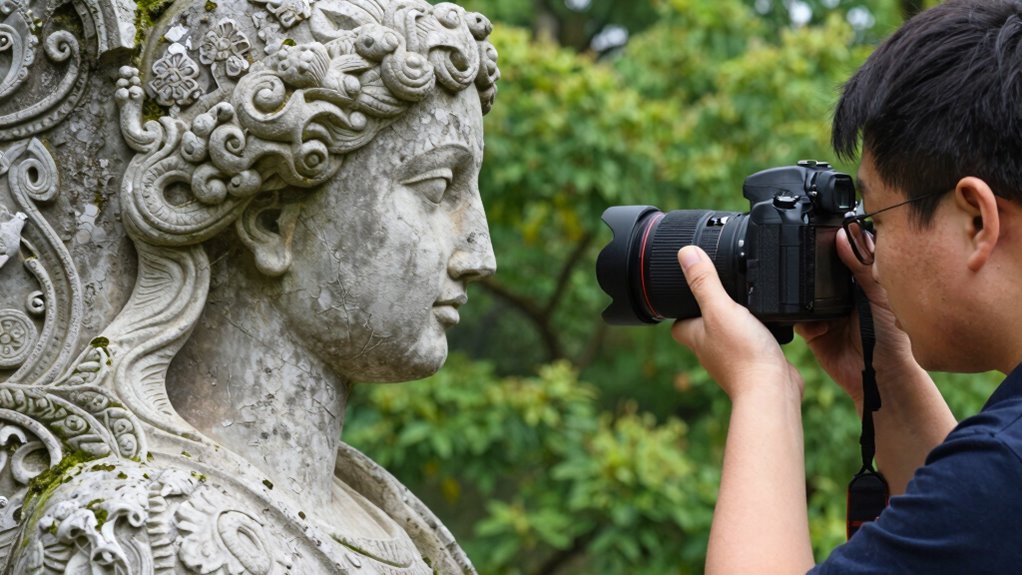
Have you ever wondered how experts create detailed 3D models from ordinary photographs? Photogrammetry is the process that makes this possible by converting images into accurate digital representations. It relies heavily on scale accuracy, ensuring that measurements in the model match real-world dimensions. Environmental factors, like lighting and shadows, can affect the quality of the photos and, consequently, the model’s precision. You need consistent scale and minimal distortions to produce reliable results. Photogrammetry is essential for fields like architecture, archaeology, and surveying because it provides a fast, cost-effective way to generate precise 3D models. Understanding how environmental conditions influence photo quality helps you optimize your images for better accuracy, making your models more useful for analysis, visualization, and planning. Additionally, color accuracy plays a vital role in ensuring that digital reconstructions faithfully represent real-world textures and details. Recognizing the impact of Environmental factors can help you improve your photographic techniques and achieve higher-quality models.
photogrammetry software for 3D modeling
As an affiliate, we earn on qualifying purchases.
As an affiliate, we earn on qualifying purchases.
Essential Equipment and Software for Starting Photogrammetry
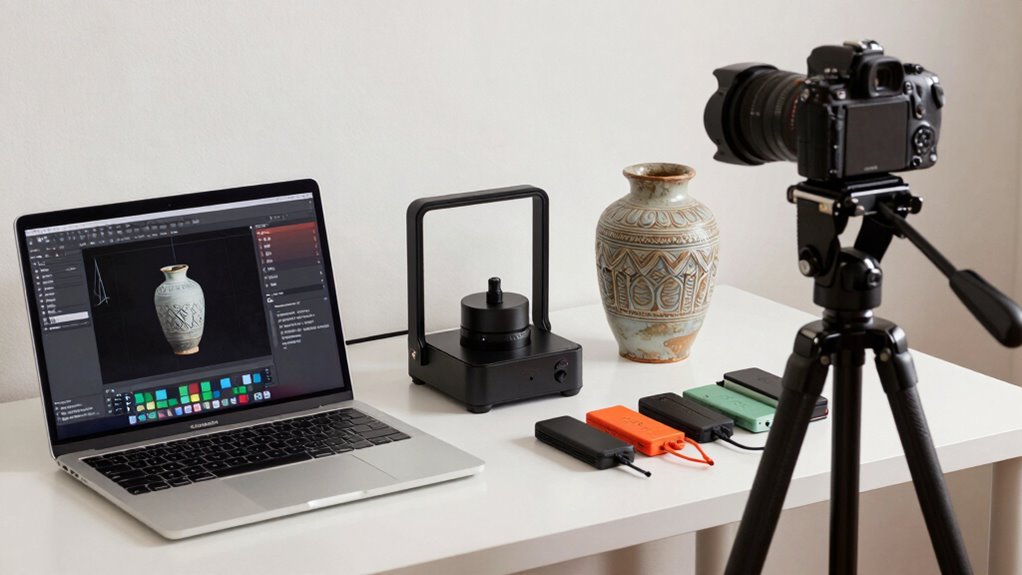
Getting started with photogrammetry requires choosing the right equipment and software to guarantee quality results. You’ll need a good camera, essential software tools, and supporting hardware like a powerful computer. Let’s explore how to select each of these to set yourself up for success. Additionally, understanding the importance of proper home maintenance can help keep your equipment in optimal condition, ensuring consistent and reliable performance during your projects.
Camera Selection Tips
Choosing the right camera is crucial for successful photogrammetry, as it directly impacts the quality of your 3D models. To optimize your results, consider these tips:
- Lens selection: Opt for a macro or standard lens with minimal distortion to capture detailed, accurate images.
- Camera ergonomics: Choose a lightweight, comfortable camera that’s easy to handle for extended shoots, ensuring steady shots.
- Sensor quality: Prioritize cameras with larger sensors for better image detail and low-light performance.
- Resolution: High-resolution cameras provide more detail, which translates into more precise 3D models.
- Camera settings: Adjust settings like focus, shutter speed, and ISO to ensure sharp, well-exposed images that are essential for accurate reconstruction. sensor quality
Essential Software Tools
To start with photogrammetry, you need the right software tools that can process your images into accurate 3D models. Essential software handles tasks like color calibration to guarantee consistent tones across photos, which improves the quality of your final model. Look for programs that support advanced texture mapping, allowing you to apply detailed textures seamlessly onto your 3D surface. These tools help correct color discrepancies and enhance realism, giving your model a professional appearance. Many options offer automated workflows, making the process accessible even if you’re just starting out. By choosing reliable photogrammetry software with these features, you set a solid foundation for creating precise, visually appealing 3D models from your photographs. Additionally, integrating image quality optimization practices can significantly improve the fidelity of your final results. Paying attention to camera settings and proper lighting conditions during image capture can further enhance the accuracy and detail of your models.
Supporting Hardware Needs
Starting your photogrammetry projects requires the right hardware and software to guarantee accurate and efficient results. Ensuring hardware compatibility is essential for smooth operation. To get started, consider these key components:
- A powerful computer with a dedicated graphics card to handle large datasets.
- Adequate RAM (at least 16GB) to process high-resolution images efficiently.
- Reliable peripheral devices like a good camera or smartphone for capturing images.
- Proper storage solutions, such as SSDs, to save and access data quickly.
These hardware elements support faster processing and better quality models. Additionally, compatible peripheral devices and peripherals like external monitors or calibration tools can improve workflow. Investing in quality hardware helps optimize your photogrammetry experience from the start.
macro lens for detailed photography
As an affiliate, we earn on qualifying purchases.
As an affiliate, we earn on qualifying purchases.
How to Choose the Best Photogrammetry Software for Your Projects
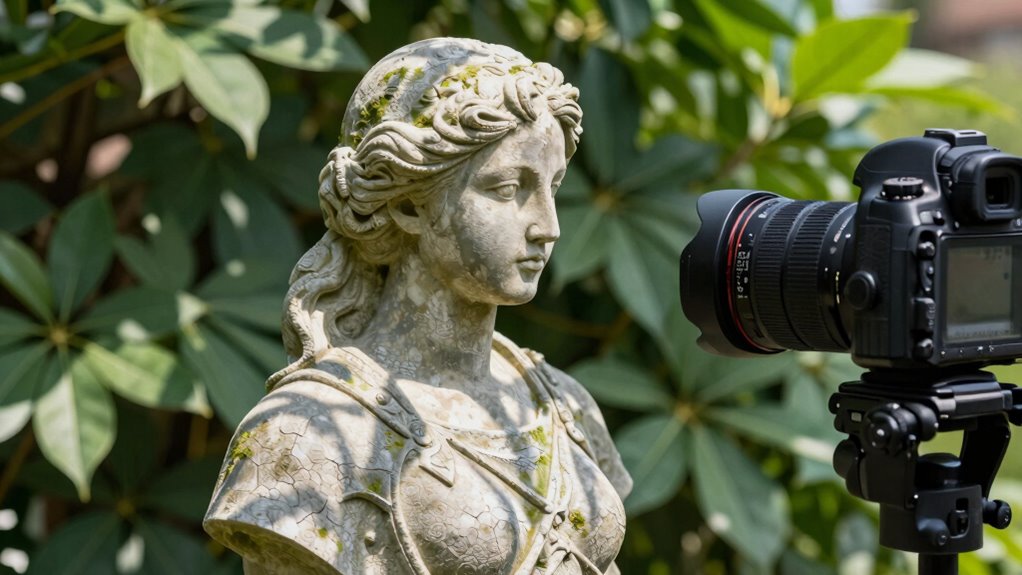
Selecting the right photogrammetry software can considerably impact the quality and efficiency of your projects. You need to consider software compatibility with your hardware and operating system to guarantee smooth operation. The user interface plays a vital role—choose software that’s intuitive and easy to navigate, especially if you’re new to photogrammetry. Here’s a quick comparison:
| Feature | Software A | Software B |
|---|---|---|
| Compatibility | Windows, Mac, Linux | Windows only |
| User Interface | Beginner-friendly | Advanced, feature-rich |
| Processing Speed | Fast with GPU support | Moderate |
Evaluate these factors to pick software that aligns with your technical skills and project needs. Being aware of Free Floating concepts can help streamline workflows and improve project outcomes.
powerful computer for 3D rendering
As an affiliate, we earn on qualifying purchases.
As an affiliate, we earn on qualifying purchases.
How to Capture High-Quality Photos for Accurate 3D Models
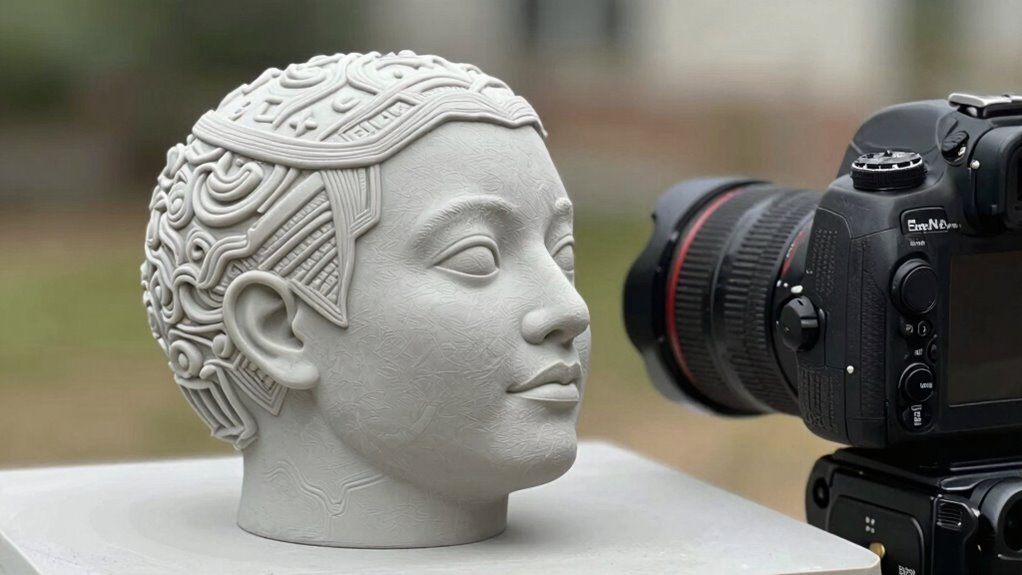
Capturing high-quality photos is fundamental to producing accurate 3D models, especially when your chosen photogrammetry software relies heavily on image detail. To get the best results, focus on these key points:
- Use a consistent lighting setup to minimize shadows and glare, ensuring textures are clear.
- Capture multiple camera angles—overlapping images from different perspectives boost model accuracy.
- Keep your camera steady to avoid blurriness, using a tripod if possible.
- Vary your camera angles to cover all surfaces, avoiding gaps that could affect the model’s completeness.
Preparing Your Photos: Tips for Better Processing Results
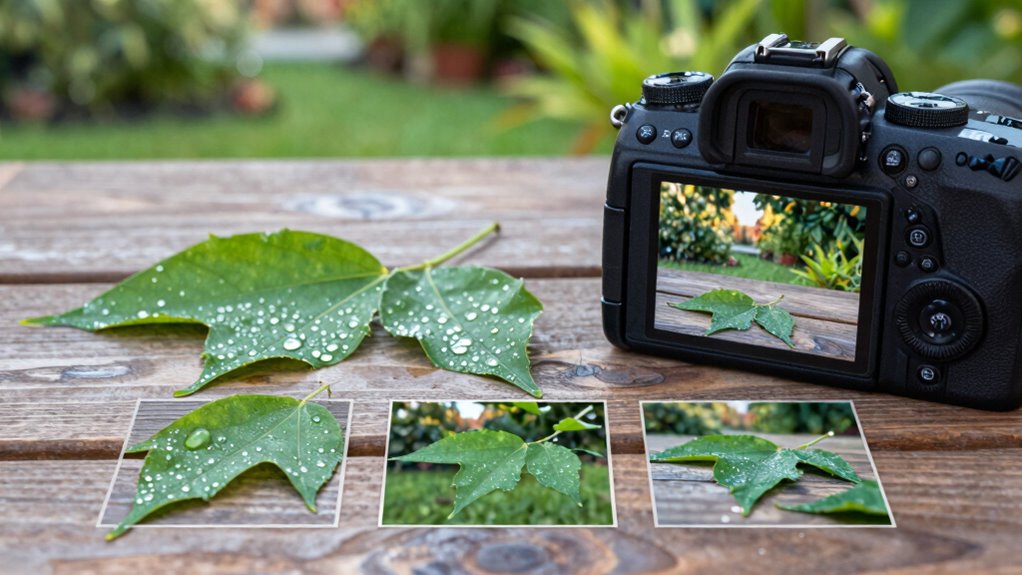
Good lighting makes your photos clearer and more consistent, which helps produce better 3D models. Keep your camera settings steady to guarantee uniformity across shots, reducing processing errors. Take photos from multiple angles to capture all details and improve the accuracy of your results.
Optimal Lighting Conditions
Lighting plays an essential role in guaranteeing your photogrammetry results are accurate and detailed. Proper lighting helps minimize shadows and uneven exposure, making shadow removal easier and improving color correction. To optimize your photos: 1. Use diffuse, even lighting to reduce harsh shadows. 2. Avoid direct sunlight, which causes strong shadows and highlights. 3. Capture images in overcast conditions or indoors with soft, controlled lights. 4. Guarantee consistent lighting across all photos to prevent processing errors. Good lighting enhances detail and reduces post-processing work, saving time. Consistent, diffuse light minimizes shadow interference and improves color accuracy, resulting in cleaner 3D models. Proper lighting conditions are essential for high-quality photogrammetry, helping your software accurately interpret textures and geometry. Additionally, controlling ambient light can help achieve more reliable and repeatable results during your photo capture sessions.
Consistent Camera Settings
To guarantee your photogrammetry results are consistent and accurate, maintaining the same camera settings across all photos is vital. This ensures camera stability, reducing potential distortions or misalignments during processing. Use manual settings to lock exposure, ISO, aperture, and white balance, avoiding automatic adjustments that can cause variations in lighting and focus. Lighting consistency is essential; inconsistent lighting can create shadows or highlights that confuse the software. Keep your camera steady on a tripod or stable surface to prevent motion blur, which can affect detail. Before shooting, double-check your settings and ensure your environment remains unchanged. This approach minimizes discrepancies between images, leading to cleaner, more precise 3D models. Consistent camera settings are the foundation for successful photogrammetry.
Diverse Photo Angles
Capturing photos from multiple angles is essential for creating accurate 3D models in photogrammetry. When you prioritize photo diversity, you guarantee your model captures all details and surfaces. To maximize results, consider these tips for diverse camera angles:
- Vary your camera height to cover different perspectives.
- Move around your subject, avoiding flat or repetitive shots.
- Capture images from above and below to add depth.
- Rotate your camera around the object for full 360-degree coverage.
- Ensure your photos include high-quality imagery to enhance the final model’s detail and realism. Additionally, maintaining consistent lighting conditions across shots helps improve photo quality, leading to more precise modeling outcomes. Remember that lighting consistency is crucial for seamless model integration and accurate surface reconstruction. Incorporating photo overlap ensures comprehensive coverage and better stitching of images during processing.
Step-by-Step: Processing Photos Into Precise 3D Models
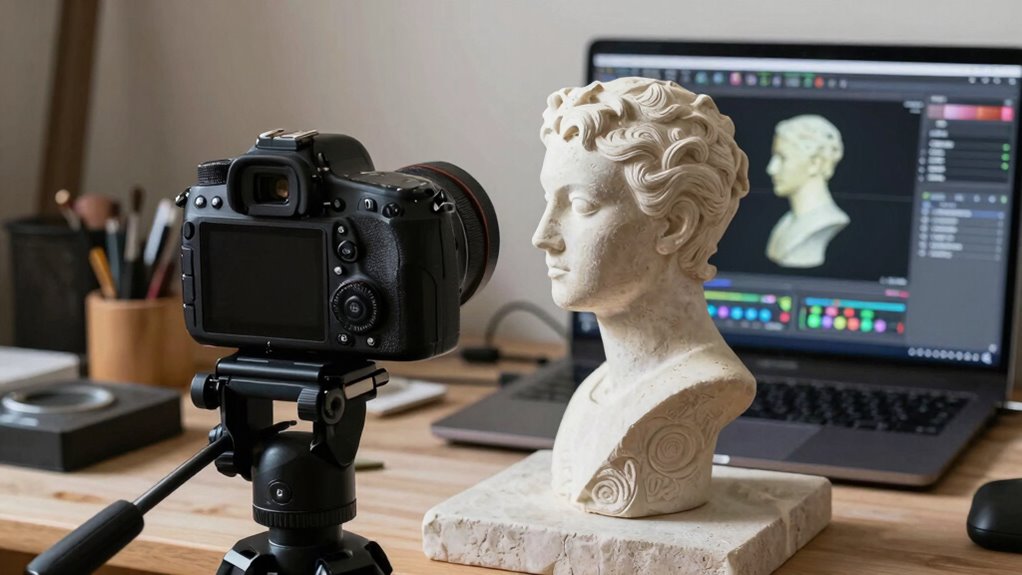
Processing photos into accurate 3D models involves a series of carefully executed steps that transform multiple images into a cohesive digital representation. First, ensure proper lighting techniques to minimize shadows and glare, which can distort data. Consistent lighting enhances feature detection and alignment during processing. Next, verify equipment calibration—check your camera’s focus, lens distortion, and exposure settings before shooting. Well-calibrated equipment ensures that images are consistent, reducing errors in the 3D reconstruction. After capturing, import your photos into photogrammetry software, where you’ll align images, generate a dense point cloud, and build the mesh. Attention to lighting and calibration from the start streamlines processing and results in a more precise, detailed 3D model.
Tips for Improving Model Detail and Reducing Errors
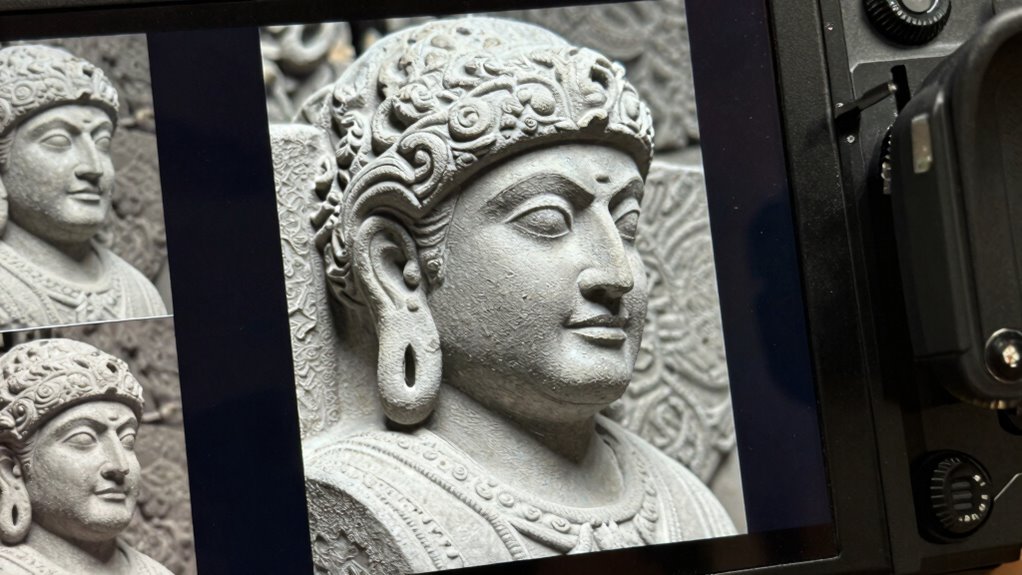
To improve your model detail and minimize errors, start by increasing image overlap to guarantee better coverage. Make sure you use proper lighting to avoid shadows and glare that can distort results. Additionally, optimize your camera settings for sharp, clear photos that capture all necessary details.
Enhance Image Overlap
Enhancing image overlap is essential for creating detailed and accurate 3D models. When you increase image overlap, you provide your software with more common features to match, improving model quality. Guaranteeing overlap consistency across your dataset reduces gaps and errors. To optimize this, consider these tips:
- Take multiple images from different angles to ensure sufficient overlap, typically 60-80%.
- Maintain steady camera movement to keep overlap consistent.
- Capture overlapping shots at regular intervals along the subject.
- Review your photos to confirm that overlap remains uniform, preventing weak spots.
Consistent image overlap enhances feature detection and reduces reconstruction errors, resulting in sharper, more precise models. Remember, good overlap is the backbone of successful photogrammetry.
Use Proper Lighting
Proper lighting is vital for capturing clear, detailed images that lead to accurate 3D models. Use effective lighting techniques to evenly illuminate your subject, reducing shadows and highlights that can distort features. Controlling shadows is essential; too much shadow causes errors in the model, while even lighting minimizes inconsistencies. Natural light works well if it’s diffuse, but if you’re indoors, consider using diffusers or softboxes to spread light evenly. Avoid harsh, direct lighting that creates sharp shadows and uneven exposure. Consistent lighting across all photos ensures better feature detection and matching during processing. Remember, well-lit images improve detail capture, reduce errors, and help you achieve a more precise, high-quality 3D model in the end.
Optimize Camera Settings
Optimizing your camera settings can substantially improve the detail and accuracy of your 3D models. Proper camera calibration ensures consistent measurements and minimizes distortions. Adjust your aperture settings to control depth of field, keeping your subject sharp from foreground to background. Here are key tips:
- Calibrate your camera regularly to maintain accuracy.
- Use narrow aperture settings (like f/8 or higher) for greater depth of field.
- Ensure consistent exposure to avoid lighting discrepancies.
- Lock focus to prevent shifts during shooting.
Common Mistakes to Avoid in Photogrammetry
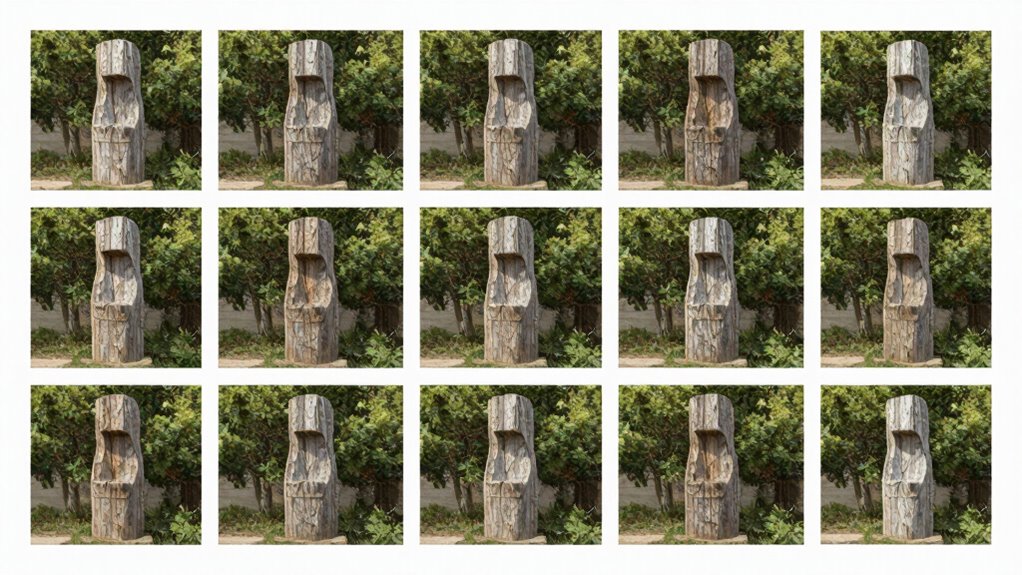
One of the most common pitfalls in photogrammetry is neglecting proper image overlap, which can cause gaps in data and lower model quality. Equally important are lighting mistakes; inconsistent or poor lighting can create shadows and brightness variations that confuse software. Make sure to shoot in uniform lighting conditions to guarantee consistent images. Equipment oversights, like using the wrong camera or lens, can also compromise results. Always choose the appropriate gear for your project, and double-check settings before shooting. Overlooking these details can lead to blurry or poorly exposed images that hinder accurate 3D reconstruction. To avoid these mistakes, plan your shots carefully, ensure even lighting, and use suitable equipment to produce high-quality images that translate into accurate models.
Finalizing and Editing Your 3D Models for Use
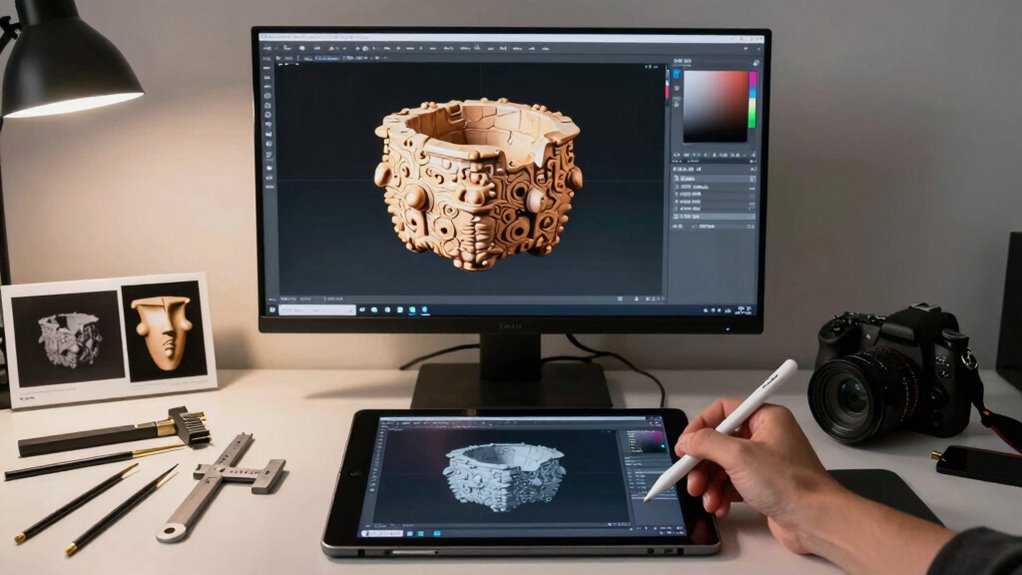
After capturing high-quality images and avoiding common mistakes, the next step is to finalize and edit your 3D model to verify it meets your project’s needs. Start by checking the model’s scale and adjusting it if necessary for accuracy. Then, focus on texture mapping to ensure surfaces look realistic and aligned properly. Use these steps:
- Adjust model scaling for correct proportions.
- Clean up any mesh imperfections or noise.
- Apply or refine texture mapping for better detail.
- Export the model in your desired format for future use.
Ensuring model accuracy during this process helps prevent issues in later stages of your project. Incorporating art preservation principles can guide you in maintaining the integrity of your digital models. Paying attention to mesh quality can significantly improve the final result. Additionally, verifying texture mapping consistency ensures the surfaces appear seamless and realistic. Conducting quality control checks at this stage can help identify potential problems early. These edits help improve quality and usability, making your 3D model ready for visualization, analysis, or integration into larger projects. Proper finalization guarantees your model is both precise and visually appealing.
Next Steps: How to Use Your Models Effectively
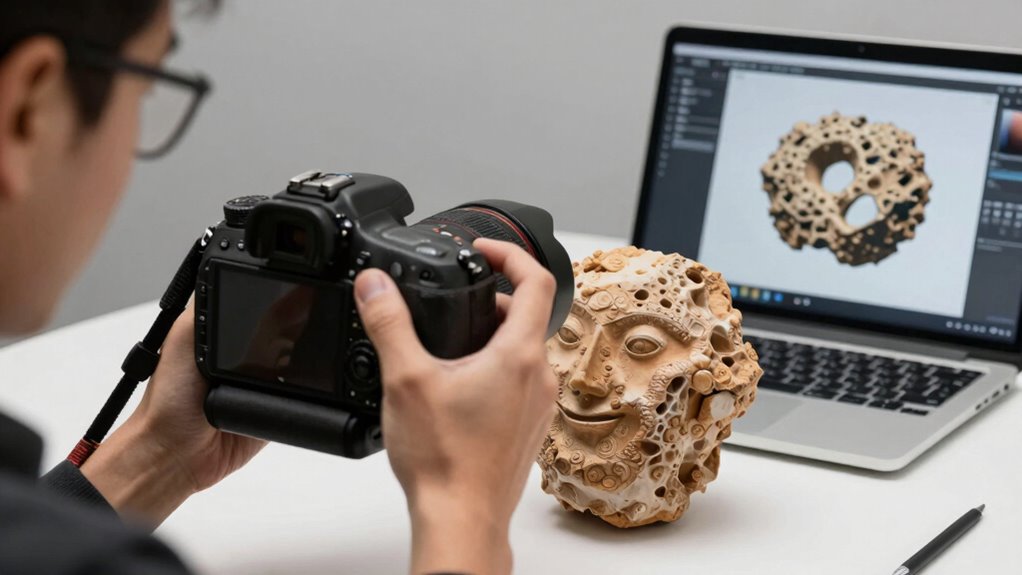
Once you’ve finalized and edited your 3D models, the key to getting the most value out of them is understanding how to use them effectively in your projects. Start with model optimization to enhance performance and reduce file sizes without sacrificing quality. This guarantees smooth application integration, whether you’re embedding models into virtual environments, CAD software, or presentation tools. Consider exporting your models in compatible formats and check for any errors or inconsistencies that could affect usability. Incorporate your models thoughtfully, aligning them with your project goals. Proper application integration allows you to showcase your work clearly and professionally, whether for visualization, analysis, or presentation. Using your optimized models strategically maximizes their impact and efficiency across various platforms.
Frequently Asked Questions
Can Photogrammetry Be Used for Large-Scale Outdoor Mapping?
Yes, you can use photogrammetry for large-scale outdoor mapping. Drone deployment makes capturing extensive areas easier, allowing you to cover vast terrains efficiently. However, terrain considerations are vital—unstable or dense environments can affect photo quality and accuracy. Planning your flight paths carefully and selecting suitable drones help guarantee detailed, accurate models. With proper preparation, photogrammetry becomes a powerful tool for thorough outdoor mapping projects.
How Does Lighting Affect Photogrammetry Accuracy?
Lighting conditions considerably impact photogrammetry accuracy by affecting photo quality. You’ll get better results in consistent, diffuse lighting, which reduces shadows and highlights. Poor or uneven lighting creates shadows and glare, distorting features and complicating feature matching. To improve accuracy, shoot in ideal lighting, like overcast days or shaded areas, and avoid harsh direct sunlight. Good lighting ensures clearer photos, leading to more precise 3D models.
What Are the Best Practices for Capturing Moving Objects?
When capturing moving objects, you should use a fast shutter speed to minimize motion blur and guarantee sharp images. Keep your camera stable to prevent any additional blur or misalignment. Take multiple overlapping shots from different angles quickly, and avoid sudden movements. Consistent lighting also helps. By maintaining camera stability and reducing motion blur, you’ll improve the accuracy of your 3D models and make processing smoother.
Is Photogrammetry Suitable for Real-Time 3D Modeling?
Think of photogrammetry as a slow, steady river—great for detailed, high-quality models but not for real-time needs. It’s not ideal for real-time 3D modeling because it requires precise sensor calibration and extensive data integration, which take time. While advancements are happening, current methods mainly suit post-processing. For real-time applications, consider alternative tech like LiDAR or structured light systems that deliver instant results.
How Do I Troubleshoot Common Errors During Processing?
To troubleshoot common errors during processing, start by checking your software troubleshooting steps, ensuring your photos are clear and well-lit. If you encounter errors, review the error messages carefully and consult the software’s help resources. Correct issues like misaligned images or overlapping points by adjusting settings or re-importing photos. Regularly update your software to fix bugs, and consider running error correction tools to improve overall processing success.
Conclusion
Now that you know the essentials, you can capture, process, and perfect your 3D models with confidence. Embrace the process, refine your techniques, and avoid common pitfalls. Picture yourself transforming photos into detailed digital sculptures, each step building upon the last. With practice, patience, and passion, your projects will evolve from simple images to stunning, accurate models. Keep experimenting, keep learning, and turn your ideas into reality—one photo at a time.
Fall Picks
fall essentials
As an affiliate, we earn on qualifying purchases.