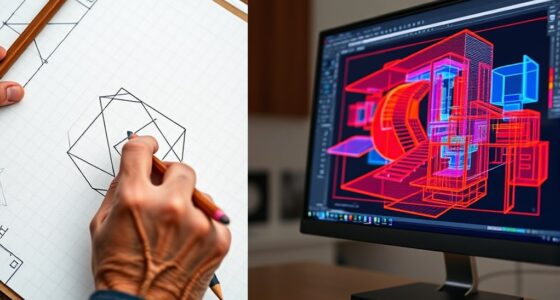
Choosing between ultrawide and dual monitors for CAD and drafting depends on your workflow needs. Ultrawide screens offer a seamless, wide workspace ideal for broad views, reducing clutter and cable management. Dual monitors provide more flexibility to multitask and view detailed elements more clearly. Both setups can boost productivity, but your space, budget, and preferences matter. To find out which fits your style best, explore the detailed advantages of each option.
Key Takeaways
- Ultrawide monitors offer seamless wide views ideal for broad CAD projects, reducing window switching and enhancing workflow continuity.
- Dual monitors provide dedicated screens for design and reference materials, boosting multitasking and detailed viewing.
- Color accuracy and calibration are crucial; high-quality ultrawides can match or exceed dual setups for precise drafting visuals.
- Cost considerations favor ultrawide monitors for a single, integrated workspace, while dual setups may incur higher initial and maintenance costs.
- Workspace flexibility and ergonomic setup depend on user preference; ultrawides save desk space, but dual monitors allow customized positioning.
What Are the Best Monitor Options for CAD and Drafting?

When choosing monitors for CAD and drafting, it’s essential to prioritize high resolution, accurate color reproduction, and ample screen space. Ensuring proper monitor calibration is necessary to achieve consistent, precise visuals, especially when working with detailed designs. Look for monitors with at least 4K resolution to display fine details clearly. Color accuracy is crucial for rendering true colors, so opt for models with wide color gamuts and factory calibration. This guarantees your work remains consistent across different devices and lighting conditions. Additionally, consider screens with good ergonomics and connectivity options to enhance your workflow. monitor calibration techniques are vital for maintaining color fidelity over time. Incorporating color gamut support ensures that your displays can reproduce a broader range of colors, which is essential for detailed CAD work. To further support high-quality visuals, selecting monitors with energy-efficient technology can reduce power consumption and environmental impact, aligning with sustainable practices. By focusing on these factors, you’ll select a monitor that supports precise, high-quality CAD and drafting work, minimizing errors and boosting productivity.
Benefits of Ultrawide Monitors for CAD and Drafting
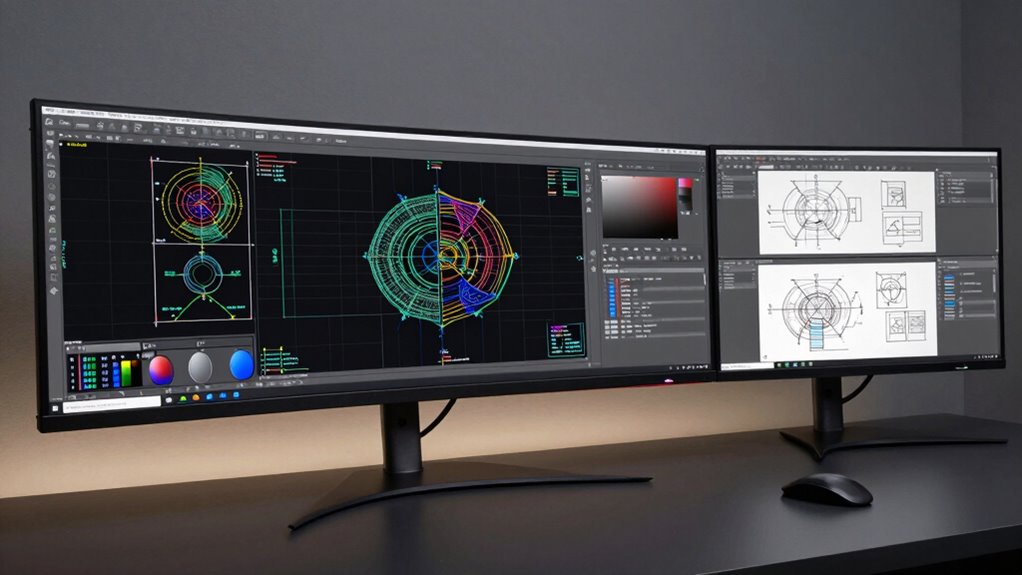
Ultrawide monitors give you more workspace, making it easier to view multiple design elements without switching windows. This increased flexibility helps streamline your workflow and reduces clutter on your screen. Plus, they enable seamless multitasking, so you can work on complex CAD projects more efficiently. Additionally, the expansive screens can facilitate sound healing science by allowing users to incorporate calming visuals or sounds into their workspace to enhance focus and relaxation during long drafting sessions.
Enhanced Workspace Flexibility
Because they offer a seamless, expansive display area, ultrawide monitors considerably enhance workspace flexibility for CAD and drafting tasks. This larger visual real estate allows you to organize tools, palettes, and reference materials without clutter, making your workflow more efficient. The ergonomic benefits are notable, as you can reduce the need for multiple monitors, minimizing neck and eye strain. Plus, the aesthetic appeal of a single, sleek ultrawide creates a clean, professional look in your workspace. You gain the freedom to arrange your projects and interfaces precisely how you want, boosting productivity and comfort. Overall, ultrawide monitors give you an adaptable, visually appealing setup that supports complex tasks with ease. This flexibility makes them a compelling choice for CAD and drafting professionals, especially considering outdoor-ready tech that can withstand demanding environments.
Seamless Multitasking Experience
Seamless multitasking is one of the biggest advantages ultrawide monitors offer for CAD and drafting professionals. With a single, expansive display, you can manage multiple applications and toolsets simultaneously, boosting your multitasking efficiency. This setup reduces the need to switch between windows, saving you time and minimizing distractions. An ultrawide monitor also enhances workspace organization by allowing you to keep reference images, palettes, and timelines open side-by-side without clutter. You can layout your workspace more intuitively, making complex projects easier to navigate. The continuous screen real estate supports a more natural workflow, helping you stay focused and productive. Overall, an ultrawide monitor creates a seamless multitasking experience that optimizes your CAD and drafting sessions from start to finish.
How Dual Monitors Improve Your CAD Workflow and Flexibility
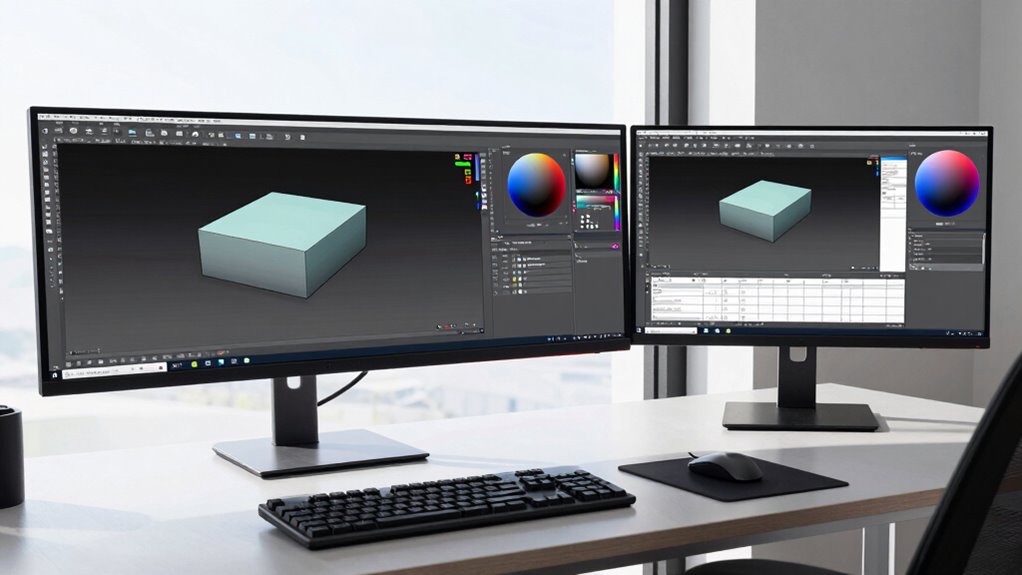
Using dual monitors can considerably enhance your CAD workflow by giving you more screen real estate and better organization. With two displays, you can dedicate one monitor to your design workspace and the other to references, tools, or communication apps, boosting your efficiency. This setup allows you to switch seamlessly between tasks without cluttering a single screen. Additionally, maintaining monitor calibration guarantees consistent color accuracy across both screens, which is vital for precise drafting and detailed design work. Proper calibration prevents color mismatches that could affect your project’s quality. Furthermore, monitor calibration ensures that colors remain consistent, reducing errors in color-dependent tasks. Overall, dual monitors provide greater flexibility, helping you work more comfortably and accurately, especially during complex projects that demand multiple views and detailed control. Exploring the Shadows can reveal how unseen factors, such as consistent calibration and proper setup, influence your workflow and project outcomes.
Screen Space and Clarity: Which Setup Shows More Detail?

When it comes to working with detailed CAD designs, the amount of screen space and the clarity of your display can directly impact your productivity and accuracy. An ultrawide monitor offers extensive horizontal real estate, allowing you to view more of your project simultaneously, which enhances visual clarity. However, dual monitors often provide higher screen resolutions on each display, resulting in sharper images and finer detail. This increased resolution can make complex lines and small text easier to distinguish. Ultimately, if you prioritize a seamless, wide view, an ultrawide might be better. But if you need maximum detail and sharpness at specific points, dual monitors with higher resolution can give you the edge in showing more intricate detail clearly.
Workspace Space and Ergonomics: Which Setup Fits Better?
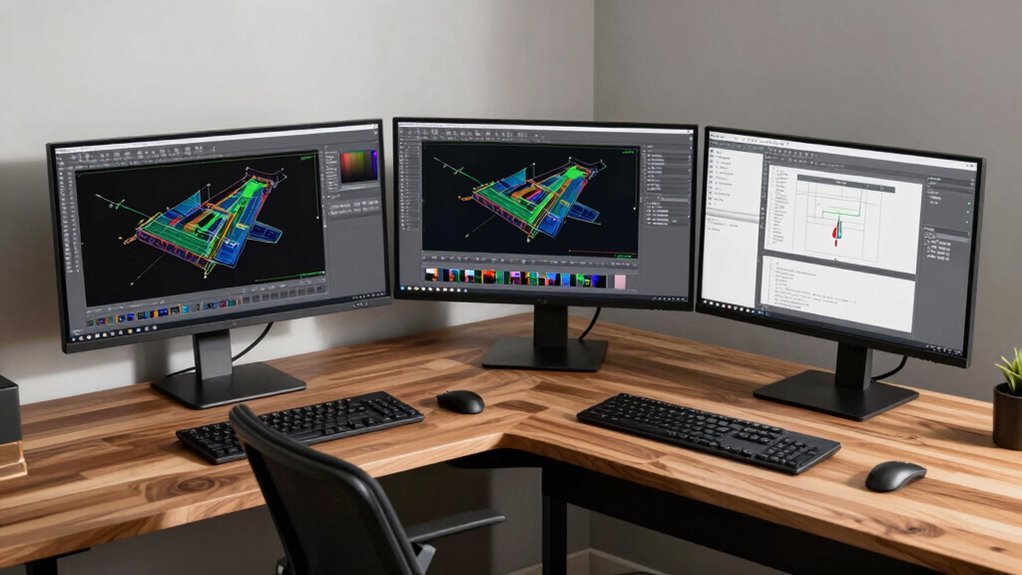
Choosing the right workspace setup depends largely on how well it fits your available space and supports ergonomic comfort. An ultrawide monitor can save desk space by eliminating the need for multiple screens, helping maintain a clean desk organization. Its seamless display allows for ergonomic positioning, reducing neck strain since you won’t need to turn your head as much. Dual monitors, on the other hand, might require more space but offer flexibility in arranging screens to suit your workflow. Proper desk organization ensures your monitors are at eye level, preventing discomfort over long hours. Whichever setup you choose, prioritize ergonomic positioning to minimize fatigue. Consider your workspace dimensions and how each option aligns with your ergonomic needs to find the best fit.
Cost, Setup, and Maintenance: Which Is More Practical?
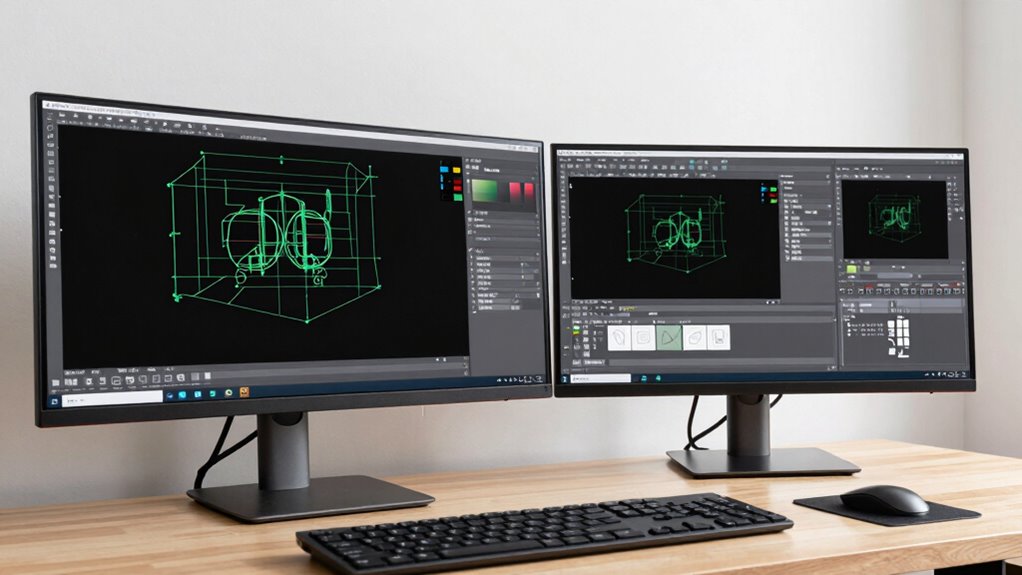
Ultrawide monitors often come with a higher upfront cost but can simplify setup and reduce ongoing maintenance. When considering the cost comparison, a single ultrawide reduces the need for multiple stands, cables, and adapters, which can lower overall expenses. Additionally, maintenance requirements are generally less demanding since you’re managing only one device instead of several. Dual monitors may have a lower initial price, but they can incur higher costs over time due to more cables, potential hardware issues, and adjustments needed for alignment. Ultrawide screens also tend to be more durable, with fewer components to worry about. Durability is often higher because of their integrated design, leading to fewer points of failure. Overall, while the initial investment may be higher, ultrawide monitors can be more practical in terms of setup ease and long-term maintenance, saving you time and money.
How to Choose the Right CAD Monitor Setup for You
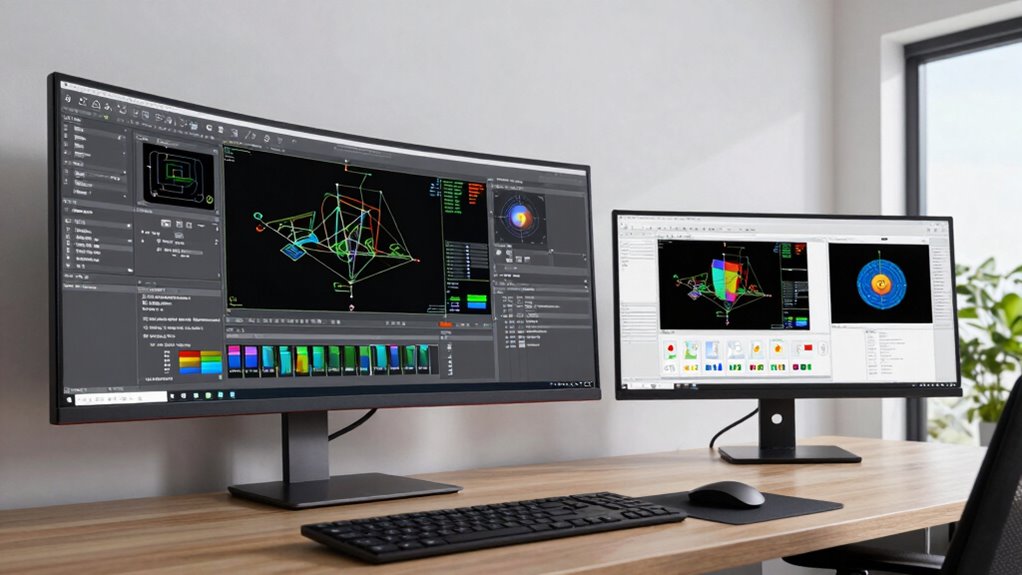
Selecting the right CAD monitor setup depends on your specific workflow, workspace, and budget. First, consider monitor calibration to ensure your display shows accurate details, which is vital for precise drafting. Look for monitors with excellent color accuracy, especially if your work involves rendering or detailed visuals. Size matters—ultrawide monitors provide seamless, expansive views, while dual monitors offer flexibility and multitasking ease. Think about your desk space and how much room you have for either setup. Your budget also plays a role; high-quality calibration tools and color-accurate screens may cost more but improve your work quality. Ultimately, choose a setup that enhances your productivity, guarantees accurate color representation, and fits comfortably within your workspace constraints.
Frequently Asked Questions
How Does Monitor Resolution Impact CAD Performance?
Higher monitor resolution considerably boosts CAD performance by providing clearer, more detailed visuals, making it easier to work on intricate designs. When you use a monitor with a higher resolution, you can see more of your project at once, reducing the need to scroll or zoom constantly. This improves your workflow, accuracy, and efficiency. So, investing in a higher resolution monitor is essential for peak CAD performance.
Can Ultrawide Monitors Cause Compatibility Issues With CAD Software?
Ultrawide monitors can cause compatibility issues with CAD software, especially if the software isn’t optimized for ultra-high resolutions or unusual aspect ratios. You might face challenges with software integration, like distorted interfaces or limited functionality. To prevent this, check your CAD program’s compatibility and confirm your ultrawide monitor‘s specifications align with the software requirements, giving you a smoother drafting experience.
What Are the Ergonomic Considerations for Long-Term CAD Use?
Maintaining ergonomic posture is vital for long-term CAD use. You should position your monitor at eye level to prevent neck strain, keep your back straight, and use an adjustable chair for comfort. To prevent eye strain, take regular breaks, follow the 20-20-20 rule, and guarantee proper lighting. These practices help you stay comfortable and reduce fatigue, making certain you can work efficiently without long-term health issues.
Are There Specific Brands Better Suited for CAD and Drafting Tasks?
You should consider brands like Dell, LG, and ASUS for CAD and drafting tasks, as they offer excellent brand compatibility and reliable warranty coverage. These manufacturers prioritize high-resolution displays, color accuracy, and ergonomic features suited for professional design work. Choosing a reputable brand guarantees you get dependable performance, easier repairs, and support, helping you stay productive without worrying about technical issues or compatibility problems.
How Does Monitor Calibration Affect Color Accuracy in CAD Work?
You know that monitor calibration is essential for accurate color in CAD work. When you calibrate your display with proper calibration tools, you guarantee consistent color accuracy across your projects. This process helps maintain color consistency, preventing discrepancies that could affect your design details. Regular calibration keeps your monitor aligned with industry standards, so your visualizations stay precise, and you avoid costly mistakes caused by inaccurate color representation.
Conclusion
Choosing between ultrawide and dual monitors is like selecting the perfect canvas for your masterpiece. Both setups can elevate your CAD work, offering space and clarity, but your choice depends on your workflow and budget. Picture yourself as the artist, wielding a brush or two, each with its own unique stroke. Whichever you choose, remember that the right setup transforms your desk into a command center—ready to bring your visions to life with precision and ease.