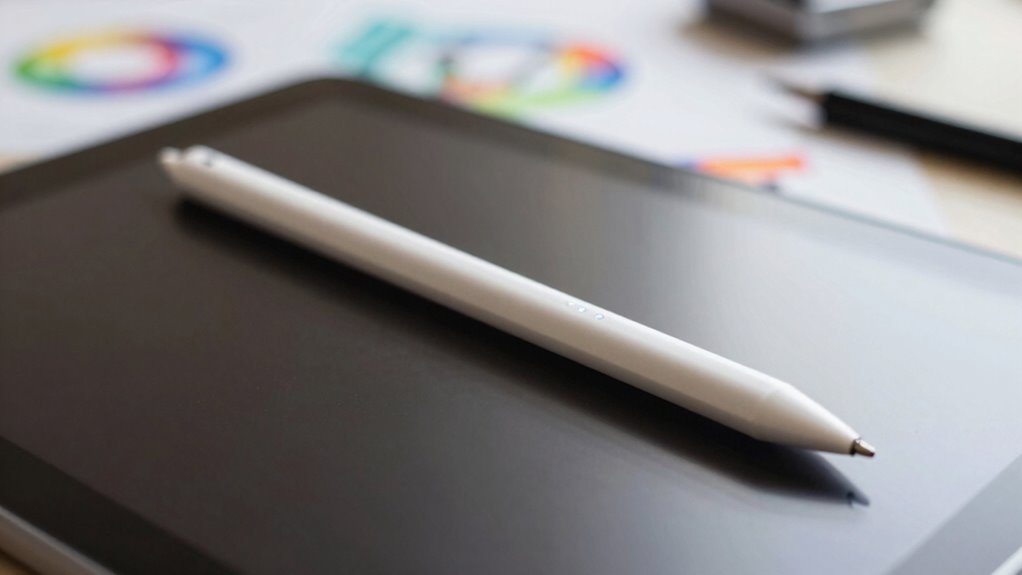

Understanding stylus specs like tilt sensitivity, hover distance, and latency helps you choose tools that feel natural and precise. Tilt sensitivity lets you control shading and strokes by changing the stylus angle, while hover distance affects how accurately you can work without touching the screen. Latency impacts how quickly your strokes appear, making your workflow smoother. If you want to create with confidence and finesse, exploring these features further can make a huge difference.

Prime made for students and young adults
- Fast, free delivery for dorm and study essentials
- Prime Video and Amazon Music included
- Member-only deals
Key Takeaways
- Tilt sensitivity enables nuanced shading and brush effects by detecting the stylus angle, mimicking traditional art tools.
- Hover distance affects control precision, with shorter distances allowing for more accurate sketching and shading.
- Latency is the delay between stroke input and on-screen response; lower latency results in a more natural drawing experience.
- Proper calibration of tilt and hover sensors ensures accurate responsiveness and enhances overall stylus performance.
- These specs collectively influence drawing accuracy, responsiveness, and comfort, making them crucial for effective digital art creation.
stylus with tilt sensitivity for digital art
As an affiliate, we earn on qualifying purchases.
As an affiliate, we earn on qualifying purchases.
What Are Tilt Sensitivity, Hover Distance, and Latency in Styluses?
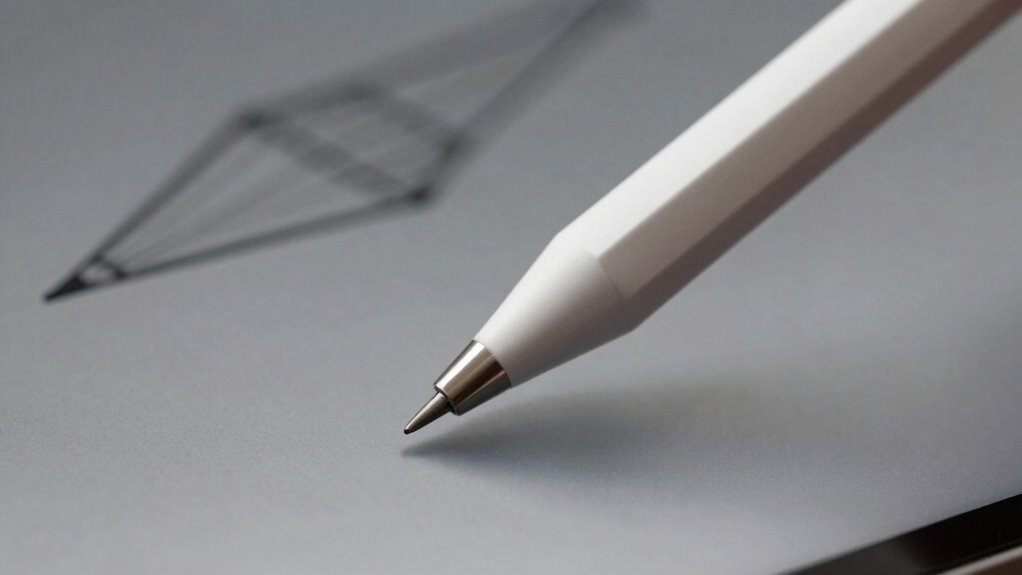
When choosing a stylus, it’s important to understand key features like tilt sensitivity, hover distance, and latency, as they directly impact your drawing and writing experience. Tilt sensitivity allows your stylus to detect the angle you hold it, influencing shading and brush strokes. Hover distance refers to how far above the screen the stylus can be detected without making contact, affecting precision and workflow. Latency is the delay between your stroke and its appearance on the screen, which can hinder your flow. Additionally, sensor calibration guarantees accurate response, especially when tilt and pressure are involved. Battery life also plays a role, as a longer-lasting stylus reduces interruptions. Innovative cloud solutions are increasingly supporting the development of advanced stylus technologies, enhancing overall performance. Together, these specs help you choose a device that performs reliably, supporting your creative process without frustration.
low latency stylus for drawing tablets
As an affiliate, we earn on qualifying purchases.
As an affiliate, we earn on qualifying purchases.
Why Do These Stylus Specs Matter for Your Digital Art?
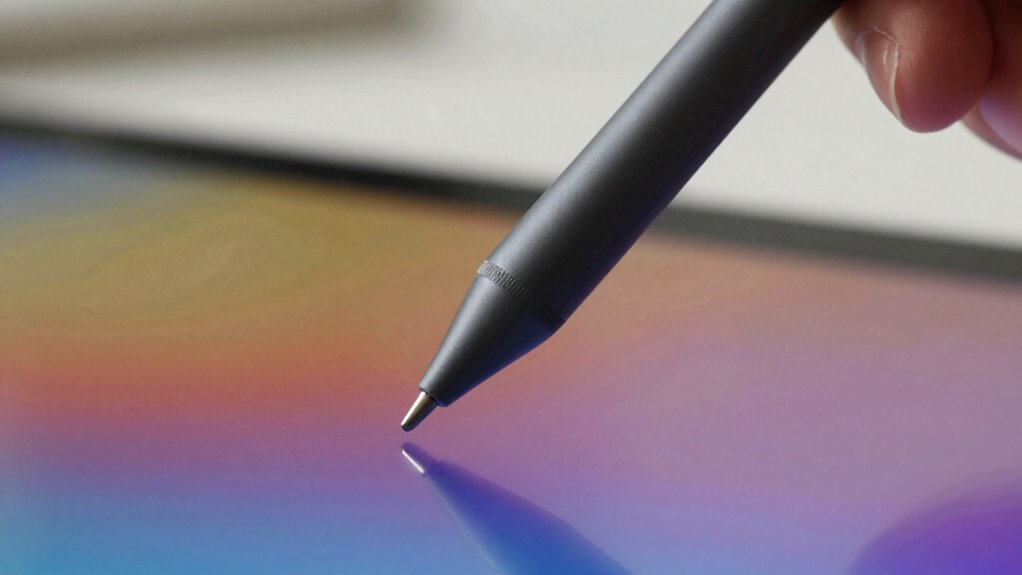
Understanding the specs of your stylus is essential because they directly influence how accurately and smoothly you can create digital art. When you pay attention to these details, your work feels more natural, mimicking traditional tools. Consider how:
Pay attention to stylus specs to ensure natural, precise, and comfortable digital art creation.
- The weight and balance enhance digital pen ergonomics, reducing fatigue during long sessions.
- The stylus material choices affect grip comfort and durability, preventing slips and ensuring consistent control.
- Precise tilt sensitivity and hover distance give you nuanced control over shading and line variation, making your art more expressive.
- Features like Free Floating capability can improve your control and fluidity when drawing complex designs.
- Additionally, contrast ratio impacts how well you can see fine details in your artwork, especially in shaded or dark areas, making your work clearer and more precise.
- Being aware of latency helps you choose a stylus that minimizes delays between your movements and their on-screen response, creating a more natural drawing experience.
These specs determine how intuitive your drawing experience is, helping you translate your ideas seamlessly onto the screen. By choosing a stylus aligned with your needs, you improve both comfort and creative precision, elevating your digital art to new levels.
stylus with hover distance control
As an affiliate, we earn on qualifying purchases.
As an affiliate, we earn on qualifying purchases.
How Does Tilt Sensitivity Improve Drawing Precision?
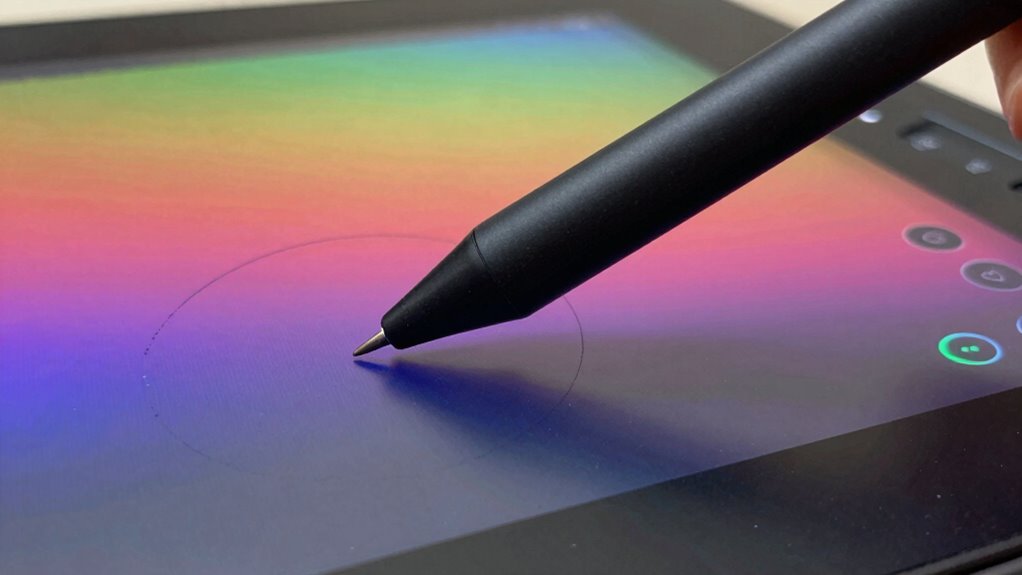
Have you ever noticed how shading and line weight can vary naturally in traditional drawing? Tilt sensitivity enhances this in digital art by mimicking those real-world effects. When you tilt your stylus, it detects the angle, allowing you to control stroke width and shading intensity seamlessly. This feature can be tested and adjusted using quick‑calculators, ensuring optimal performance. Additionally, stylus ergonomics play a crucial role in maintaining comfort and precision during extended drawing sessions. This makes your lines more dynamic and expressive, reducing the need for constant adjustments. Plus, good stylus ergonomics guarantees you can tilt comfortably, maintaining precision over long sessions. Pressure sensitivity works hand-in-hand with tilt, letting you vary line weight based on how hard you press and the stylus’s angle. Together, these features give you greater control, enabling more realistic, nuanced artwork that feels natural and effortless to produce.
As an affiliate, we earn on qualifying purchases.
What Is Hover Distance, and Why Is It Important?
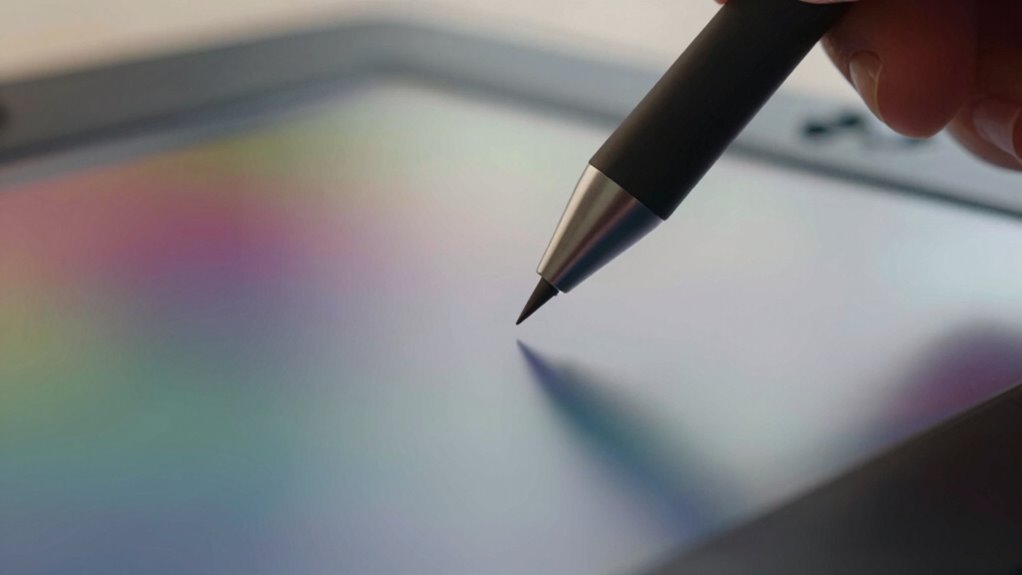
Hover distance refers to the gap between your stylus tip and the drawing surface when the stylus is close but not touching. This distance matters because it affects your drawing experience, especially with pressure sensitivity and palm rejection. If the hover distance is too large, your device might not detect subtle pressure changes, reducing precision. Conversely, a small hover distance allows for more accurate control, letting you sketch, shade, and erase smoothly. Visualize the stylus floating just above the surface, ready to respond. Imagine:
- Your stylus gliding effortlessly, sensing tiny tilt shifts
- The surface recognizing your palm’s resting position without interference
- Fine pressure adjustments translating into detailed strokes
A short hover distance ensures your stylus responds instantly, making your creative process seamless and intuitive. Proper calibration of hover distance can significantly enhance your overall drawing accuracy and comfort, especially when utilizing pressure sensitivity features. Additionally, a well-calibrated hover distance can reduce latency, making your drawing feel more natural and responsive.
How Does Latency Impact Responsiveness When Drawing?
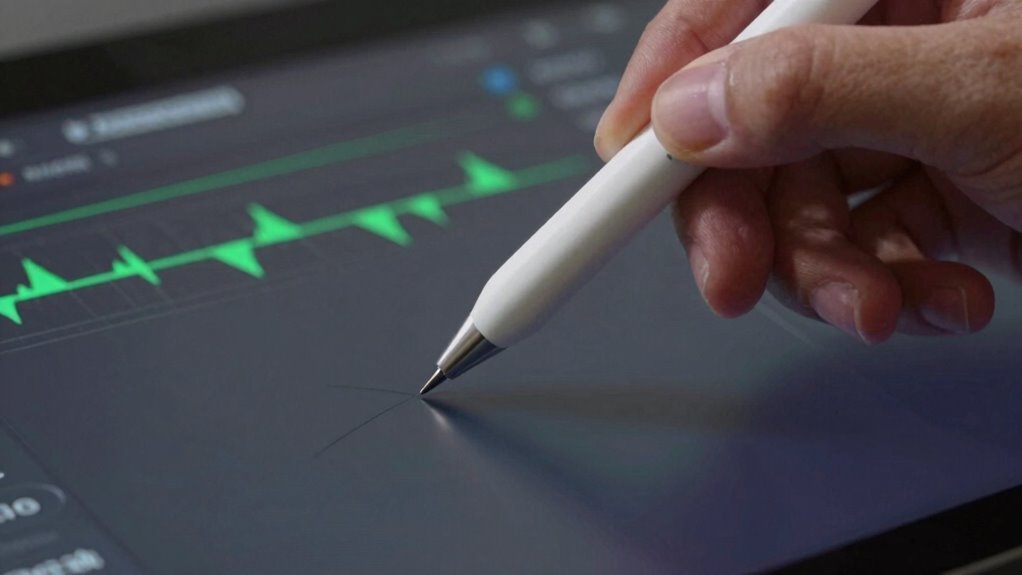
Latency affects how quickly your stylus input appears on the screen, making your drawing feel more or less responsive. Signal transmission speed and device processing delay determine how fast your strokes are reflected, influencing your accuracy. When these factors are high, your perception of responsiveness drops, making drawing feel sluggish and disconnected. Additionally, connected devices with advanced processing capabilities can help reduce latency, resulting in a more seamless drawing experience. Optimizing digital pen technology can further improve responsiveness and elevate your creative workflow. Understanding latency’s impact can help you choose equipment that improves your overall creative workflow, especially when considering the importance of input accuracy for detailed work.
Signal Transmission Speed
When signal transmission speed is high, your stylus responds quickly to your movements, making drawing feel natural and seamless. Faster transmission allows your digital pen to communicate instantly with the device, reducing lag and increasing precision. This real-time feedback is essential for detailed artwork and smooth sketching. Think of it like:
- A whisper-quiet exchange between stylus and screen
- Minimal delay that keeps your hand and digital creation in sync
- Fluid lines that match your every stroke
With advanced stylus technology, high signal transmission speeds ensure your strokes are captured accurately without frustration. The better the communication, the more your stylus feels like an extension of your hand, enhancing creative flow and control. Low latency is crucial for achieving this responsiveness and a natural drawing experience. Additionally, understanding latency helps you choose tools that support your artistic needs effectively.
Device Processing Delay
Device processing delay, also known as latency, directly affects how responsive your stylus feels during drawing sessions. When latency is high, you might notice a lag between your hand movements and the on-screen response, disrupting your workflow. Good stylus ergonomics help minimize fatigue, but if the device processing delay is too long, it can make even comfortable pens feel unresponsive. Additionally, longer latency can lead you to press harder or adjust your grip, impacting your drawing precision. Keep in mind that reducing latency often requires efficient processing, which can impact battery life. A stylus with optimized device processing delay balances responsiveness with power consumption, ensuring you can work comfortably over extended periods without constantly worrying about draining the battery. Efficient processing helps maintain a balance between responsiveness and power use, enhancing overall user experience.
User Perception Timing
Because your perception of responsiveness relies heavily on how quickly the stylus reacts to your movements, even small delays can feel noticeable. When latency increases, your drawing experience can seem sluggish or disconnected, affecting your workflow and creativity. To minimize this, consider ergonomics considerations, such as comfortable grip and natural hand positioning, which influence how responsive you perceive the stylus. Additionally, stylus compatibility with your device ensures minimal lag and smooth tracking. Visualize:
- The quick glide of your stylus as it seamlessly follows your hand’s motion
- The instant feedback as your brush strokes appear on the screen
- The natural feel of the stylus in your hand, matching your drawing gestures perfectly
Understanding latency and its impact helps you choose tools that deliver a more responsive experience. Reducing latency enhances your perception of responsiveness, making drawing feel intuitive and fluid. Device performance also plays a critical role in minimizing input delays and delivering smooth interactions.
To further improve responsiveness, paying attention to software optimization can help reduce lag and provide a more seamless drawing experience.
How to Test and Compare Stylus Specs Before Buying?
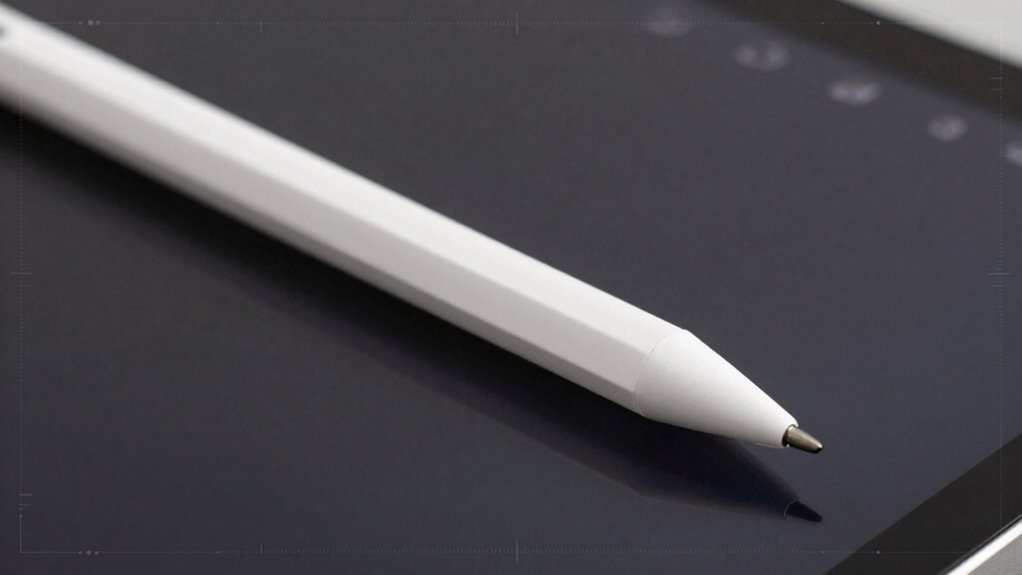
Before purchasing a stylus, it’s essential to test and compare its specs to guarantee it meets your needs. Focus on stylus ergonomics to ensure comfortable handling during extended use. Hold the stylus and see how it feels in your hand, checking for weight balance and grip comfort. Pay attention to battery life considerations by asking about estimated usage time and charging requirements, especially if you plan to use it extensively. Test the stylus on your device to evaluate pressure sensitivity, tilt functions, and hover distance. Many stores allow you to try before you buy, so take advantage of these opportunities. Comparing different models based on these specs helps you find a stylus that’s both comfortable and reliable, aligning with your workflow and preferences.
Common Mistakes to Avoid When Choosing a Stylus Based on Specs?
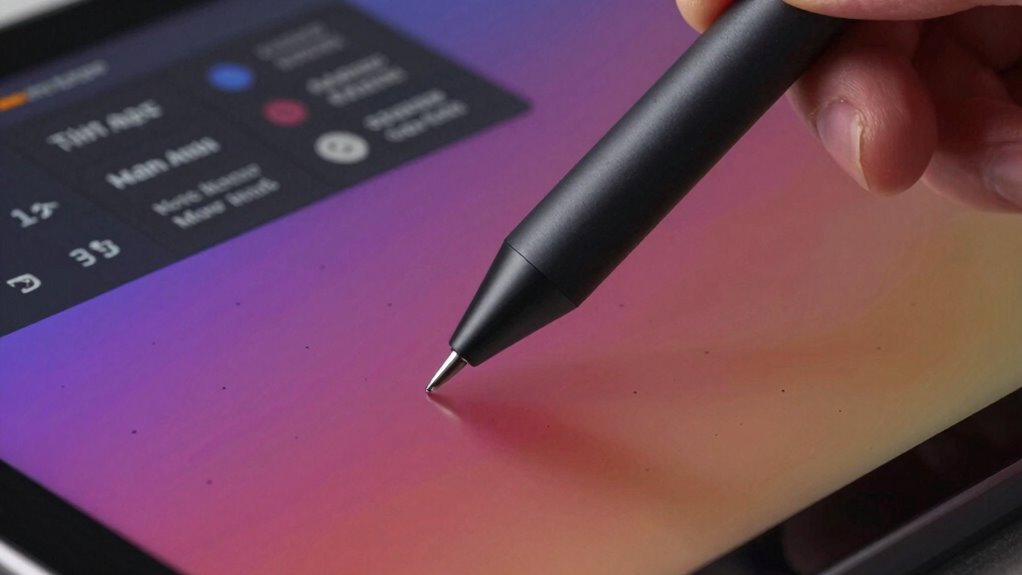
One common mistake people make when selecting a stylus based solely on specs is focusing too much on individual features without considering how they work together or suit their specific needs. For example, you might prioritize high tilt sensitivity but overlook stylus ergonomics, making extended use uncomfortable. You could also chase a long stylus battery life without considering how it impacts weight or balance, affecting your comfort. Visualize a stylus with:
- A lightweight, balanced design for comfortable extended use
- A long-lasting battery that doesn’t add unnecessary weight
- Precise tilt and hover features that feel natural in your hand
- Design considerations that promote both functionality and comfort during prolonged use. Additionally, neglecting compatibility with your device can lead to performance issues or limited functionality. Ignoring how these aspects combine can lead to dissatisfaction, even if the specs seem perfect on paper. Always evaluate how the stylus’s features support your workflow and comfort. Additionally, consider trusted businesses and services that offer quality styluses to ensure you’re investing in reliable and well-designed tools. Be mindful that ergonomics and usability are just as crucial as the technical specifications when choosing a stylus for your specific tasks. Furthermore, understanding how specs influence performance can help you select a stylus that truly meets your needs.
Tips to Optimize Your Stylus for Creative Work?
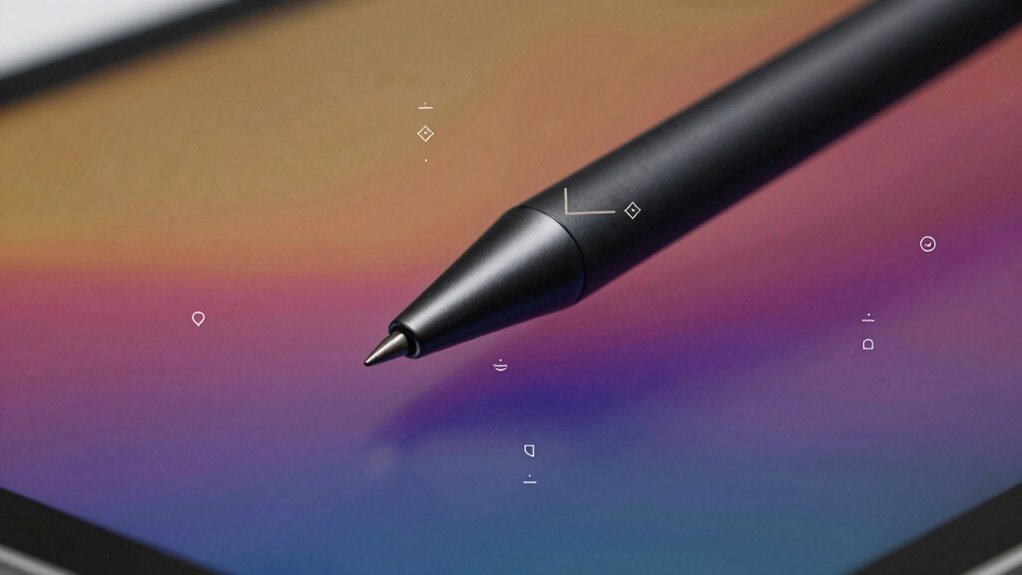
To get the most out of your stylus, start by adjusting the pressure sensitivity settings to match your drawing style. Fine-tuning tilt and hover distance can also improve precision and responsiveness during creative work. These tweaks help you create more natural and accurate artwork with less frustration. Additionally, ensuring your device has the latest stylus technology can enhance overall performance and compatibility. Considering the best esthetician magnifying lamps can also assist in detailed work, ensuring clarity and precision in your craft.
Enhanced Pressure Sensitivity Settings
Enhanced pressure sensitivity is essential for creating natural, expressive artwork with your stylus. It allows you to vary stroke thickness, opacity, and texture seamlessly. To optimize this, fine-tune your pressure sensitivity settings for smoother control. Focus on stylus ergonomics to prevent fatigue during long sessions, ensuring comfort and precision. Adjust pressure curves to match your drawing style, making light touches register accurately and heavy strokes feel powerful. Picture:
- A gentle tap that produces a delicate line, perfect for shading
- Firm presses that deliver bold, confident strokes
- Smooth progressions between light and heavy pressure for dynamic effects
Adjusting Tilt and Hover Distance
Adjusting the tilt and hover distance of your stylus can considerably improve your control and precision during creative work. Proper tilt sensitivity helps refine pressure curves, giving you more natural shading and line variation. Hover distance, meanwhile, affects how close your stylus needs to be before input registers, influencing grip comfort and reducing accidental inputs. To optimize, experiment with device settings or physical adjustments to find a comfortable tilt angle and hover height.
| Adjustment Type | Benefit |
|---|---|
| Tilt | Enhances pressure curves, control |
| Hover Distance | Improves grip comfort, accuracy |
| Tip | Action |
| Adjust tilt angle | Fine-tune for natural shading |
| Modify hover height | Prevent accidental inputs, comfort |
Practicing these tweaks helps you develop a more intuitive connection with your stylus.
Frequently Asked Questions
Can Stylus Specs Vary Between Different Brands and Models?
Yes, your stylus specs can definitely vary between different brands and models. When doing a brand comparison, you’ll notice differences in tilt sensitivity, hover distance, and latency, which affect how smoothly and accurately you can work. Each model features unique capabilities, so it’s crucial to take these specs into account to find a stylus that matches your creative needs and guarantees ideal performance.
How Do Stylus Specs Influence Compatibility With Devices?
Stylus specs directly influence your device compatibility by ensuring features like pressure sensitivity and grip ergonomics work seamlessly. When specs match your device’s capabilities, you enjoy precise control, comfortable grip, and responsive interactions. If the stylus lacks the right pressure sensitivity or ergonomic design, you might struggle with accuracy or fatigue. Always check your device’s supported stylus specs to select one that enhances your creative or productivity experience.
Are Higher Tilt Sensitivity Levels Always Better for Artists?
Higher tilt sensitivity isn’t always better for artists, as it depends on your style and needs. If you frequently use tilt for shading or effects, then a high sensitivity can be beneficial. However, you should also consider pressure sensitivity and battery life, since a stylus with high tilt might drain faster or require more frequent charging. Balance your preferences to find a stylus that enhances your workflow without compromising usability.
What Are Typical Latency Ranges for Professional-Grade Styluses?
Professional-grade styluses typically have latency ranges between 2 to 10 milliseconds, ensuring smooth and responsive drawing. You’ll want to look for low latency to avoid lag, especially when working on detailed projects. Keep in mind that pressure sensitivity and battery life also matter—higher pressure sensitivity allows more control, while longer battery life means fewer interruptions. Aim for a stylus with around 2-5 ms latency for ideal professional performance.
Do Stylus Specifications Change Over Device Firmware Updates?
Yes, stylus specifications can change over device firmware updates. Firmware updates often improve stylus features like tilt sensitivity, hover distance, and latency, enhancing performance and user experience. You should regularly check for updates from your device manufacturer, as these updates can enable new capabilities or optimize existing ones. Staying current ensures your stylus functions at its best and takes advantage of any improvements made through firmware updates.
Conclusion
Understanding these stylus specs helps you make more confident choices and enhances your creative experience. By paying attention to tilt, hover distance, and latency, you can find a tool that feels almost like an extension of your hand. Remember, no single feature is perfect, but with a little care, you’ll discover a stylus that complements your style beautifully—making every stroke smoother and more inspiring than ever before.
Halloween Picks
halloween
As an affiliate, we earn on qualifying purchases.