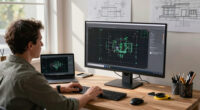
When comparing pen display drawing tablets without overpaying, focus on key features like pen responsiveness, tilt effects, and digitizer accuracy, rather than just price. Check the screen resolution and size that fit your workflow, and make certain the build quality feels durable for daily use. Look for devices with good driver stability and software compatibility. To get the best value, compare specifications across brands and read reviews. Keep exploring to discover more tips for making a smart choice.
Key Takeaways
- Prioritize tablets with essential features like good digital ink responsiveness and pen sensitivity to avoid paying for unnecessary extras.
- Compare screen resolution, size, and color accuracy to ensure you get optimal visual quality for your budget.
- Check compatibility with your preferred drawing software and driver stability to prevent future costly upgrades or issues.
- Review build quality and user interface responsiveness to assess durability and ease of use without overspending.
- Set a clear budget and focus on devices that meet your core artistic needs, avoiding high-end models with features you won’t use.
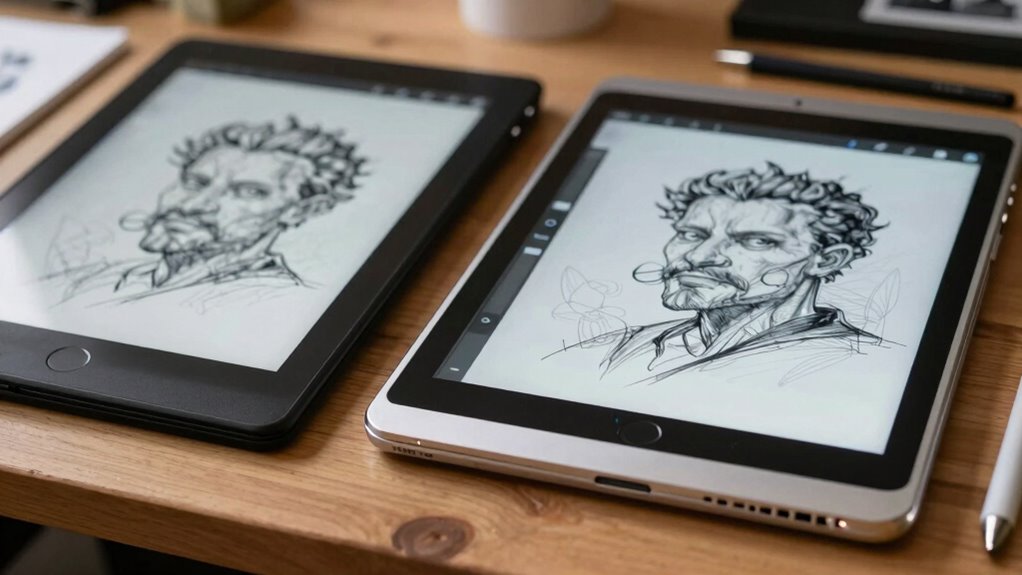
Are you overwhelmed trying to choose the right pen display drawing tablet? With so many options on the market, it’s easy to feel lost in specifications and features, especially when trying to get the best value. To start, focus on how the tablet handles digital ink, which is essential for a natural drawing experience. Digital ink refers to how smoothly and accurately the tablet replicates your pen strokes on the screen, making your digital art feel as close to traditional media as possible. The better the digital ink performance, the less lag you’ll notice, and the more fluid your work will be. Don’t just look at the pen’s pressure sensitivity; also consider how well the tablet manages tilt and pen tilt effects, which add depth and realism to your drawings. These factors greatly influence how natural your digital sketches feel. Additionally, understanding digital ink performance can help you identify devices that offer the most authentic and responsive drawing experience. When evaluating tablets, it’s also helpful to consider how consistently the digital ink performs across different software applications, ensuring a seamless experience regardless of your chosen program. Moreover, testing the tablet with your preferred drawing software can reveal potential compatibility issues that might not be obvious from specifications alone. Additionally, paying attention to how the tablet manages software compatibility can help prevent frustration down the line. Also, checking for driver stability is crucial because unstable drivers can disrupt your workflow and cause issues during critical creative moments.
Prioritize digital ink performance, tilt management, and responsiveness for a natural and fluid drawing experience.
Next, pay close attention to screen resolution. Higher resolution means sharper images and more detail, which is critical when working on intricate designs or detailed illustrations. A tablet with a low screen resolution might make your artwork look blurry or pixelated, forcing you to zoom in constantly, which can slow down your workflow. Aim for at least 1920×1080 pixels (Full HD), but if your budget allows, go for 2560×1440 pixels or higher for crisper visuals. Keep in mind that higher resolution screens often come with a higher price tag, so balance this feature with your overall needs and budget.
When comparing tablets, also consider the screen size and aspect ratio. Larger screens provide more space to work, but they can be less portable. An aspect ratio that matches your preferred art style or software workflow will improve comfort and efficiency. Additionally, check the screen’s color accuracy and brightness, since vibrant, true-to-life colors can make a big difference in your artistic process and final output. It’s also worthwhile to explore the build quality of the device, as a durable and well-designed tablet can withstand the rigors of daily use and travel. A responsive user interface**** can significantly enhance your creative process by reducing lag and increasing control precision, so it’s worth considering reviews that mention these aspects. Taking the time to compare these features carefully will help you choose a device that offers both performance and reliability, ensuring you don’t overpay for unnecessary extras.

XP-PEN Artist12 11.6 Inch FHD Drawing Monitor Pen Display Graphic Monitor with PN06 Battery-Free Multi-Function Pen Holder and Glove 8192 Pressure Sensitivity
Universal Compatibility: It's compatible with Windows 7/8/10/11, Mac 10.10 or later, Linux. Compatible with Photoshop, Illustrator, SAI, Painter,…
As an affiliate, we earn on qualifying purchases.
As an affiliate, we earn on qualifying purchases.
Frequently Asked Questions
Do Pen Display Tablets Work With All Software?
Yes, pen display tablets generally work with most software, but check compatibility first. Your stylus pressure sensitivity enhances drawing precision, and screen resolution impacts image clarity. Make certain the tablet supports your preferred programs, like Photoshop or Illustrator, to avoid issues. Look for tablets with high stylus pressure and good screen resolution to ensure smooth, accurate work across various creative applications. This way, you won’t overpay for features you don’t need.
What Is the Typical Lifespan of a Pen Display Tablet?
A pen display tablet’s lifespan is like a well-tended garden—lasting longer with care. Typically, you can expect 3-5 years of reliable use, depending on usage frequency and build quality. Keep an eye on battery life, which may decline over time, and check warranty coverage for repairs or replacements. Proper handling and regular updates can extend your tablet’s life, ensuring your creative journey continues smoothly.
Are There Any Hidden Costs When Buying a Pen Display Tablet?
Yes, hidden costs can include things like needing to replace pen nibs, screen protectors, or accessories over time. When buying, you should consider the brand reputation, ensuring the company offers reliable warranty coverage, which can save you money on repairs or replacements. Also, check if additional accessories or software are extra costs, so you don’t get surprised later. Doing thorough research helps you avoid hidden expenses and get the best value.
How Important Is Color Accuracy in Pen Display Tablets?
Color accuracy is vital if you want your artwork to look professional or match print colors. You should prioritize tablets with good color calibration and high screen resolution to guarantee your colors are precise and details sharp. A well-calibrated display helps you see true colors, saving you time on adjustments later. Don’t overlook these features—they directly impact your work quality and help you avoid overpaying for a device that won’t meet your needs.
Can Pen Display Tablets Be Used for 3D Modeling?
While pen display tablets aren’t primarily designed for 3D modeling, they can definitely support 3D sculpting and animation tasks. You’ll find many models offer pressure sensitivity and tilt recognition, making them suitable for detailed work. However, for complex 3D projects, consider tablets with high resolution and compatibility with popular 3D software. They serve as great tools for sketching, texturing, and refining models, enhancing your creative workflow.

XPPen 10.95" Standalone Drawing Tablet Digital Color Notetaking Magic Note Pad for Sketching, Drawing & Notes 16K Pressure Sensitivity Tilt Support 90Hz Refresh Rate Anti-Glare Screen Android 14
Realistic Sketching Experience: The XPPen magic note pad features a 10.95-inch X-Paper display with AG nano-etching technology, delivering…
As an affiliate, we earn on qualifying purchases.
As an affiliate, we earn on qualifying purchases.
Conclusion
When you’re shopping for a pen display tablet, it’s all about balancing features and price to find what truly fits your needs. Don’t just focus on brand names—look at specs, screen quality, and compatibility. Are you willing to compromise on certain features to save money? Remember, the best tablet is the one that helps you create comfortably without breaking the bank. So, take your time, compare options, and choose wisely—your art deserves it!

XPPen Artist12 Pro 11.6" Drawing Tablet with Screen Pen Display Full-Laminated Graphics Tablet with Tilt Function Battery-Free Stylus and 8 Shortcut Keys(8192 Levels Pen Pressure and 72% NTSC)
PLEASE NOTE:XPPen Artist12Pro drawing tablet Need to connect with computer,you need to use it with your computer or…
As an affiliate, we earn on qualifying purchases.
As an affiliate, we earn on qualifying purchases.

HUION Inspiroy H640P Drawing Tablet, 6×4 inch Digital Art with Battery-Free Stylus, 8192 Pen Pressure, 6 Hot Keys, Graphics Tablet for Drawing, Writing, Design, Teaching, Work with Mac, PC & Mobile
[Customize Your Workflow]: The 6 easy accessable press keys on the H640P drawing tablet for pc can be…
As an affiliate, we earn on qualifying purchases.
As an affiliate, we earn on qualifying purchases.