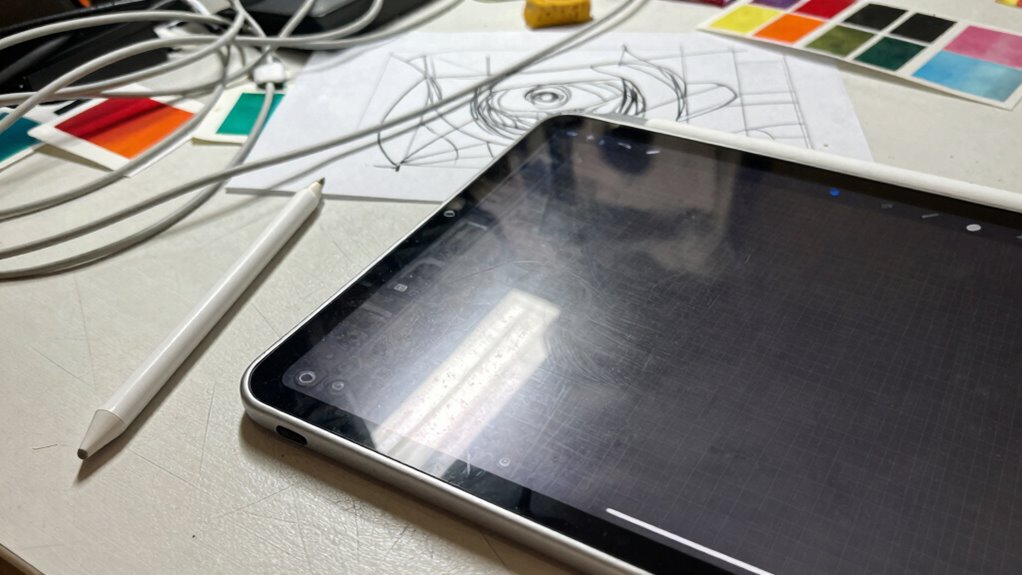

Many people make costly mistakes when choosing accessories for their iPad Pro, like ignoring stylus compatibility, which can cause lag or damage. Picking low-quality screen protectors can ruin drawing feel and responsiveness. Overlooking ergonomic cases and stands leads to discomfort during long sessions. Not checking app compatibility or high-resolution support limits your creative options. Avoid these errors to improve your workflow, and you’ll discover essential tips to optimize your drawing setup.
Key Takeaways
- Choosing an incompatible stylus can cause lag, pressure issues, or damage your device.
- Selecting low-quality or unsuitable screen protectors may reduce responsiveness and increase glare.
- Neglecting ergonomic stands or cases can lead to discomfort during prolonged drawing sessions.
- Failing to verify app compatibility limits access to essential creative tools and high-resolution support.
- Ignoring accessory quality and compatibility risks workflow inefficiency and potential device damage.
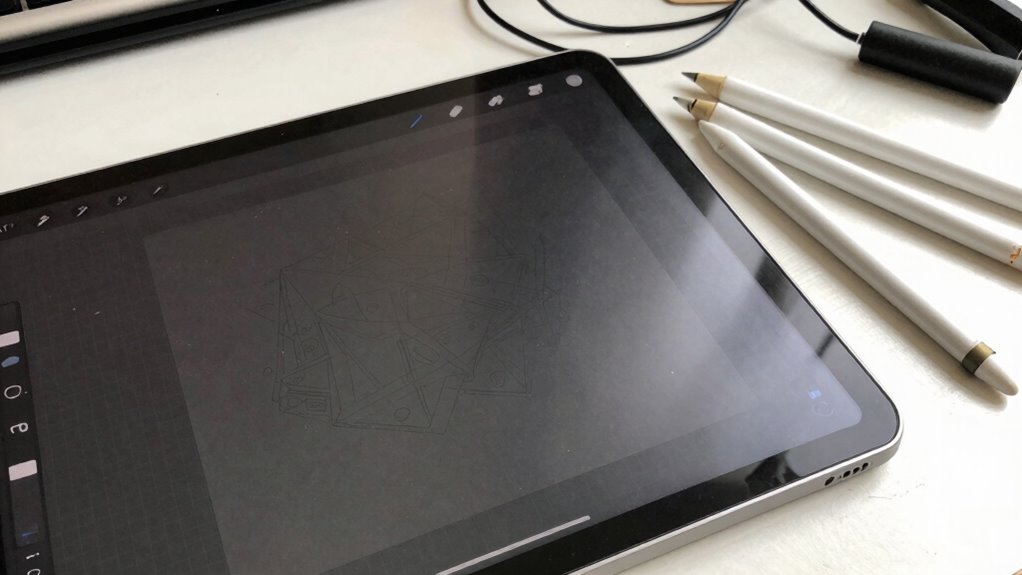
Choosing the right iPad Pro drawing tablet can be tricky, especially if you’re new to digital art. One common mistake people make is overlooking the importance of stylus compatibility. Not all styluses work seamlessly with every iPad Pro model, so it’s essential to verify that the stylus you plan to use is fully compatible. Apple’s own Apple Pencil offers a smooth experience, but third-party styluses may vary in sensitivity, pressure levels, and tilt support. If you’re serious about your art, investing in a stylus that offers precise control and pressure sensitivity will make a huge difference in your work’s quality. Failing to check compatibility can lead to frustration, lag, or even damage to your device or stylus, which is a costly mistake. Ensuring stylus compatibility is crucial for a seamless digital drawing experience. Additionally, some styluses may require specific software or firmware updates to function correctly, so staying informed about these requirements can save you time and effort.
Ensure stylus compatibility with your iPad Pro for smooth, accurate digital art and to avoid costly damage or frustration.
Another mistake many buyers make involves screen protector choices. While protecting your iPad Pro’s display is vital, choosing the wrong screen protector can hinder your drawing experience. Some screen protectors can create a glare, reduce the screen’s responsiveness, or add a noticeable texture that interferes with fine lines and shading. It’s tempting to go for the cheapest option, but low-quality protectors often compromise the drawing experience. Instead, opt for a high-quality, matte screen protector designed specifically for artists. These protectors help reduce glare and provide a paper-like surface, making your digital drawings feel more natural. Also, make sure the protector is easy to install and doesn’t bubble or peel over time, as these issues can be distracting and affect your accuracy. To enhance your drawing comfort, consider ergonomic accessories that support your hand placement and reduce fatigue during long sessions. Choosing the right accessories can also improve your overall workflow and help prevent strain injuries, especially during lengthy projects.
Many people also forget to take into account the importance of a sturdy, ergonomic case or stand. While not directly related to the tablet itself, neglecting this aspect can lead to discomfort during long drawing sessions, which hampers your productivity and creativity. A stable stand or case that allows flexible positioning can help you work comfortably for extended periods. Investing in an adjustable stand can also help you find the perfect angle for different types of artwork, enhancing your overall experience. When selecting these accessories, consider ergonomic design features to ensure maximum comfort and support for your hands and wrists during prolonged use.
Additionally, some buyers skip researching the software ecosystem or app compatibility, which can limit your creative options. Remember, the iPad Pro is a powerful device, but your experience depends heavily on the apps you choose. Make sure the drawing apps you intend to use are optimized for iPad Pro and support features like stylus pressure sensitivity and high-resolution canvases. Exploring the software ecosystem thoroughly before purchase can ensure you have access to the tools you need to create your best work. A well-rounded understanding of app capabilities can also help you make informed decisions about which tools will best suit your artistic style and workflow.
As an affiliate, we earn on qualifying purchases.
Frequently Asked Questions
Can I Use My Existing Stylus With an iPad Pro?
You can’t use your existing stylus with an iPad Pro because of stylus compatibility issues. The iPad Pro requires the Apple Pencil for peak performance, as it’s specifically designed for this device. Other stylus accessories may not be compatible or work well with the iPad Pro. To guarantee a smooth drawing experience, stick to the Apple Pencil or check accessory compatibility before making a purchase.
What Is the Best Screen Size for Drawing on an iPad Pro?
Choosing the best screen size for drawing on an iPad Pro depends on your screen size preferences and drawing accuracy considerations. If you prefer a portable device, the 11-inch model offers easy handling, but the 12.9-inch provides a larger canvas for detailed work. Consider how much space you need for your projects and how comfortable you are with the size, balancing portability with accuracy for your creative needs.
Do I Need a Separate Keyboard or Stand for Drawing?
You don’t necessarily need a separate keyboard or stand for drawing, but consider accessory compatibility and portability. A keyboard can boost productivity if you multitask, while a stand offers comfort during long sessions. Choose lightweight, portable options that suit your drawing style and workspace. Make certain accessories are compatible with your iPad Pro model to guarantee seamless use. Balancing functionality with portability helps you create comfortably wherever you go.
How Important Is Battery Life for Drawing Sessions?
Battery life is everything when you’re deep into a creative project—you don’t want your inspiration to vanish mid-sketch! Long battery longevity ensures you can draw for hours without interruption, while low power consumption keeps your iPad energized longer. If your tablet’s battery drains quickly, your workflow suffers. Prioritize devices with impressive battery life so you can focus on your art, not hunting for a charger.
Are There Compatibility Issues With Specific Drawing Apps?
You might encounter app compatibility issues or software limitations with certain drawing apps on your iPad Pro. Before buying, check if your preferred apps are optimized for iPadOS and support the latest features. Some apps may not fully utilize the iPad Pro’s hardware, leading to performance hiccups. Ensuring compatibility helps you avoid frustration and makes sure you get the most out of your device for creative work.
high-quality matte screen protector for iPad Pro
As an affiliate, we earn on qualifying purchases.
As an affiliate, we earn on qualifying purchases.
Conclusion
In the end, avoiding these common mistakes can save you a lot of headaches and money. Do your homework, consider your needs, and don’t rush into a purchase. Remember, it’s better to be safe than sorry—sometimes, patience is a virtue. When you choose wisely, your iPad Pro drawing tablet becomes a powerful tool that truly works for you. Stay informed, and you’ll be drawing like a pro in no time!
As an affiliate, we earn on qualifying purchases.
As an affiliate, we earn on qualifying purchases.