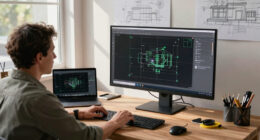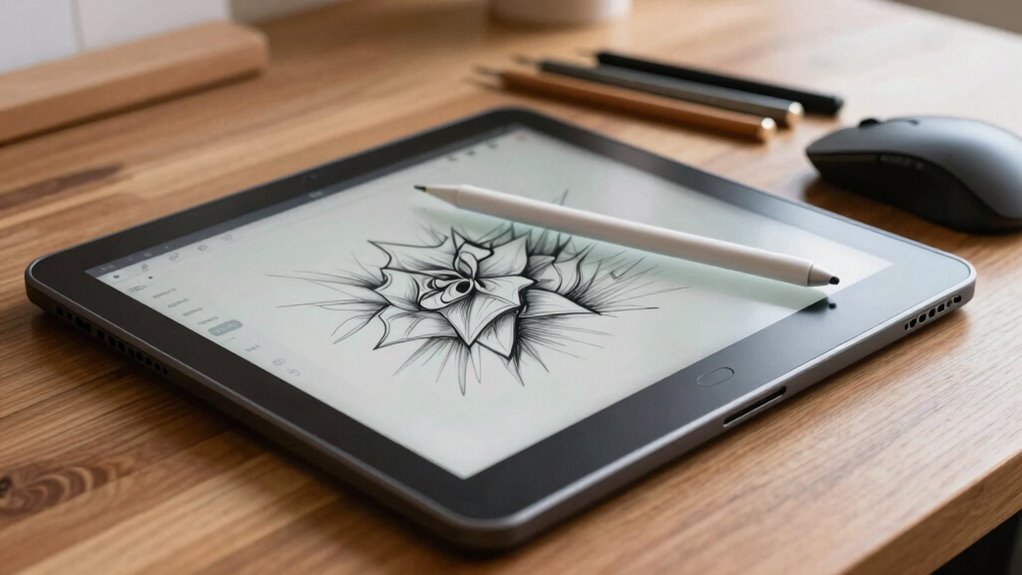
Before buying a pen display drawing tablet, focus on display quality, color accuracy, and calibration features. Look for high-resolution screens with wide color gamuts like Adobe RGB or DCI-P3 to guarantee your colors stay consistent across devices and prints. Check if the tablet offers reliable calibration tools to maintain color fidelity over time. Supporting your workflow with good software and calibration options helps produce professional results. Keep these factors in mind to make an informed choice—there’s more to discover ahead.
Key Takeaways
- Ensure the display offers high resolution and accurate color reproduction, including wide gamuts like Adobe RGB or DCI-P3.
- Check for reliable calibration features and compatible calibration software to maintain consistent color fidelity.
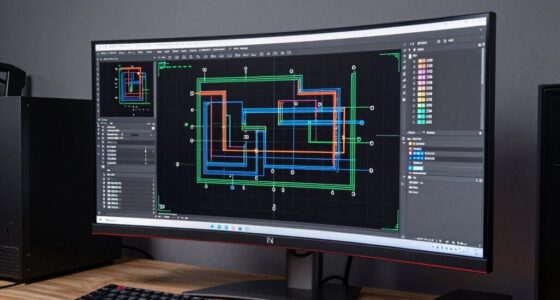
- Consider the tablet’s screen size, resolution, and adjustable stand for comfortable workflow and detailed artwork.
- Verify compatibility with your preferred creative software and operating system for seamless integration.
- Evaluate build quality, pen responsiveness, and pressure sensitivity for precise, natural drawing experience.

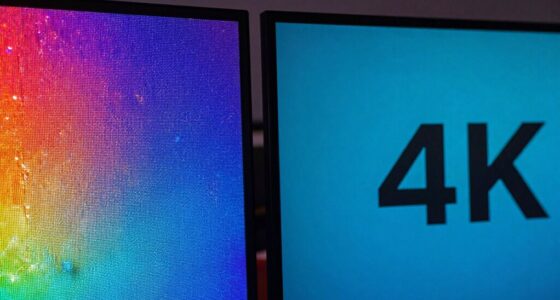
Choosing the right pen display drawing tablet can substantially improve your digital art experience, but with so many options on the market, it’s easy to feel overwhelmed. Before making a purchase, you need to contemplate how well the device supports your creative workflow and whether it fits your skill level. One of the most important factors is the quality of the display itself. Look for a tablet with a high-resolution screen that accurately displays colors and details, which is vital for digital art. A display that offers wide color gamuts, like Adobe RGB or DCI-P3, ensures your artwork looks consistent across devices and prints.
Screen calibration is another key aspect to think about. A pen display with reliable calibration features allows you to fine-tune the color accuracy and brightness to match your working environment. This guarantees that what you see on the tablet closely resembles your final output, reducing guesswork and rework. Some tablets come with built-in calibration tools or companion software that simplifies this process, making it easier to maintain consistent color profiles over time. Proper calibration becomes especially important if you work professionally or plan to print your artwork, as even minor discrepancies can affect color fidelity. Additionally, display calibration tools are essential for maintaining color consistency, especially for professional artists and designers. Ensuring that the device supports color accuracy features can significantly enhance your workflow and final results. Maintaining color fidelity through proper calibration can also help prevent frustration caused by mismatched colors in your projects.

XP-PEN Artist12 11.6 Inch FHD Drawing Monitor Pen Display Graphic Monitor with PN06 Battery-Free Multi-Function Pen Holder and Glove 8192 Pressure Sensitivity
Universal Compatibility: It's compatible with Windows 7/8/10/11, Mac 10.10 or later, Linux. Compatible with Photoshop, Illustrator, SAI, Painter,…
As an affiliate, we earn on qualifying purchases.
As an affiliate, we earn on qualifying purchases.
Frequently Asked Questions
Are Pen Display Tablets Compatible With All Operating Systems?
Most pen display tablets are compatible with major operating systems like Windows, macOS, and sometimes Android, but compatibility can vary. You should check if the device supports your OS, especially for features like stylus pressure sensitivity and screen resolution. Some tablets require specific drivers or software updates, so make certain your system meets the requirements for peak performance, including accurate pressure response and clear display quality.
How Long Does the Pen’s Battery Last?
Imagine holding a pen that lasts through your longest creative sessions. Typically, pen battery life ranges from 8 to 20 hours, giving you ample time to draw without worry. Charging time varies, often taking 1 to 2 hours to reach full power. Keep an eye on your battery indicator, so you’re never caught mid-sketch with a dying pen. Regularly charging guarantees your workflow stays smooth and uninterrupted.
Can I Use the Tablet Without a Computer?
Yes, you can use a pen display drawing tablet without a computer if it has an integrated standalone mode. This means you can sketch and draw directly on the screen, enjoying features like stylus pressure sensitivity for precise control. Just be aware that screen glare might affect visibility in bright environments, so consider a model with an anti-glare coating. Make certain it has sufficient battery life if you plan to work on the go.
What Are the Most Common Connectivity Issues?
In the era of dial-up internet, connectivity issues still plague pen display tablets today. Common problems include Bluetooth connectivity dropping unexpectedly and software compatibility hiccups. You might find your tablet disconnects from your computer or struggles to recognize your device’s drivers. To avoid frustration, make certain your device supports Bluetooth properly and check that your software is compatible with your tablet’s operating system. Regular updates can also help keep things running smoothly.
Is There a Warranty or Customer Support Available?
Yes, most pen display drawing tablets come with warranty coverage and customer support. If you encounter issues like pen replacement or software glitches, you can usually get assistance from the manufacturer’s support team. They often provide software updates to improve functionality and fix bugs. Contact support for troubleshooting or to inquire about warranty repairs, ensuring your tablet stays in good shape for creative work.

XPPen Artist Ultra 16 4K OLED Touchscreen Drawing Tablet 15.6" Drawing Monitor with 99% Adobe RGB Dual 16K Pen Pressure Styli Mini Keydial 1.07 Billion Colors Art Tablet for Mac PC Chromebook Android
PLEASE NOTE: The XPPen Artist Ultra 16 Touchscreen Drawing Tablet needs to connect with a computer to use….
As an affiliate, we earn on qualifying purchases.
As an affiliate, we earn on qualifying purchases.
Conclusion
So, after all this, you now know what to contemplate before splurging on a pen display. Ironically, the very features meant to make your art easier—like high resolution and pressure sensitivity—can become overwhelming choices. Remember, sometimes the simplest tablet with fewer bells and whistles might just inspire your creativity better. So, pick wisely, and don’t let the fancy specs distract you from the joy of creating. Happy drawing!

XPPen Magic Drawing Pad 12.2 Inch Standalone Drawing Tablet No Computer Needed with 16384 Pressure Levels X3 Pro Slim Stylus Tilt Support Paper-Like Screen 8GB + 256GB for Digital Drawing Artists
16K Pressure Sensitive Stylus: XPPen magic drawing pad introducing X3 Pro slim stylus is a breakthrough innovation boasting…
As an affiliate, we earn on qualifying purchases.
As an affiliate, we earn on qualifying purchases.
XP-PEN Artist12 11.6 Inch FHD Drawing Monitor Pen Display Graphic Monitor with PN06 Battery-Free Multi-Function Pen Holder and Glove 8192 Pressure Sensitivity
Universal Compatibility: It's compatible with Windows 7/8/10/11, Mac 10.10 or later, Linux. Compatible with Photoshop, Illustrator, SAI, Painter,…
As an affiliate, we earn on qualifying purchases.
As an affiliate, we earn on qualifying purchases.