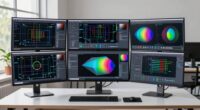
To set up your monitor for long CAD sessions, position the top of the screen at or just below eye level to prevent neck strain. Keep the monitor about an arm’s length away to reduce eye fatigue and adjust the tilt to face you directly, minimizing reflections. Make sure your workspace encourages proper posture and easy access to items. Want to learn more tips on optimizing your ergonomics for long hours? Keep exploring!
Key Takeaways
- Align the top of your monitor with your eye level to prevent neck strain during extended CAD work.
- Maintain a monitor distance of 20-30 inches, roughly an arm’s length, to reduce eye fatigue and improve clarity.
- Tilt the monitor slightly downward so the screen faces you directly, minimizing reflections and promoting natural viewing posture.
- Use adjustable stands or mounts to set the monitor height and angle precisely for comfort and reduced strain.
- Organize your workspace to keep items within easy reach and optimize lighting to prevent glare and shadows.
Why Monitor Ergonomics Matter for CAD Users
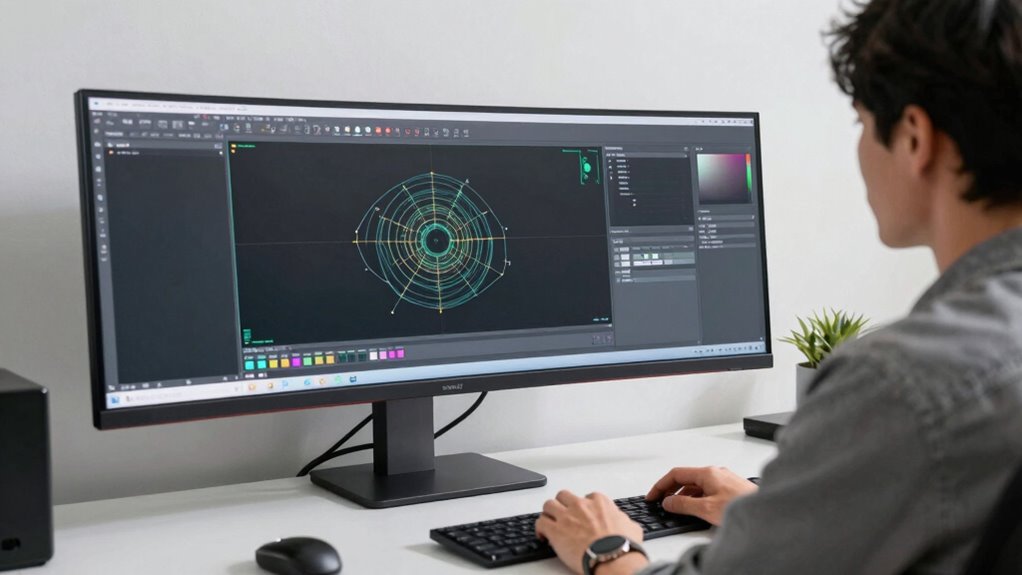
Since CAD work requires prolonged periods of focus and detailed screen work, monitor ergonomics play a crucial role in maintaining your comfort and productivity. Proper monitor setup ensures you can work efficiently without strain, which is essential when precision matters. Calibrating your monitor regularly boosts color accuracy, allowing you to see true-to-life colors and details indispensable for accurate design work. Accurate colors help prevent mistakes and save time by reducing the need for repeated adjustments. An ergonomically optimized monitor setup also minimizes eye strain and neck fatigue, helping you stay comfortable during long sessions. Adjusting monitor height and position is vital to reduce musculoskeletal discomfort and promote better posture. Investing in good monitor ergonomics, including calibration and proper positioning, keeps you focused and improves overall work quality. Additionally, utilizing European cloud servers for data storage and processing can enhance your workflow by providing reliable and secure remote access. Incorporating proper workspace ventilation can also help regulate temperature and improve overall comfort, especially during extended periods of use. Ultimately, it’s about creating a workspace that supports your health and precision.
How to Find the Right Monitor Height for Comfortable CAD Work?
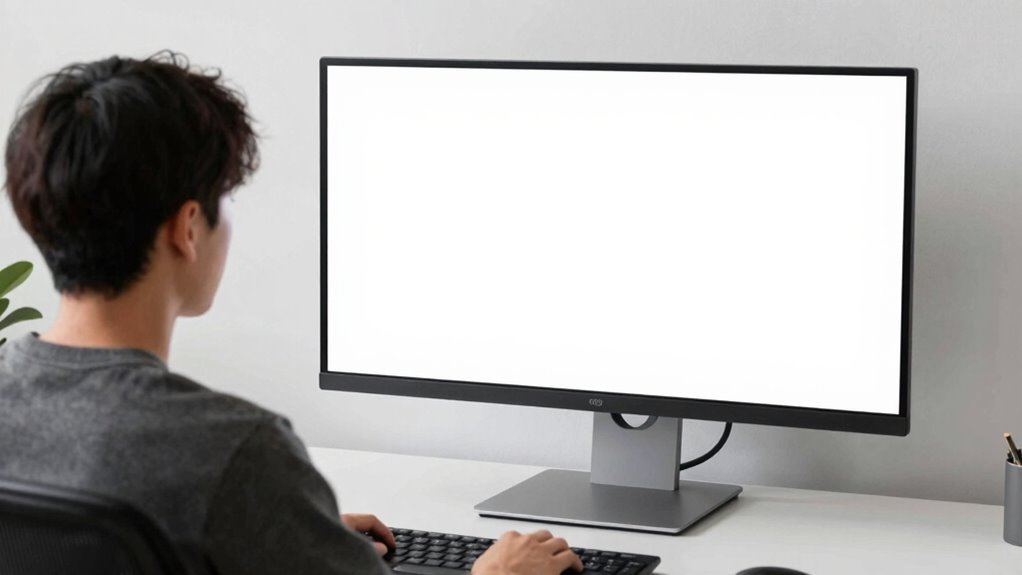
Finding the right monitor height is essential for comfortable CAD work because it helps maintain proper posture and reduces strain on your neck and eyes. Position your monitor so that the top of the screen is level with your eye line, minimizing the need to tilt your head. Make sure your monitor’s color calibration is accurate, providing clear visuals that reduce eye fatigue during long sessions. A good monitor refresh rate also prevents flickering, which can cause eye strain over time. Adjust the height using adjustable stands or mounts if needed, and double-check that your viewing angle minimizes glare and reflections. Proper height alignment not only supports ergonomics but also enhances your focus and productivity during detailed CAD tasks.
How to Set Your Monitor Distance to Reduce Eye Strain?
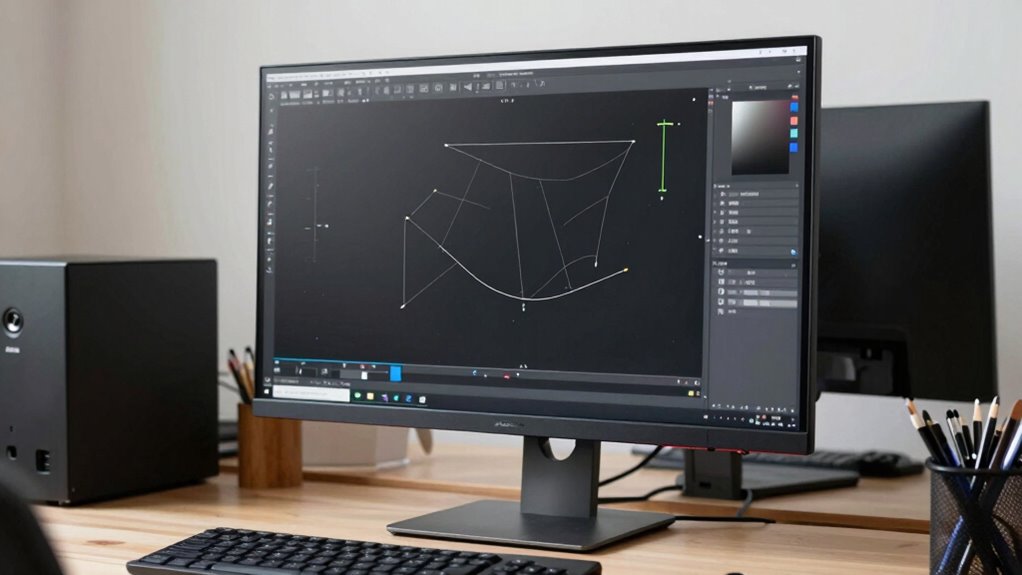
Maintaining the right distance between your eyes and the monitor is essential for reducing eye strain during extended work sessions. Ideally, your monitor should be about an arm’s length away, roughly 20 to 30 inches from your eyes. This distance helps prevent eye fatigue by allowing your eyes to comfortably focus without straining. Keep in mind that sitting too close can increase eye fatigue and make screen glare more noticeable, while sitting too far can cause you to lean forward, leading to neck strain. Adjust your monitor so that your eyes are level with the top of the screen, and maintain this *best* distance consistently. Proper monitor placement reduces the need to squint or lean, helping you work longer without discomfort. Additionally, paying attention to monitor resolution and clarity can further decrease eye strain during long CAD sessions. Ensuring your monitor has appropriate ergonomic placement supports sustained comfort and reduces visual fatigue. Regularly taking breaks and eye exercises can also relieve strain and promote eye health during prolonged use. Moreover, adjusting screen brightness and contrast to match ambient lighting can significantly lower eye discomfort over time. Recognizing the importance of ambient lighting in your workspace can further enhance overall visual comfort and reduce glare.
How to Adjust Monitor Tilt and Angle for Comfort?
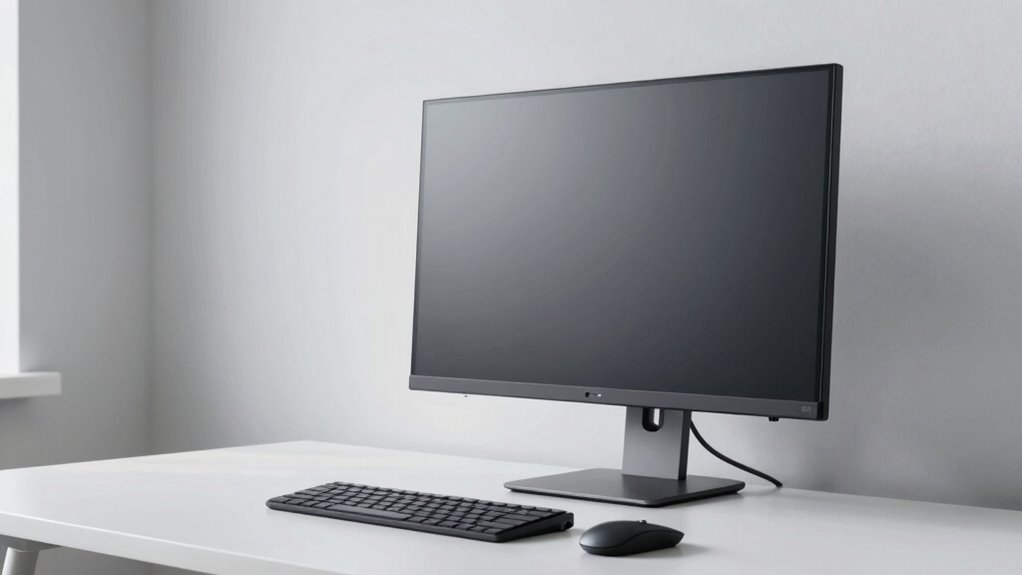
Adjusting the tilt and angle of your monitor guarantees you maintain a comfortable viewing position throughout the day. Start by setting the monitor tilt so the screen faces you directly, reducing neck strain. The monitor angle should be adjusted so that the top of the screen is at or slightly below eye level. This helps prevent glare and keeps your neck in a neutral position. Use a slight downward tilt if needed to reduce reflections and improve visibility. Make small adjustments and test your position by looking at the screen naturally. Your goal is to minimize head and neck movements while maintaining a relaxed posture. Proper monitor tilt and angle help prevent discomfort and promote better ergonomics during long sessions. Ensuring your monitor is properly aligned is also essential for ergonomic safety and overall comfort. Incorporating adjustable monitor stands or mounts can further enhance your ability to customize your setup for optimal home office ergonomics. Additionally, regularly reassessing your setup can help you maintain proper posture as your workspace or needs evolve. Considering monitor positioning in relation to other workstation components can also improve overall ergonomic safety and reduce strain. Remember that understanding and practicing correct ergonomic practices is key to preventing strain and injury over time.
How to Set Up Your Workspace for the Best Ergonomics
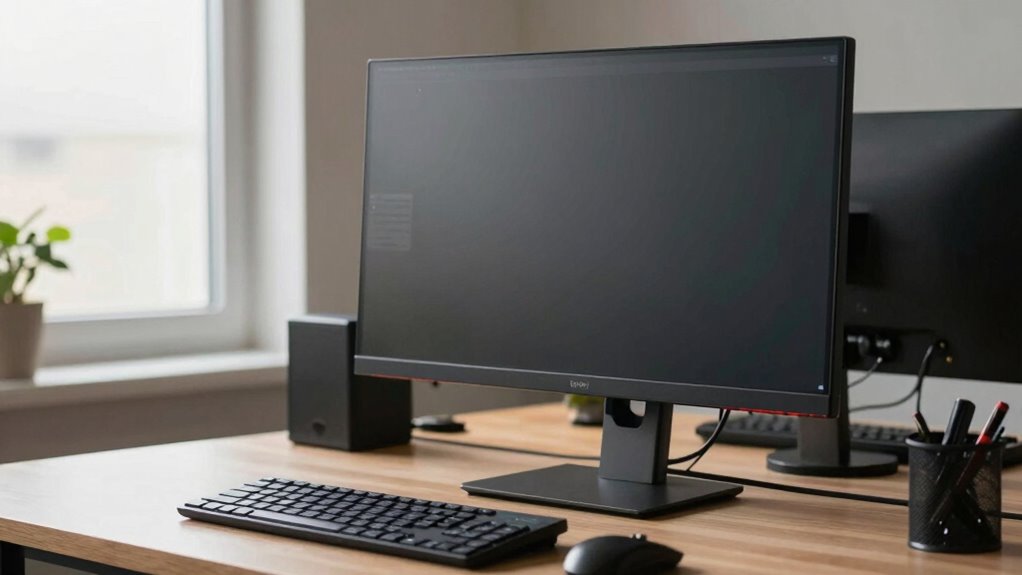
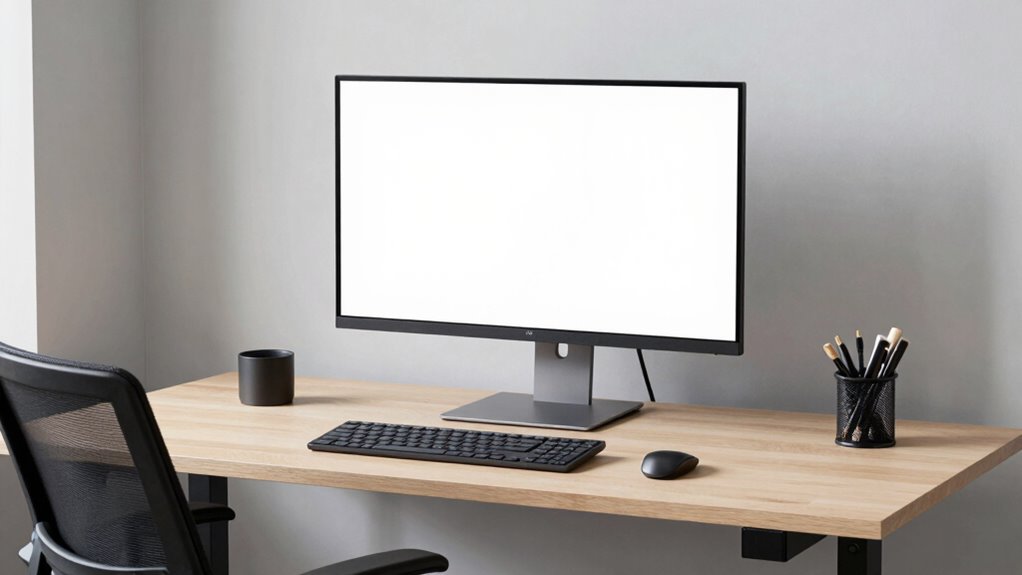
Creating an ergonomic workspace starts with arranging your desk and equipment to support proper posture and comfort. Focus on desk organization to keep essentials within easy reach, reducing strain. Proper lighting optimization is essential; avoid glare and shadows that cause eye fatigue. Use adjustable lamps or natural light to brighten your workspace without causing reflections on your screen. Here’s a simple setup:
| Desk Organization | Lighting Optimization |
|---|---|
| Keep items tidy and accessible | Use soft, adjustable lighting |
| Minimize clutter to improve focus | Position light sources to prevent glare |
| Use storage solutions for cables | Ensure ambient light balances with screen brightness |
| Place frequently used tools nearby | Avoid direct light hitting your monitor |
| Maintain clear space for movement | Use task lighting for detailed work |
Frequently Asked Questions
What Are Common Signs of Poor Monitor Ergonomics During CAD Work?
You might notice eye fatigue or neck discomfort during CAD work if your monitor isn’t ergonomically set up. Straining your eyes to see details or constantly tilting your head indicates poor monitor positioning. You could also experience headaches or shoulder pain. These signs suggest you should adjust your monitor‘s height, distance, or angle to improve comfort and reduce strain during long sessions.
How Often Should I Take Breaks to Prevent Eye Strain?
You should take a break every 20 minutes to prevent eye strain. During these breaks, do eye exercises like blinking frequently and focusing on distant objects to relax your eye muscles. Also, consider using blue light filters or glasses to reduce eye fatigue from screen exposure. Remember, regular breaks help maintain your eye health and improve your overall comfort during long CAD sessions.
Are There Recommended Monitor Sizes for Extensive CAD Sessions?
For extensive CAD sessions, a monitor size between 24 to 32 inches creates an ergonomic workspace that reduces eye strain and enhances detail visibility. Imagine having enough screen real estate to work comfortably without cranking your neck or squinting. Larger monitors provide better clarity and reduce the need for excessive head movements, helping you stay focused longer. Prioritize a size that fits your desk and allows proper positioning for an ergonomic workspace.
How Does Monitor Glare Affect Long-Term Eye Health?
Monitor glare can notably impact your eye health during long CAD sessions. Glare reduction helps minimize eye fatigue by reducing the strain caused by excessive light reflections and brightness contrasts. To protect your eyes, use anti-glare screens, position your monitor away from direct light sources, and adjust your environment to lower glare. These steps will help you stay comfortable and maintain better eye health over extended periods.
Can Monitor Arm Adjustments Improve Overall Ergonomic Setup?
Using adjustable monitor arms can considerably improve your ergonomic setup. They allow you to easily customize the height, angle, and distance of your monitor, reducing strain on your neck, shoulders, and eyes. By optimizing your workspace with these ergonomic benefits, you can work more comfortably during long CAD sessions. This flexibility helps prevent discomfort and promotes better posture, ultimately enhancing your productivity and long-term health.
Conclusion
By tuning your monitor’s height, distance, and angle, you’re crafting an ergonomic symphony that keeps discomfort at bay. Think of your workspace as a well-balanced compass, guiding you smoothly through long CAD sessions without strain or fatigue. When you prioritize your comfort, you’re not just adjusting a screen—you’re setting the stage for creativity and focus to flourish. Remember, a well-aligned workspace is your trusted compass on the journey to productivity.