
In 3D modeling, boosting your RAM helps handle large scenes, multitasking, and smooth viewport navigation, while increasing VRAM speeds up rendering and manages detailed textures. If your system feels sluggish or crashes during complex tasks, upgrading RAM or VRAM can make a big difference. Typically, more RAM improves overall workflow, but if textures and rendering slow you down, increasing VRAM is key. Keep exploring to discover which upgrade will give you the fastest, smoothest experience.
Key Takeaways
- Upgrading VRAM significantly improves rendering speed and viewport responsiveness for detailed textures and complex scenes.
- Increasing RAM enhances multitasking and handling large project files, reducing lag during intensive modeling tasks.
- For real-time 3D modeling fluidity, boosting VRAM typically yields more immediate performance gains than RAM.
- Balancing both RAM and VRAM according to workload ensures optimal responsiveness and minimizes bottlenecks.
- The most impactful upgrade depends on whether your bottleneck is rendering speed (VRAM) or multitasking capacity (RAM).
What Do RAM and VRAM Do in 3D Modeling?
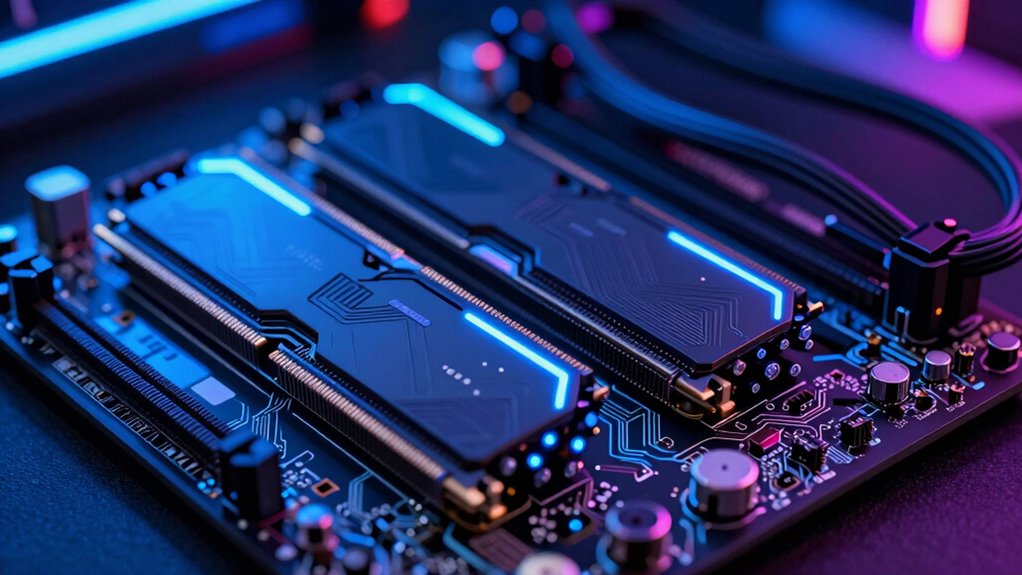
When working in 3D modeling, RAM and VRAM serve distinct but equally important roles. RAM temporarily stores data your software needs quickly, helping prevent memory bottlenecks during complex tasks. If your RAM is too small, your system slows down, struggling to handle large scenes or multitasking. VRAM, on the other hand, is dedicated to your graphics card and stores textures, models, and rendering data. Insufficient VRAM causes lag and rendering issues, especially with detailed assets. Both types of memory must be compatible with your hardware; otherwise, you risk bottlenecks or instability. Upgrading either component improves workflow, but understanding their specific roles helps you target the right upgrade to avoid performance hiccups and ensure smooth 3D modeling sessions. Additionally, integrating energy-efficient hardware can enhance overall system performance while supporting sustainable computing practices.
How RAM Helps Manage Large Scenes and Multitasking
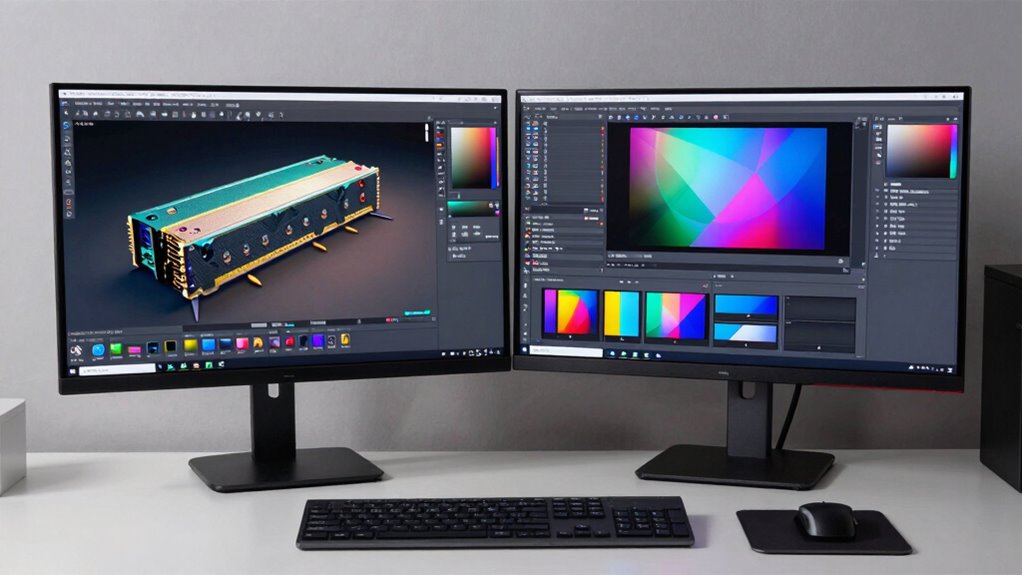
Ever wonder how your computer handles large 3D scenes without slowing down? It’s your RAM working behind the scenes, managing data needed for complex models and multitasking. Sufficient RAM prevents your system from bottlenecking when juggling multiple applications or huge scenes, ensuring smoother workflows. To get the most out of your setup, check hardware compatibility before upgrading or overclocking your RAM, which can boost performance further. RAM overclocking pushes your memory beyond factory speeds, reducing lag during intensive tasks. This makes viewport navigation and scene management feel more responsive. Having enough RAM and optimizing it through overclocking ensures your system can handle large scenes and multitasking seamlessly, keeping your workflow fluid without frustrating delays. Additionally, understanding video memory (VRAM) can help you choose the right graphics card for rendering complex models efficiently.
How VRAM Affects Rendering Speed and Viewport Performance
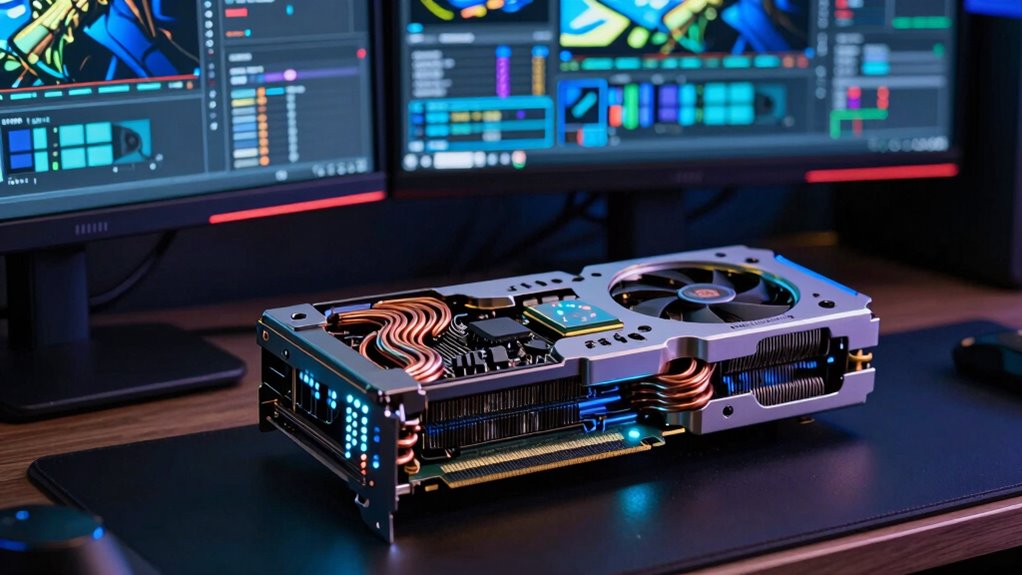
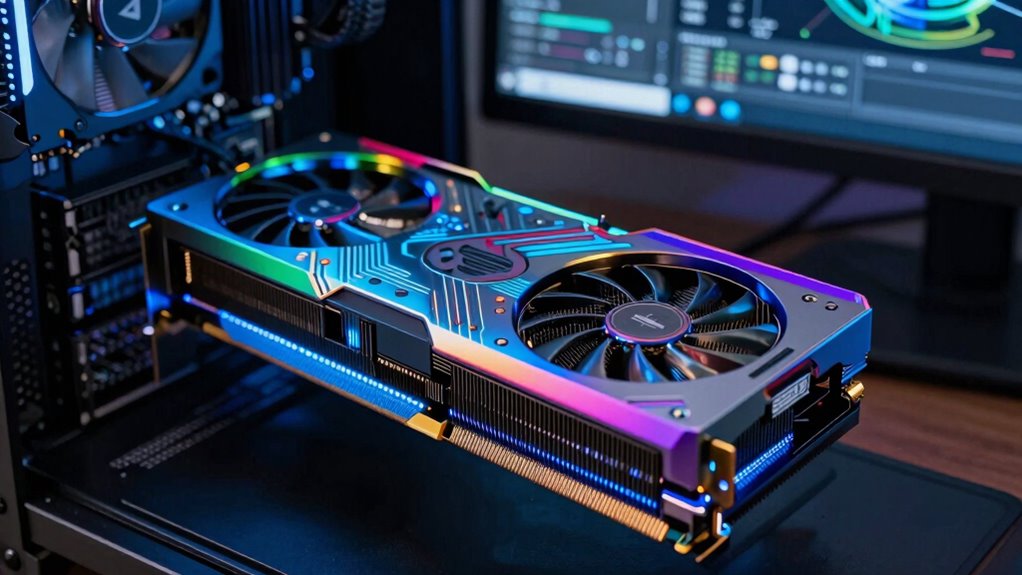
VRAM directly impacts how quickly your graphics card can render images and display scenes smoothly. If your VRAM is insufficient, you’ll notice longer load times and sluggish viewport performance, especially with complex scenes. Upgrading your VRAM can make a noticeable difference in rendering speed and overall responsiveness.
VRAM and Rendering Speed
Having ample VRAM allows your graphics card to quickly access and process complex textures and detailed models, which directly impacts rendering speed. When VRAM is sufficient, you experience smoother rendering of high-quality textures and more complex shaders without lag. Insufficient VRAM forces the system to swap data with slower system memory, slowing down rendering and reducing viewport responsiveness. Proper ventilation considerations in your system can help maintain optimal GPU performance and prevent overheating during intensive rendering tasks. Consider these factors: – Higher texture quality requires more VRAM for faster processing – Complex shaders demand additional VRAM to render efficiently – Insufficient VRAM causes rendering delays and artifacts – Adequate VRAM improves real-time viewport performance – Larger scenes with detailed models benefit from more VRAM for quicker rendering
Viewport Load Times
When your graphics card has enough VRAM, it can quickly load and display complex scenes, reducing the time you wait for the viewport to become responsive. Adequate VRAM handles high texture resolution and detailed models smoothly, preventing lag caused by constant data swapping. If your hardware isn’t compatible or VRAM is insufficient, you’ll experience longer load times, stuttering, and delayed updates, making navigation frustrating. To visualize this:
| VRAM Size | Viewport Load Times |
|---|---|
| Sufficient | Fast, seamless updates |
| Insufficient | Lag, delays |
| Hardware Compatibility | Critical for performance |
Having enough VRAM ensures your viewport remains responsive, saving time and boosting your workflow efficiency. Additionally, hardware compatibility is essential to fully leverage VRAM capabilities and optimize your 3D modeling experience.
Handling Complex Scenes
Handling complex scenes demands significant rendering power, and sufficient VRAM plays a crucial role in maintaining smooth viewport performance. When working with detailed models and high-resolution textures, VRAM helps prevent lag and stuttering. To maximize performance, focus on texture optimization techniques that reduce VRAM load without sacrificing quality. Ensuring hardware compatibility is essential, as not all GPUs handle complex scenes equally well. Managing scene complexity, such as limiting unnecessary geometry or layers, can also improve performance. Additionally, consider these factors:
- Using efficient texture formats
- Keeping texture sizes appropriate
- Upgrading VRAM for larger scenes
- Balancing scene detail with hardware capabilities
- Regularly updating graphics drivers for peak compatibility
Implementing texture compression techniques can further reduce VRAM usage and enhance rendering efficiency. Staying aware of GPU memory management best practices can help prevent bottlenecks and ensure smoother workflows. Understanding VRAM capacity and its limitations allows you to plan scenes more effectively, avoiding unnecessary performance issues. Moreover, optimizing scene settings and employing viewing distance limitations can significantly improve performance when handling complex scenes. These strategies help you handle complex scenes seamlessly, making your workflow faster and more efficient.
Signs You Need More RAM or VRAM in Your Setup

If your renders take forever or your programs crash unexpectedly, it might be time to upgrade your RAM or VRAM. Slow performance and crashes are clear signs your current setup can’t keep up with your tasks. Recognizing these issues early can help you decide whether more memory will boost your workflow or if your graphics card needs an upgrade.
Slow Rendering Times
Slow rendering times often signal that your system is struggling to process complex visuals or large files efficiently. This can be caused by insufficient texture memory or suboptimal cache optimization, which hinder smooth data flow. When your GPU’s VRAM or your RAM can’t keep up, rendering becomes sluggish, and preview times increase. You might notice:
- Extended wait times for scene previews
- Fading or incomplete textures during rendering
- Frequent lag spikes
- Slow viewport responsiveness
- Longer final render durations
Upgrading your VRAM can help handle larger textures more effectively, reducing bottlenecks. Additionally, increasing RAM allows better cache optimization, enabling your system to process complex scenes faster. Recognizing these signs early can prevent longer delays and improve your workflow.
Frequent Program Crashes
Frequent program crashes during rendering or working with complex scenes often point to inadequate RAM or VRAM. These crashes can stem from software compatibility issues or hardware limitations that strain your system’s memory. When your setup lacks enough RAM or VRAM, programs struggle to handle large files, leading to instability. Check your system specifications and software requirements to guarantee compatibility. If crashes happen consistently during intensive tasks, it’s a clear sign you need more memory. Upgrading RAM or VRAM can improve stability and performance. To help you identify the cause, consider this table:
| Symptom | Likely Cause | Recommended Action |
|---|---|---|
| Frequent crashes when working | Insufficient hardware memory | Upgrade RAM or VRAM |
| Compatibility issues | Software/hardware mismatch | Verify system requirements |
| Slow response times | Overloaded memory | Increase memory capacity |
| Render failures | GPU memory overload | Add VRAM or upgrade GPU |
| Unexpected shutdowns | Hardware instability | Check hardware compatibility |
How to Decide Whether to Upgrade RAM or VRAM First
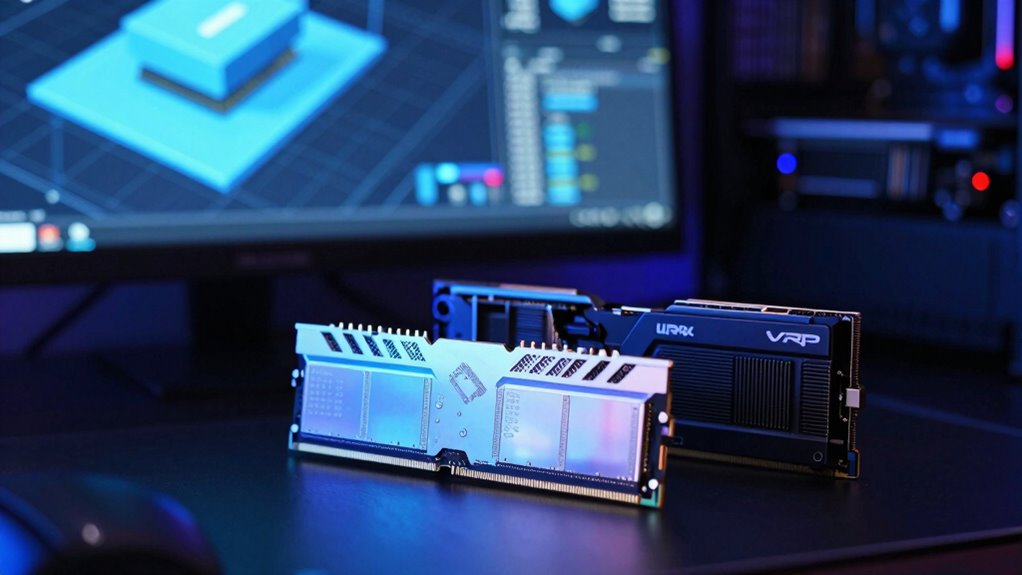
Deciding whether to upgrade your RAM or VRAM depends largely on how you use your computer. If your work involves multitasking, large files, or intensive software, upgrading RAM can improve overall performance and ensure smooth operation. On the other hand, if you’re focused on 3D modeling, gaming, or rendering, increasing VRAM will help handle complex textures and graphics more efficiently. Consider these factors:
Upgrade RAM for multitasking and large files; boost VRAM for gaming, 3D modeling, and rendering.
- Check your hardware compatibility before upgrading.
- Evaluate if software optimization is limiting performance.
- Identify if current tasks are GPU or CPU-bound.
- Determine whether your applications require more memory or graphics power.
- Balance upgrades to avoid bottlenecks and maximize system efficiency.
This approach guarantees you make an informed choice to enhance your workflow effectively.
How Much RAM and VRAM Do You Really Need?
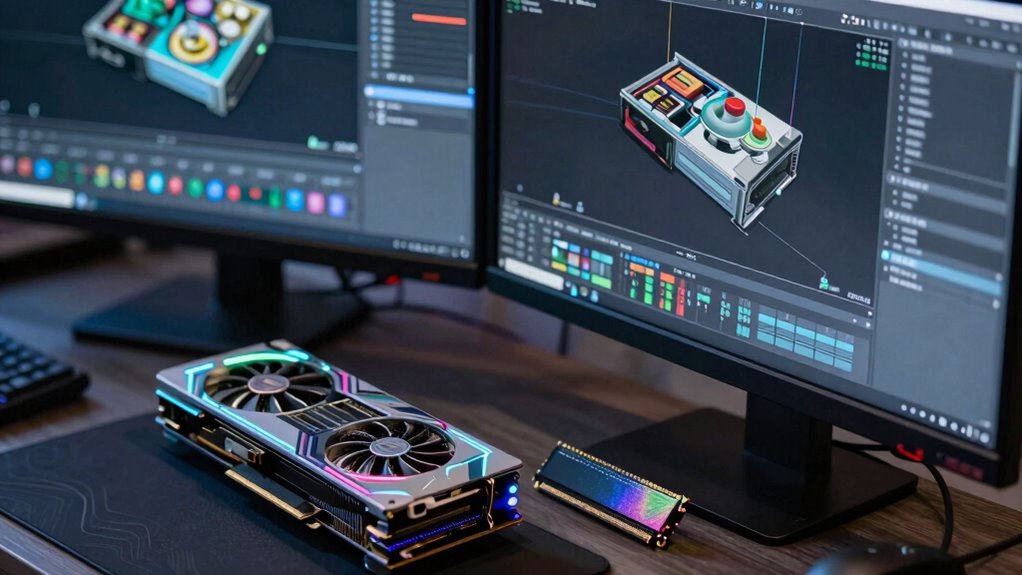
Understanding how much RAM and VRAM you really need depends on your specific tasks and usage habits. If your workflow involves complex 3D modeling or large textures, you’ll benefit from more VRAM to prevent memory bottlenecks that slow performance. For multitasking or working with large files, sufficient RAM guarantees your system runs smoothly without lag. Additionally, knowing your hardware capabilities helps optimize your setup for smoother 3D rendering and modeling. However, exceeding your system’s hardware compatibility won’t boost performance and may cause compatibility issues. To determine your ideal amount, consider the recommended specs of your software and the intensity of your projects. Upgrading beyond those needs can be unnecessary and inefficient. Balancing your RAM and VRAM based on your workload prevents memory bottlenecks and ensures your hardware functions harmoniously, giving you a faster, more responsive experience.
Tips for Safely Upgrading RAM and VRAM
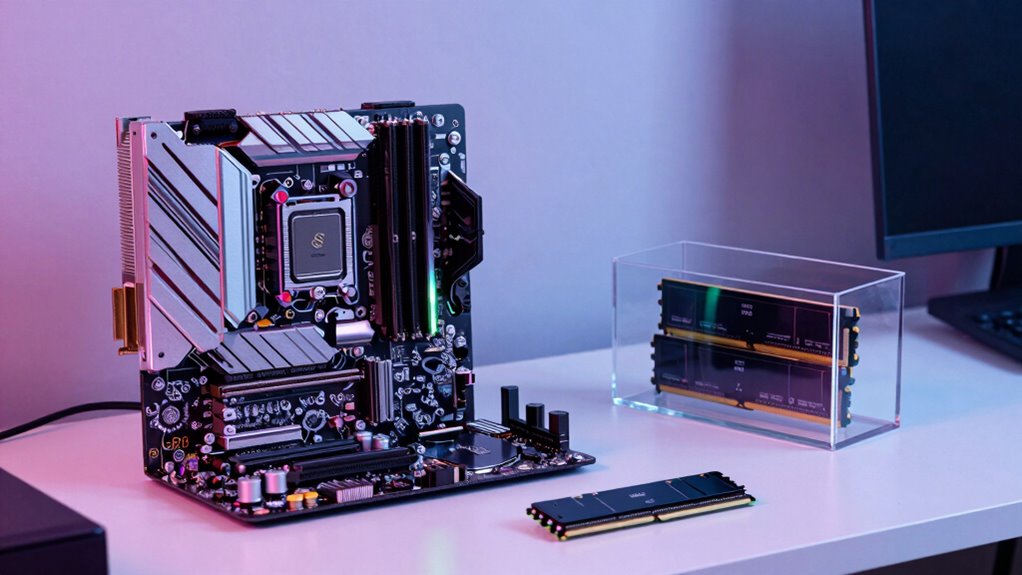
Upgrading your RAM and VRAM can considerably boost your system’s performance, but doing it safely guarantees you avoid costly mistakes. First, verify hardware compatibility by checking your motherboard’s specifications for supported RAM and VRAM types and capacities. Next, consult your system’s warranty terms to ensure upgrades won’t void coverage. Handle components carefully to prevent static damage, and always turn off and unplug your PC before upgrading. Use the correct tools and follow manufacturer instructions precisely. Additionally, consider matching existing RAM modules for maximum performance. It’s also helpful to review style guidelines to ensure the visual consistency of your upgrade documentation. Researching hardware specifications beforehand can help you select the right components for your setup. Lastly, double-check that your power supply can handle new hardware demands. By taking these precautions, you ensure a smooth upgrade process that enhances your system’s capabilities without risking damage or warranty issues.
Which Upgrade Will Boost Your Workflow Faster?
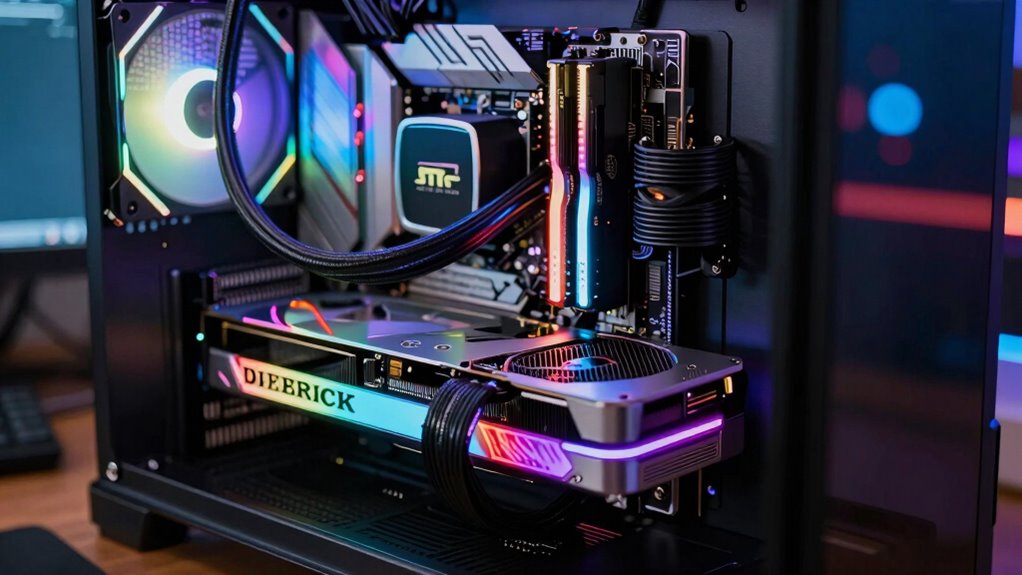
When considering which upgrade will most quickly enhance your workflow, choosing between additional RAM or increased VRAM depends on your specific tasks. If you work with large, complex models or multitask heavily, adding RAM can substantially reduce slowdowns and improve overall system responsiveness. Conversely, if your workflow involves detailed textures or high-resolution rendering, increasing VRAM will provide faster rendering times and smoother viewport navigation. Hardware compatibility is essential; ensure your system supports the upgrades you choose. Additionally, upgrade costs vary—RAM upgrades tend to be more affordable and easier to implement, while VRAM upgrades may require a new graphics card. The type of workload you typically handle, such as 3D modeling, can influence which upgrade yields better results; understanding this can help you make a more informed decision. The choice also depends on the compatibility of your hardware; ensuring your system supports the upgrade is crucial for optimal performance. For example, knowing your system’s hardware limitations can prevent costly compatibility issues. Ultimately, the fastest boost depends on your workload, but balancing both upgrades for your needs yields the best results.
Final Tips for Faster and Smoother 3D Modeling
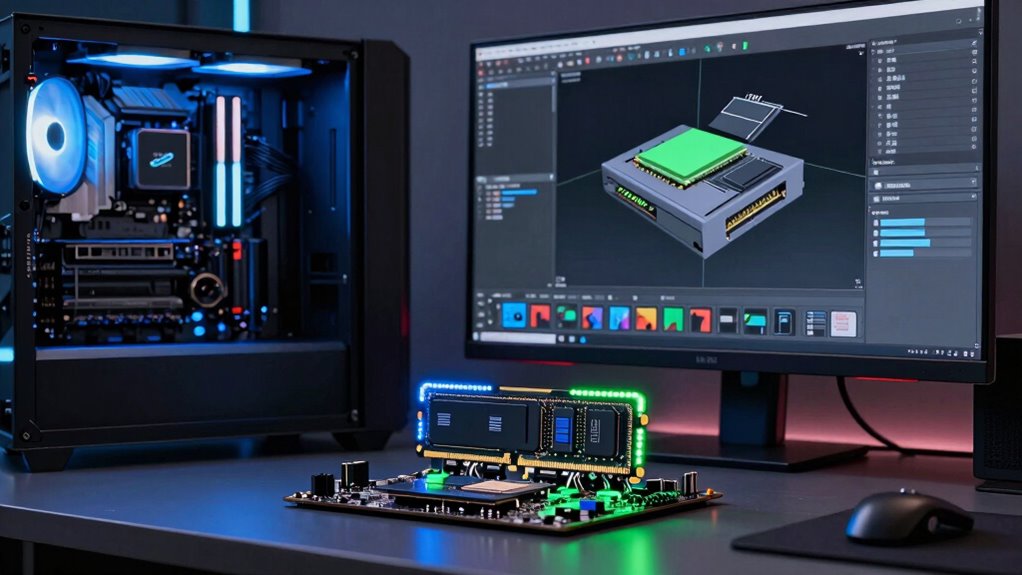
To achieve faster and smoother 3D modeling, optimize your workflow by managing your scene complexity and settings carefully. Keep an eye on hardware compatibility to guarantee your system handles larger scenes without crashing. When considering upgrades, weigh the upgrade cost against performance gains to avoid overspending. Simplify models where possible, reduce unnecessary details, and optimize texture resolutions. Use viewport shading modes that lighten your system load. Regularly update your software and drivers for stability and efficiency. Additionally, organize your scene with layers and groups to streamline navigation. By balancing scene complexity with hardware capabilities, you’ll work more efficiently. Remember, incremental upgrades can boost performance without overwhelming your budget—just choose components that align with your workflow needs. Incorporating system compatibility considerations can further ensure your hardware supports your modeling demands effectively.
Frequently Asked Questions
Can Increasing RAM or VRAM Improve 3D Modeling Workflow Without Other Upgrades?
Increasing RAM or VRAM can improve your 3D modeling workflow, but only if you’re facing memory bottlenecks. More RAM helps with handling large files and multitasking, while extra VRAM speeds up rendering and viewport performance. However, without considering hardware compatibility, you might not see benefits. Make sure your system supports these upgrades, or they won’t make a difference. Upgrading one or both can be effective when aligned with your specific needs.
How Do RAM and VRAM Impact Different 3D Software Applications?
You’ll notice that RAM impacts your 3D software by providing more texture memory, which helps handle larger scenes smoothly. VRAM, on the other hand, directly affects rendering speed and how well your GPU manages textures and complex visuals. For applications like Blender or Maya, having ample VRAM ensures faster rendering, while more RAM helps with multitasking and working on detailed projects without lag. Both upgrades boost your workflow, but in different ways.
Is There a Point of Diminishing Returns for RAM and VRAM Upgrades?
You’ll hit diminishing returns once your RAM or VRAM surpasses your software’s upgrade thresholds, meaning extra memory won’t boost performance markedly. For most 3D modeling tasks, upgrading beyond 32GB RAM or 8GB VRAM yields minimal gains. Focus on balancing your system components instead of overspending on memory, as the point of diminishing returns varies depending on your project complexity and software requirements.
Do Specific Hardware Brands Offer Better RAM or VRAM Performance?
Think of hardware brands as race car drivers—some have better reputation and track records. Certain brands like Corsair, G.Skill, and Kingston often offer more reliable RAM and VRAM options, boosting performance. However, you might face compatibility issues with less reputable brands. Do your research, check reviews, and verify compatibility to get the best bang for your buck and avoid hitting the performance wall.
How Do Temperature and Cooling Affect RAM and VRAM Performance During Intensive Tasks?
Temperature and cooling substantially impact your RAM and VRAM performance during intensive tasks. If they overheat, thermal throttling kicks in, reducing speeds to prevent damage. Using effective cooling solutions like heatsinks, fans, or liquid cooling keeps temperatures low, ensuring your hardware runs smoothly and maintains ideal performance. Proper cooling not only prevents throttling but also prolongs your components’ lifespan, keeping your 3D modeling seamless and responsive.
Conclusion
Upgrading your RAM or VRAM can dramatically improve your 3D modeling experience, making workflows feel instant. Did you know that 65% of artists report smoother viewport performance after upgrading VRAM? Focus on what bottlenecks your system—more RAM for multitasking or VRAM for faster rendering. By choosing the right upgrade, you’ll boost efficiency and creativity, turning complex projects into seamless, enjoyable work sessions.