Choosing between a laptop and a desktop for architecture work depends on your needs. If you value portability and flexibility for on-site or remote projects, a powerful laptop can serve you well, but it might struggle with complex models. A desktop offers better performance, upgrade options, and ergonomic setups, making it ideal for long hours and intensive tasks. Keep exploring to discover how to optimize your workstation based on your specific workflow.
Key Takeaways
- Laptops offer unmatched portability for on-site and remote work, while desktops provide superior performance and expandability for heavy rendering tasks.
- Desktops generally have better upgrade options and longer lifespan, making them more cost-effective for long-term architectural workflows.
- High-performance CPUs and GPUs are essential; desktops typically deliver more powerful hardware for complex visualizations and large model handling.
- Ergonomic setup and proper lighting are easier to achieve with desktops, reducing strain during long hours of detailed design work.
- The choice depends on workflow needs: portability and flexibility favor laptops, whereas performance and upgradeability favor desktops.
What Are the Key Differences Between Laptops and Desktops for Architecture Workstations?
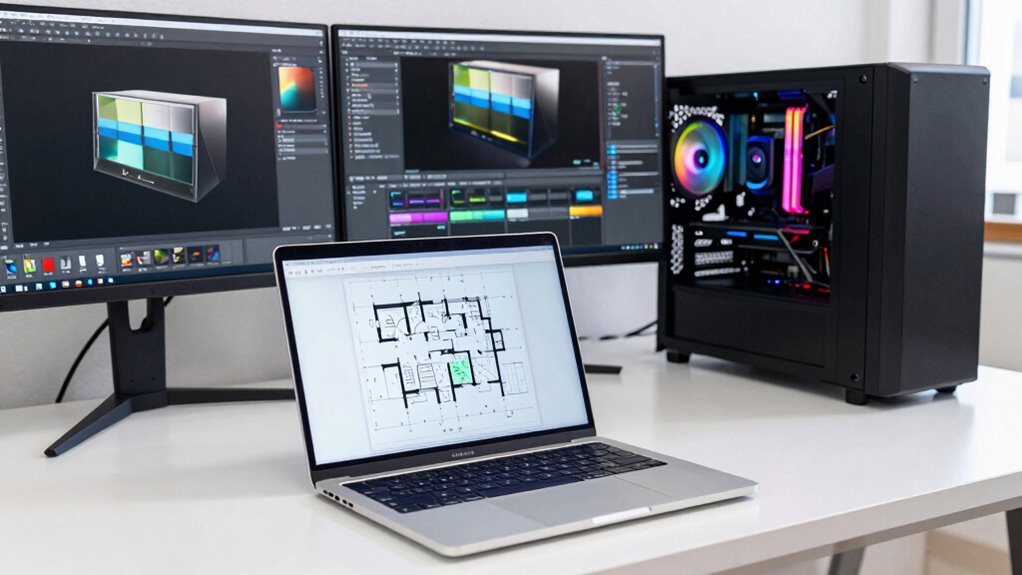
When choosing between a laptop and a desktop workstation for architecture work, understanding their key differences is essential. Laptops excel in portability, allowing you to work anywhere, which enhances flexibility for on-site projects or remote collaboration. They often feature ergonomic design elements, making long hours more comfortable. However, their smaller screens and limited hardware upgrade options can hinder intensive tasks like 3D modeling or rendering. Desktops, on the other hand, offer superior power, expandability, and larger displays, making them ideal for complex workflows. They also support seamless cloud collaboration, enabling you to access files and collaborate with team members effortlessly. Additionally, the contrast ratio in desktops can enhance the clarity and depth of detailed visualizations, which is crucial for architecture work. Furthermore, desktops often provide better hardware upgrade options, allowing future-proofing and customization to meet evolving project requirements. Ultimately, your choice depends on whether you prioritize mobility and ergonomic comfort or raw processing power and expandability for your architecture projects.
How Does Portability and Space Impact Your Workstation Choice?
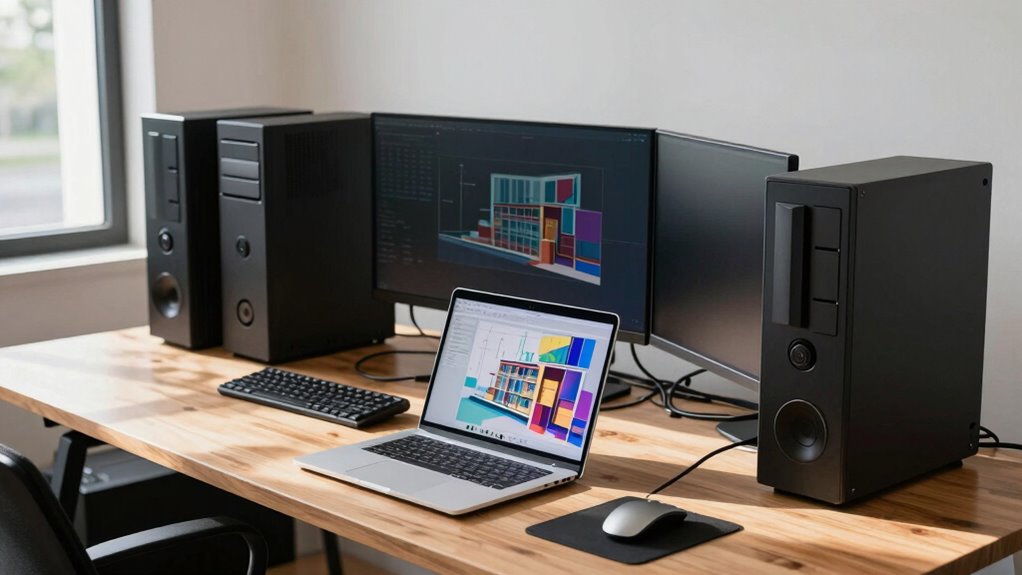
Have you ever considered how much space your workstation occupies and how portable it needs to be? Your choice depends heavily on factors like space constraints and the need for a portable design. If you have limited room or move frequently, a laptop offers:
- High portability, allowing you to work anywhere.
- Minimal space requirements, fitting comfortably in tight areas.
- Convenience for on-site or collaborative projects.
- Flexibility to switch work environments easily.
- Understanding the net worth of industry figures can also influence the type of equipment you choose, as it reflects the level of investment and quality expected in professional setups.
On the other hand, desktops are less portable but excel in providing a dedicated, spacious setup when space isn’t an issue. Your decision hinges on balancing your workspace size and how often you need mobility, directly impacting your overall workflow and comfort.
What Hardware Specs Do You Need for Architecture Software?
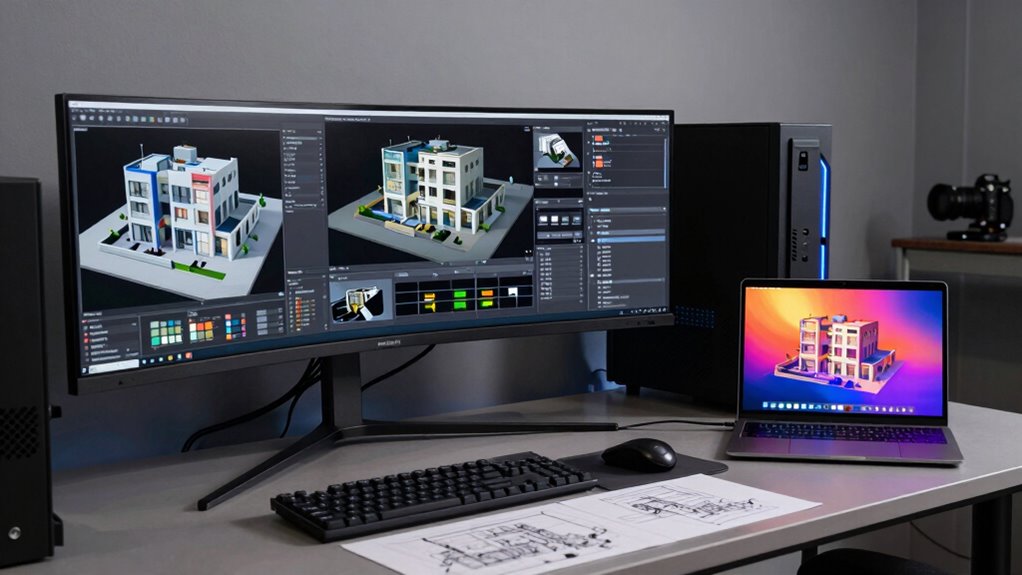
Choosing the right hardware specs is crucial for running architecture software smoothly, especially since these programs demand significant processing power. To guarantee optimal performance, focus on hardware compatibility—make sure your CPU, GPU, RAM, and storage meet or exceed the software’s recommended requirements. A powerful multi-core processor and a high-end graphics card are essential for rendering complex models efficiently. Adequate RAM, ideally 16GB or more, helps with handling large files without lag. Storage speed matters too; SSDs accelerate load times and workflow. Software optimization ensures your hardware works seamlessly with your architecture programs, avoiding bottlenecks. Prioritize components that align with the software’s demands to prevent frustration and maximize productivity, whether you choose a laptop or a desktop workstation. Additionally, incorporating Free Floating design principles can help create a more flexible and adaptable workspace environment.
Can You Upgrade Your Laptop or Desktop Later?
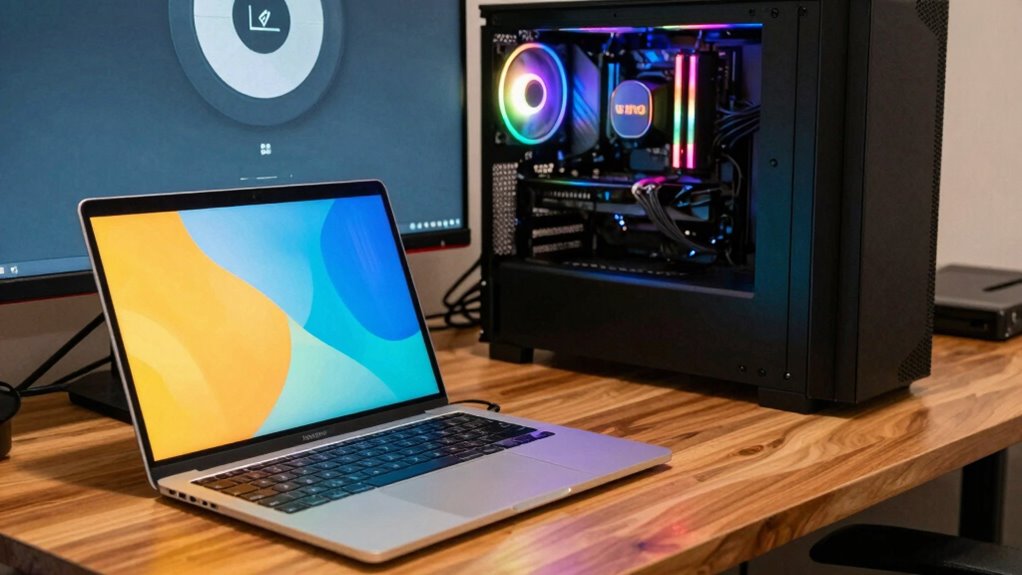
You might want to upgrade your device later, but keep in mind that desktops generally offer more options for hardware improvements. Laptops often have limited upgradeability, making future modifications more challenging and costly. Consider whether the long-term expense of upgrading a laptop outweighs the flexibility and potential savings of starting with a desktop. Additionally, understanding upgrade options can help you make a more informed decision tailored to your evolving needs. Being aware of hardware compatibility is also crucial to ensure that future upgrades are feasible and effective. Recognizing the upgradability differences between device types can significantly impact your long-term investment. Moreover, the components used in desktops tend to be more standardized, simplifying the process of upgrading individual parts. Staying informed about technological advancements can further assist in planning for future upgrades and maintaining optimal performance.
Upgradeability of Hardware Components
When considering upgradeability, desktops generally offer more flexibility than laptops due to their modular design. You can typically upgrade or replace components like RAM, power supply, and storage with ease. Here are some key points to keep in mind:
- RAM compatibility is usually straightforward—desktop motherboards support a wide range of modules, making upgrades simple.
- Power supplies in desktops are replaceable, allowing you to upgrade to higher wattages for better performance.
- Storage drives, such as SSDs and HDDs, are often easily accessible and replaceable.
- Graphics cards and other peripherals can be swapped out or upgraded without much trouble.
- The fundamentals of modular design in desktops make future upgrades more accessible and cost-effective.
Limitations of Laptop Modifications
While desktops are known for their ease of upgrading, laptops face notable limitations that can restrict your ability to modify them later. You can’t easily swap out components like the laptop battery or upgrade cooling systems, which are often built-in and tightly integrated. This means your options for improving performance or extending lifespan are limited. Additionally, upgrading hardware components is generally more feasible with desktops than laptops.
Long-Term Upgrading Costs
Long-term upgrading costs can considerably impact your overall investment in a device. When evaluating cost analysis, consider how easily you can upgrade your laptop or desktop later. With a desktop workstation, you’re more likely to save money and extend its lifespan through upgrades. For example:
- Upgrading RAM or storage is typically easier and cheaper on desktops.
- CPUs and GPUs may be replaceable, enhancing performance without buying new.
- Laptops often have limited upgrade options, increasing long-term costs.
- Future proofing becomes more feasible with desktops, as they support newer hardware longer.
Is a Laptop or Desktop More Cost-Effective in the Long Run?
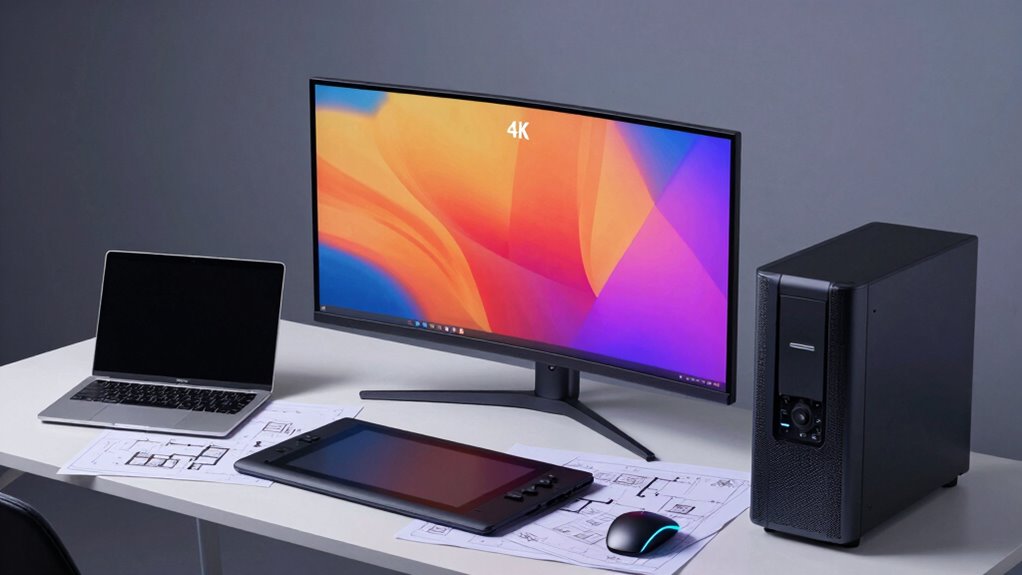
When comparing cost-effectiveness, consider that laptops usually have a higher initial price but may save you money on space and accessories. Desktops often cost less upfront and are easier to upgrade and maintain over time. Think about how these factors impact your long-term expenses and whether the initial investment is worth it. Additionally, understanding the long-term durability of each option can help you make an informed decision based on how well they perform over the years.
Initial Investment Differences
Choosing between a laptop and a desktop workstation often comes down to initial costs, as laptops tend to have a higher price tag upfront due to their portability and compact design. When you’re budget planning, consider these points:
- Initial setup costs: Laptops usually cost more initially for comparable specs.
- Upgrade options: Desktops often allow easier, cheaper upgrades later, reducing future investment.
- Accessories: Desktop setups may require additional purchases like monitors, keyboards, and mice, increasing total costs.
- Long-term value: While laptops may seem costly at first, their portability can save money by reducing the need for multiple devices.
Additionally, the ability to evaluate long-term investment can help determine which option is more cost-effective over time. Properly assessing upgrade potential can also influence your decision, especially if future expandability matters. Ultimately, your choice depends on your immediate budget and how you value flexibility versus upfront expense. Carefully evaluating initial investment differences helps you make smarter decisions aligned with your long-term goals.
Upgrade and Maintenance Costs
While initial costs are important, understanding how upgrade and maintenance expenses accumulate over time can substantially influence your decision. Desktop workstations generally offer greater upgrade flexibility, allowing you to replace or add components easily, reducing long-term costs. Laptops, on the other hand, tend to have higher maintenance costs because repairs often require specialized service and parts. Here’s a quick cost comparison:
| Aspect | Desktop | Laptop |
|---|---|---|
| Upgrade Flexibility | High: easy upgrades | Limited: difficult upgrades |
| Maintenance Costs | Lower: DIY repairs | Higher: professional repairs |
| Total Long-term Cost | Usually more cost-effective | Can be more expensive over time |
Choosing based on upgrade flexibility can save you money and hassle.
What Connectivity and Peripherals Do You Need for Seamless Design Work?
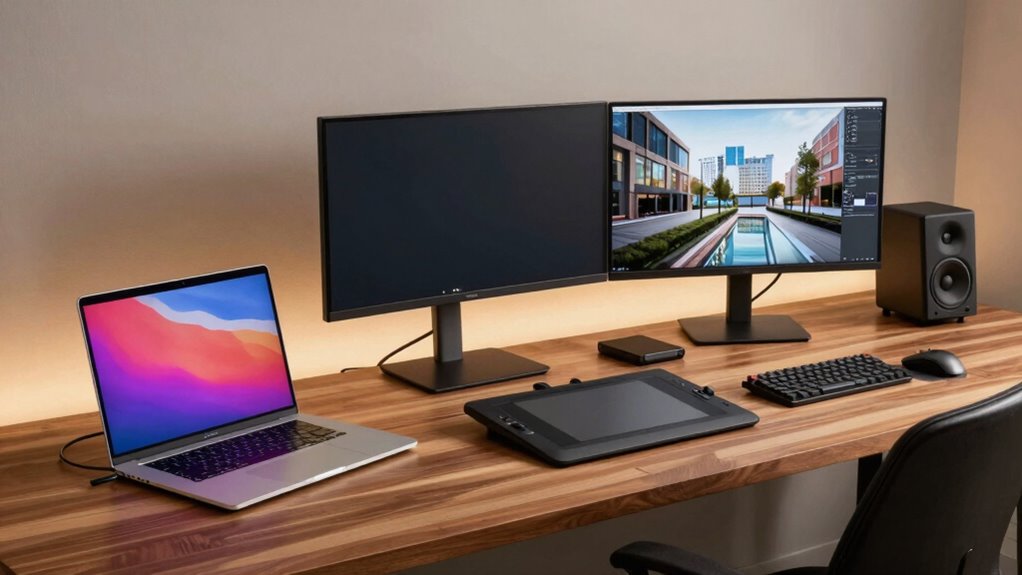
To guarantee smooth design workflows, you need the right connectivity options and peripherals that match your creative demands. First, invest in external monitors with high resolution and color accuracy to enhance your visual workspace. Second, use ergonomic accessories like adjustable desks and supportive chairs to prevent fatigue. Third, ensure your workstation has enough USB ports for peripherals like drawing tablets, external drives, and keyboards. Fourth, consider a docking station to streamline connections and expand your port options. These peripherals and connectivity tools help you stay organized, improve comfort, and boost productivity. Additionally, choosing equipment with reliable connectivity can prevent frustrating technical issues that disrupt your workflow. Ensuring your setup includes high-quality peripherals with dependable connections can significantly enhance your overall efficiency. Seamless design work depends on reliable external monitors and ergonomic accessories, creating an efficient environment that minimizes frustration and maximizes your creative potential.
What Are Common Performance Limitations of Laptops and Desktops for Architecture?
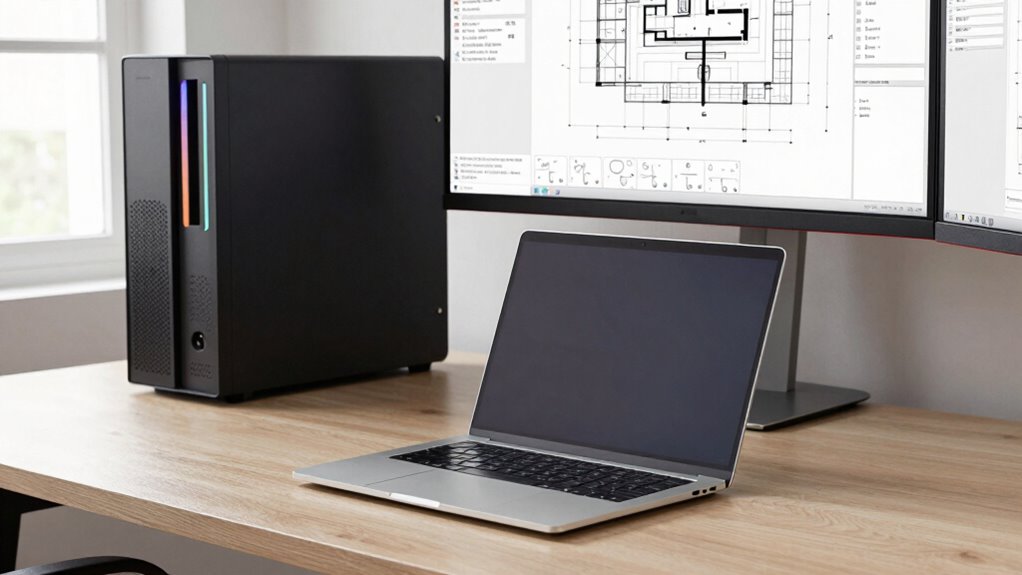
You might find that laptops and desktops can struggle with processing power when handling large architectural models. Graphics rendering often becomes a bottleneck, especially with complex visualizations. Understanding these limitations helps you choose the right system to meet your design needs.
Processing Power Limitations
Processing power remains a key limitation when working with laptops and desktops for architecture tasks. You’ll often encounter processing bottlenecks caused by hardware constraints, which slow down complex workflows. Here are common issues you might face:
- Limited CPU cores reduce multitasking and render speed.
- Insufficient RAM hampers handling large files and multitasking.
- Older processors struggle with demanding architectural software.
- Storage speed bottlenecks delay data access and project loading.
- The lack of analytical thinking skills can hinder effective troubleshooting of hardware issues.
These constraints directly impact your productivity, especially during intensive tasks like 3D modeling and simulation. Upgrading components can help, but hardware limitations often cap performance, making it harder to work efficiently on complex architecture projects. Recognizing these bottlenecks allows you to better select or upgrade your system for ideal performance.
Graphics Rendering Challenges
Graphics rendering performance often becomes a bottleneck in architecture workflows, especially when working with complex 3D models and detailed visualizations. Both laptops and desktops face challenges with GPU bottlenecks, limiting rendering speed and efficiency. Laptops often have integrated or lower-tier GPUs, which struggle with heavy rendering tasks, causing delays. Desktops usually offer more powerful GPUs, but even they can encounter bottlenecks with extremely detailed scenes. To understand these limitations, consider this table:
| Hardware Type | GPU Power | Rendering Speed |
|---|---|---|
| Laptop | Lower-tier | Slower, delays |
| Desktop | Mid-range | Moderate |
| High-end PC | High-end | Faster, efficient |
Knowing these factors helps you choose the right system to meet your rendering needs without unnecessary delays. Additionally, GPU performance can significantly influence overall workflow efficiency, especially when working on resource-intensive projects. Being aware of hardware limitations is essential for optimizing your architecture rendering workflow and avoiding costly delays. Understanding the performance capabilities of your hardware can help in planning projects more effectively.
When Should a Laptop Outperform a Desktop, and Vice Versa?
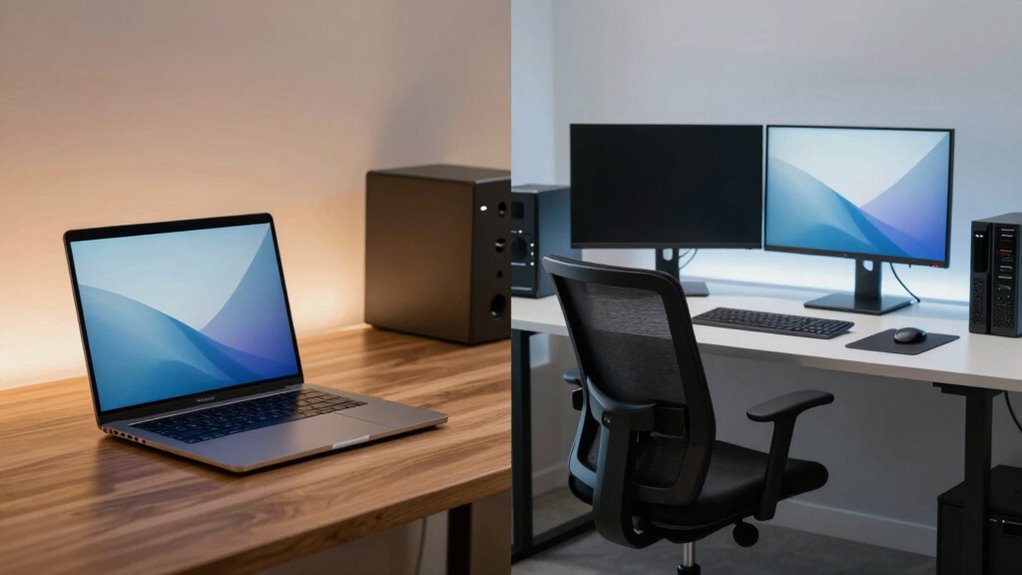
Determining whether a laptop or desktop workstation outperforms the other depends largely on your specific needs and circumstances. Consider these factors:
- Portability – If you need to work on the go, a laptop with long battery life is ideal, allowing you to stay productive anywhere.
- Performance – For intensive tasks like rendering or modeling, desktops typically offer better performance due to superior hardware options.
- Ergonomic Design – Desktops often provide more ergonomic setups, reducing strain during long work sessions, whereas laptops may require additional accessories.
- Power Consumption – Laptops generally consume less power, making them more efficient for mobile use, but desktops can be upgraded more easily for power-hungry tasks.
Choose based on whether mobility or raw power and ergonomic comfort matter most in your workflow.
How to Decide Which Workstation Fits Your Academic and Creative Needs?
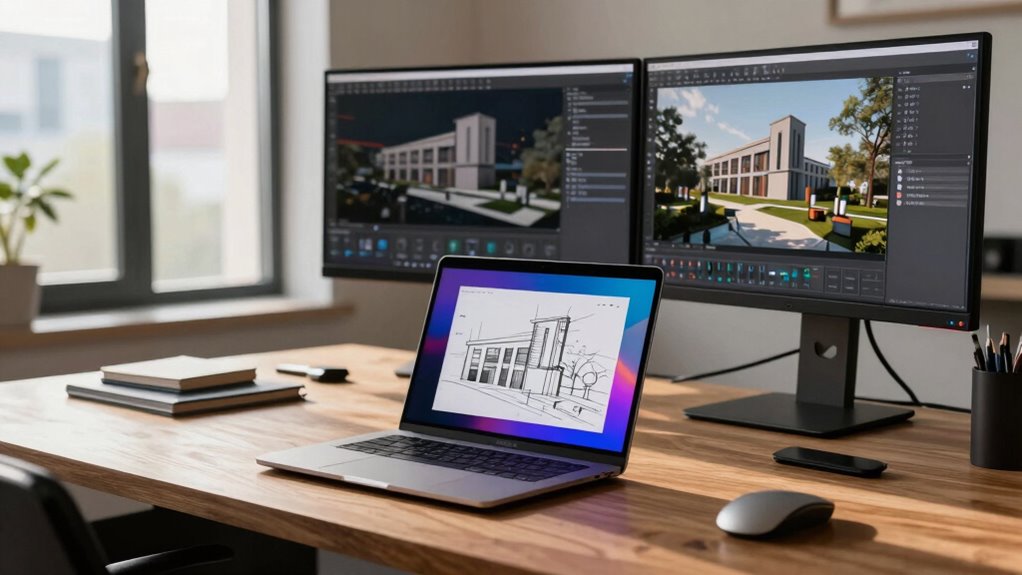
Choosing the right workstation for your academic and creative projects depends on understanding your specific needs and how you work best. If you prioritize hardware portability, a laptop offers flexibility to work anywhere, whether on campus or in a café. However, if your projects demand intensive processing power and a more ergonomic setup, a desktop workstation might be better suited. Think about your daily routine: do you need to move around frequently, or do you work mostly in one space? Also, consider comfort; an ergonomic setup can prevent fatigue during long sessions, especially if you spend hours drawing or modeling. To optimize your setup, explore ergonomic principles that can help prevent strain and improve your productivity. Ultimately, balancing portability with ergonomic comfort and computing power will help you select a workstation that enhances your productivity and creative flow.
Tips to Optimize Your Workspace, Whether Using a Laptop or Desktop
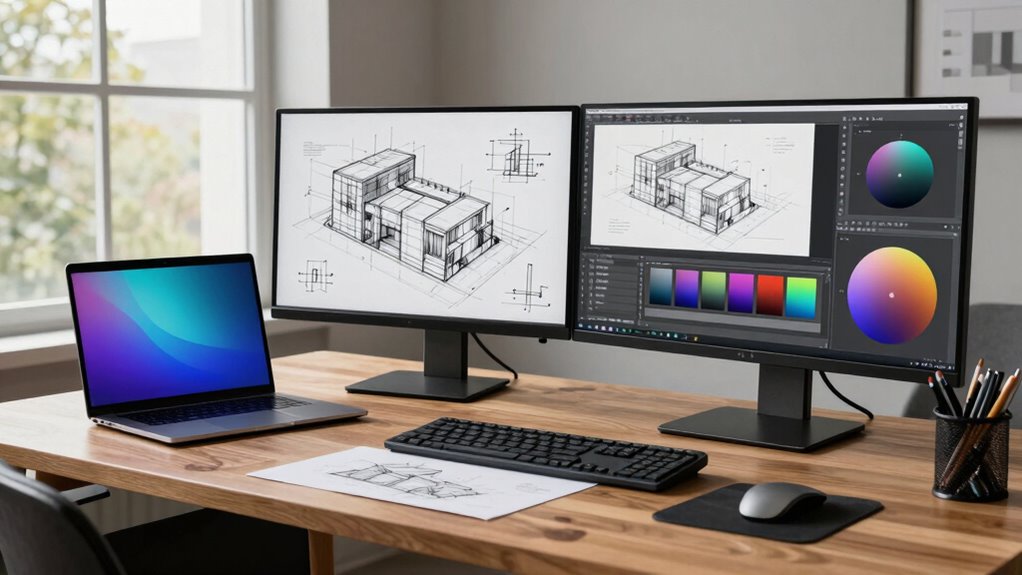
Creating an efficient workspace is essential for boosting your productivity, whether you’re using a laptop or a desktop. To optimize your setup, focus on these key tips:
- Adjust your ergonomic setup by aligning your monitor at eye level and supporting your wrists to prevent strain.
- Use an external keyboard and mouse for better comfort, especially if you’re on a laptop.
- Ensure ambient lighting is sufficient but not harsh; natural light is ideal, but add soft, adjustable lamps if needed.
- Keep your workspace tidy, reducing clutter that can distract you and hinder focus.
- Consider integrating smart lighting to dynamically adjust brightness and color temperature, supporting circadian rhythms and reducing eye strain.
Frequently Asked Questions
How Do Cooling Solutions Differ Between Laptops and Desktops?
You’ll find that cooling solutions differ mainly in thermal management and airflow design. Laptops use compact heat pipes and active cooling fans to dissipate heat efficiently within limited space, often relying on airflow channels to prevent overheating. Desktops, on the other hand, have larger heatsinks, multiple fans, and better airflow design, making them more effective at managing thermal loads during intensive tasks like architecture work.
Are There Specific Ergonomic Considerations for Long-Term Use?
You should prioritize ergonomic chair support and proper keyboard placement for long-term use. An adjustable chair with lumbar support helps reduce strain, while positioning your keyboard at elbow height keeps your wrists straight. Take regular breaks and stretch to prevent discomfort. Setting up your workstation thoughtfully guarantees you stay comfortable and avoid repetitive strain injuries during extended work sessions.
What Are the Typical Lifespan Differences Between Laptops and Desktops?
Laptops typically last 3 to 5 years, but their battery life and portability can decline over time, affecting performance. Desktops generally have a longer lifespan, often 5 to 8 years, since they’re easier to upgrade and repair. If you prioritize mobility for your architecture work, a laptop’s shorter lifespan might be acceptable. However, if you want durability and better upgrade options, a desktop could serve you longer.
Can External Displays Enhance Workstation Performance?
External displays can definitely boost your workstation performance. By upgrading to a monitor with higher display resolution and refresh rate, you’ll experience sharper visuals and smoother workflows. This is especially helpful for architecture students working on detailed designs or rendering. You’ll notice quicker responses and improved clarity, making your work more efficient. So, investing in a good external monitor can truly elevate your productivity and overall experience.
How Do Maintenance and Repair Processes Compare for Each?
You’ll find maintenance and repair differ quite a bit: laptops often surprise you with tricky hardware upgrades and portability challenges, making repairs more complex and time-consuming. Desktop workstations typically allow easier hardware upgrades, simplifying repairs and maintenance. While laptops are portable, their compact design can make accessing components a hassle. Ultimately, you might spend more time fixing a laptop, but desktops give you straightforward upgrades and repairs, saving headaches long-term.
Conclusion
Choosing between a laptop and desktop is like selecting your own Excalibur—each has its strengths. Think about your space, mobility needs, and future upgrades, just as a knight considers their armor. Whether you need the flexibility of a laptop or the power of a desktop, make a choice that suits your journey. Remember, your workstation is your sword in the creative battles ahead—wield it wisely to forge your architectural destiny.