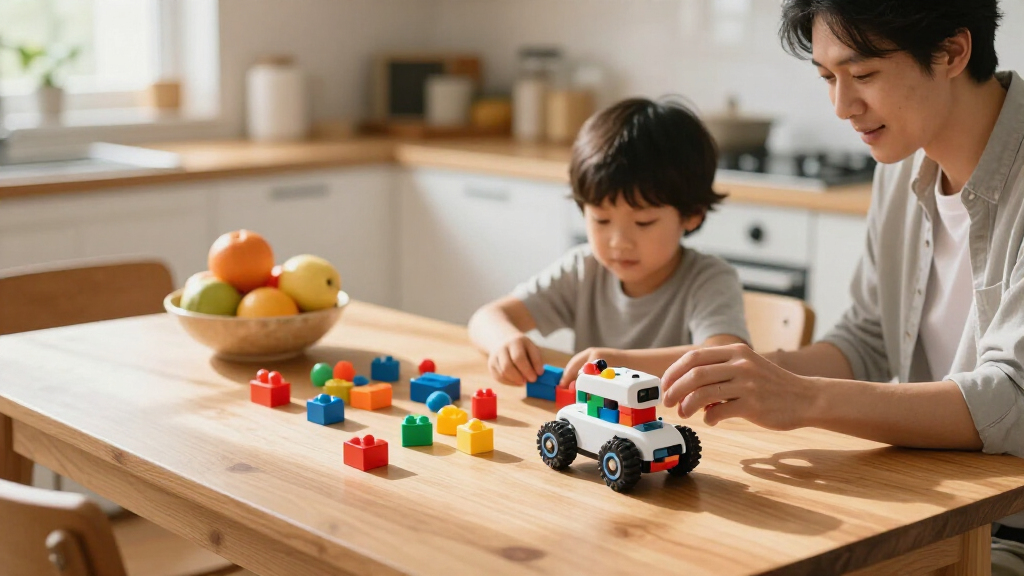
Children’s programmable STEM learning toys range from screen-free floor robots for preschoolers to build-it-yourself coding kits for tweens, and the right pick depends far more on your child’s age and attention span than on feature count. The Makeblock mBot stands out as the best overall choice because it combines real assembly, block-based coding, and expandable hardware that grows with a child’s skills. For younger beginners, the Learning Resources Botley the Coding Robot teaches sequencing logic without any screen at all, while the Ozobot Ozo at Home kit splits the difference with marker-based and app-based coding in one package. The main tradeoff in this category is engagement versus longevity: toy-like robots with singing and gesture control hold attention immediately but often plateau as learning tools, whereas kits like the BirdBrain Finch 2.0 cost more upfront but support programming languages kids can use into high school. Continue reading for the full breakdown, including who each option suits best and which ones are worth skipping.

Prime made for students and young adults
- Fast, free delivery for dorm and study essentials
- Prime Video and Amazon Music included
- Member-only deals
Key Takeaways
- Screen-free robots (Botley, Switcheroo Coding Crew) proved best for ages 4–7, while app- and code-based kits (mBot, Finch 2.0) only paid off from around age 8, when kids can read commands and debug independently.
- Two Sillbird 5-in-1 kits made the list, and the version with app control is the stronger pick — remote-only programmability limits how far a child can take the coding side of the toy.
- The entertainment-focused robots (Ruko 1088, the gesture-control RC robot) are the weakest learning tools in the lineup; their programming features are shallow even though kids enjoy them most on day one.
- Building-based kits (mBot, Sillbird, Kyanio) consistently offered longer engagement windows than pre-assembled robots because construction itself teaches mechanical problem-solving before coding even starts.
- The BirdBrain Finch 2.0 was the only option supporting multiple programming languages up to Python and JavaScript, which explains its higher positioning and why it suits classrooms and serious hobbyists rather than casual play.
| Educational Insights Artie 3000 Coding and Drawing Robot |  | Best for Learning Real Code | Brand: Educational Insights | Model number: 1125 | Recommended age: 7–12 years | VIEW LATEST PRICE | See Our Full Breakdown |
| Ozobot Ozo at Home Interactive Coding Robot Kit for Kids Ages 5+ |  | Best Guided Curriculum | Recommended age: 5+ | Included activities: 27 guided activities | Learning formats: Mystical Forest Mat, Blank Magnetic Board, Color Codes, Ozobot Blockly, engineering challenges | VIEW LATEST PRICE | See Our Full Breakdown |
| Learning Resources Switcheroo Coding Crew |  | Best for Preschoolers | Brand: Learning Resources | Model number: LER3108 | Age range: 4–6 years | VIEW LATEST PRICE | See Our Full Breakdown |
| BirdBrain Finch Robot 2.0 STEM Coding Robot with micro:bit |  | Best Long-Term Investment | Recommended age: 5–16 years | Controller: micro:bit | Coding languages and platforms: MakeCode, Snap, Python, Java, Swift, Kotlin | VIEW LATEST PRICE | See Our Full Breakdown |
| Learning Resources Botley the Coding Robot |  | Best Screen-Free Value | Recommended age: 5+ | Maximum program length: 80 steps | Coding features: Loops and if/then logic | VIEW LATEST PRICE | See Our Full Breakdown |
| Programmable RC Robot Toy with Gesture Control, Singing and Dancing |  | Best for Gesture Play | Programmable actions: Up to 50 | Control methods: Remote control and gesture control | Remote range: Up to 98 ft | VIEW LATEST PRICE | See Our Full Breakdown |
| Sillbird 5-in-1 STEM Robot Building Kit with Remote Control |  | Best for Creative Builders | Models: 5-in-1 | Block count: 596 | Recommended age: 8+ | VIEW LATEST PRICE | See Our Full Breakdown |
| Sillbird 5-in-1 STEM Robot Building Kit with Remote and App Control |  | Best for Model Variety | Pieces: 488 | Build options: 5-in-1, including robot, dinosaur, car, and tank | Recommended age: 8+ | VIEW LATEST PRICE | See Our Full Breakdown |
| Ruko 1088 Programmable Smart Robot Toy for Kids, Gold |  | Best for Interactive Control | Model: 1088 | Color: Gold | Height: 15.8 inches | VIEW LATEST PRICE | See Our Full Breakdown |
| Kyanio 3-in-1 STEM Robotics Kit with Remote, App Control, and Programming |  | Best for Engineering Basics | Piece count: 560 | Build options: Robot, tracked vehicle, and cannon tank | Control methods: 2.4 GHz remote control and app | VIEW LATEST PRICE | See Our Full Breakdown |
| Learning Resources STEM Explorers Machine Makers Building Set |  | Best Screen-Free Engineering Intro | Piece count: 60 | STEM challenges: 9 | Activity cards: 10 | VIEW LATEST PRICE | See Our Full Breakdown |
| Makeblock mBot STEM Coding Robot Kit for Kids Ages 8–12 | 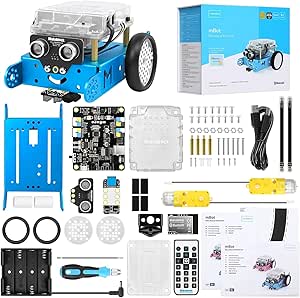 | Best Bridge to Real Coding | Brand: Makeblock | Model: 90053 | Recommended age: 8 years and up | VIEW LATEST PRICE | See Our Full Breakdown |
| children’s programmable STEM learning toy | Recommended age |
|---|---|
| Educational Insights Artie 300 | 7–12 years |
| Ozobot Ozo at Home Interactive | 5+ |
| Learning Resources Switcheroo | — |
| BirdBrain Finch Robot 2.0 STEM | 5–16 years |
| Learning Resources Botley the | 5+ |
| Programmable RC Robot Toy with | 3–12 years |
| Sillbird 5-in-1 STEM Robot Bui | 8+ |
| Sillbird 5-in-1 STEM Robot Bui | 8+ |
| Ruko 1088 Programmable Smart R | 4–9 years |
| Kyanio 3-in-1 STEM Robotics Ki | 8–14 years |
| Learning Resources STEM Explor | 5 years and up |
| Makeblock mBot STEM Coding Rob | 8 years and up |
More Details on Our Top Picks
Educational Insights Artie 3000 Coding and Drawing Robot
Artie 3000 stands out for being the rare coding toy that grows from drag-and-drop blocks all the way to JavaScript and Python, which puts it a step ahead of screen-free options like Botley once a child is ready for typed code. The drawing hook matters: instead of moving a robot around a mat, kids see their commands rendered as geometric art on paper, which makes abstract syntax feel concrete. The password-protected Wi-Fi connection with no internet required is a thoughtful touch for parents wary of open networks. Compared with the Ozobot Ozo kit, Artie covers older and more advanced learners, but it offers far fewer guided activities, so children who need structure may lose momentum without adult help.
Pros:- Four coding languages spanning beginner blocks to Python and JavaScript
- Creative drawing output makes code results tangible
- Works over secure Wi-Fi with no internet access needed
- Includes washable markers and activity cards to start quickly
Cons:- Requires 4 AA batteries that are not included
- Needs a Wi-Fi-enabled tablet or computer for every session
- Fewer structured activities than guided kits like Ozobot Ozo
Best for: Kids ages 7–12 who are ready to move beyond screen-free toys and into text-based coding with visible, creative results
Not ideal for: Families avoiding screens or tablets entirely — Artie cannot function without a Wi-Fi-enabled computer or tablet
- Brand:Educational Insights
- Model number:1125
- Recommended age:7–12 years
- Supported coding languages:Blockly, Snap!, JavaScript, Python
- Connectivity:Password-protected Wi-Fi; no internet required
- Included components:Robot, 4 washable markers, quick start guide, activity cards
- Power:4 AA batteries (not included)
Our verdict“This pick makes the most sense for families who want a coding toy that keeps teaching real programming languages well past the beginner stage.”
Ozobot Ozo at Home Interactive Coding Robot Kit for Kids Ages 5+
Where most robots hand you hardware and wish you luck, Ozobot Ozo ships with 27 guided activities organized across story mats, markers, and engineering challenges — the closest thing in this lineup to a structured course. Its progression is the selling point: kids begin with screen-free color code markers and magnetic tiles, then graduate to Ozobot Blockly on a device. Compared with Botley, which is also screen-free at the entry level, Ozobot offers a far longer runway into block programming. The tradeoff is rigidity — many activities are designed to be completed in order, so a child who likes to jump around, or a sibling pair sharing the kit, may find the sequence frustrating rather than freeing.
Pros:- 27 guided activities with varied 10–30 minute lengths
- Genuine progression from screen-free markers to Blockly coding
- Teaches sequencing, logic, problem-solving, and engineering design
- Includes charging cable and protective case
Cons:- Blockly programming still requires a computer or tablet
- Activities are largely sequential, limiting free play
- Less appealing to older kids who already grasp coding basics
Best for: Parents who want a step-by-step learning path rather than open-ended play, especially for ages 5–8
Not ideal for: Kids who resist following a curriculum or want immediate app-controlled robot fun from day one
- Recommended age:5+
- Included activities:27 guided activities
- Learning formats:Mystical Forest Mat, Blank Magnetic Board, Color Codes, Ozobot Blockly, engineering challenges
- Programming methods:Color Code Markers and Ozobot Blockly
- Included accessories:Charging cable and protective case
- Estimated activity lengths:10, 15, 25, or 30 minutes
Our verdict“This model is better suited to families who value a sequenced, curriculum-style introduction to coding over a sandbox toy.”
Learning Resources Switcheroo Coding Crew
Switcheroo Coding Crew earns its spot by being the most accessible entry point here — a screen-free, push-button coding robot rated for ages 4–6, younger than Botley’s 5+ starting point and far below Artie 3000. The three swappable vehicle shells (police car, fire truck, construction vehicle) turn coding into rescue-mission play, which keeps preschoolers engaged where abstract challenges would lose them. Its Code Mode and Play Mode split lets very young children drive first and program later, a gentler on-ramp than Botley’s 80-step programs. The ceiling is low, though: unlike the Finch Robot 2.0, there is no path to text coding, and most children will outgrow it within a couple of years.
Pros:- Completely screen-free with simple push-button programming
- Three vehicle shells and 46 pieces sustain varied pretend play
- Builds sequencing and logic through repeatable rescue missions
- Well suited to both home and classroom group use
Cons:- AAA batteries not included
- Limited depth — designed strictly for beginner learners
- No bridge to block or text coding later on
Best for: Ages 4–6 and preschool or kindergarten classrooms needing a durable, no-screen first coding experience
Not ideal for: Children over about 7, who will exhaust the rescue missions quickly and need deeper programming challenges
- Brand:Learning Resources
- Model number:LER3108
- Age range:4–6 years
- Robot modes:Code Mode and Play Mode
- Vehicle shells:Police car, fire truck, construction vehicle
- Pieces:46
- Included components:Robot hub, 3 character shells, 9 puzzle cards, 15 math and coding challenge cards
- Power:AAA batteries (not included)
Our verdict“The right first coding toy for preschoolers, provided parents accept it as a starting step rather than a long-term investment.”
BirdBrain Finch Robot 2.0 STEM Coding Robot with micro:bit
Finch Robot 2.0 is the most ambitious option in this batch, spanning ages 5–16 with a span from block-based MakeCode all the way to Python, Java, Swift, and Kotlin. No other pick here — not even Artie 3000 — matches its sensor suite of line tracking, obstacle detection, and light sensing, plus outputs like tri-color LEDs and a buzzer that enable genuine robotics projects. With 7+ hours of battery life and compatibility across tablets, Chromebooks, and every major desktop OS, it is the choice for classrooms or serious home learners. The catch is cost and ambiguity: it requires a micro:bit controller, and it is unclear whether one is in the box, so buyers may face an extra purchase. Younger children will also need adult scaffolding despite the age rating.
Pros:- Supports block-based through professional text languages including Python and Java
- Rich sensor and output set for real robotics experiments
- Works across tablets, Chromebooks, Windows, Mac, and Linux
- Over 7 hours of runtime plus 30+ free tutorials
Cons:- Requires a micro:bit controller, and inclusion is not confirmed
- Higher complexity than casual coding toys demand
- Overkill for young children who only need sequencing basics
Best for: Families and educators who want one robot that carries a child from kindergarten blocks through high-school Python
Not ideal for: Casual gift buyers on a budget — the possible separate micro:bit purchase and complexity exceed what a light introduction needs
- Recommended age:5–16 years
- Controller:micro:bit
- Coding languages and platforms:MakeCode, Snap, Python, Java, Swift, Kotlin
- Sensors:Line tracking, obstacle detection, light sensors
- Connectivity:Bluetooth
- Battery life:7+ hours
- Features:Tri-color LEDs, buzzer, marker holder
- Compatibility:Tablets, Chromebooks, Windows, Mac, Linux
Our verdict“This pick makes the most sense for buyers thinking in years, not months — a single robot that scales with a child’s entire coding journey.”
Learning Resources Botley the Coding Robot
Botley hits a sweet spot between the preschool simplicity of the Switcheroo Coding Crew and the screen-dependent depth of Artie 3000: it is fully screen-free yet teaches real concepts like loops and if/then logic through programs of up to 80 steps. The included remote programmer, 40 coding cards, tiles, and obstacles give kids physical tools to plan and debug programs, making the logic visible in a way app-controlled robots like the Ruko 1088 do not. Compared with Switcheroo, Botley stretches further in age and complexity; compared with Ozobot, it skips the tablet requirement entirely. The honest tradeoff is patience — programming concepts take practice, and children used to instant app control may find the push-button pace slow at first.
Pros:- Truly screen-free operation with no tablet or computer needed
- Teaches loops and if/then logic with programs up to 80 steps
- Generous accessory set including 40 coding cards, tiles, and obstacles
- Detachable arms and obstacles keep activities varied
Cons:- Loops and if/then thinking take practice and may frustrate impatient kids
- No path to block-based or text coding as skills grow
- Entertainment value is quieter than singing, dancing robot toys
Best for: Ages 5+ in screen-conscious households who want genuine coding logic without any device dependency
Not ideal for: Kids ready for block or text coding on a screen, and those who expect music, voices, or app-controlled flash
- Recommended age:5+
- Maximum program length:80 steps
- Coding features:Loops and if/then logic
- Screen-free:Yes
- Included components:Botley robot, remote programmer, detachable arms, 40 coding cards, tiles, and obstacles
Our verdict“The best balance of price, depth, and screen-free learning for families who want foundational coding logic through hands-on play.”
Programmable RC Robot Toy with Gesture Control, Singing and Dancing
For younger children who want a robot to respond to them right away, this pick pairs gesture control with a remote and can store up to 50 programmed actions. That gives kids room to arrange simple action sequences while still enjoying songs, dances, walking, and stories. Compared with the Ruko 1088, it offers a longer stated remote range, but the Ruko lists more control methods and a larger set of interactive features. This robot’s programming is action-based, so it suits playful sequencing more than open-ended coding lessons. Its rechargeable battery runs for about 60 minutes, followed by roughly two hours of charging. I’d pick it for accessible, performative play; families seeking a construction challenge should look at the Sillbird kits instead.
Pros:- Stores and performs up to 50 programmed actions
- Gesture and remote control offer two ways to direct play
- Combines movement with songs, dances, and stories
- Rechargeable battery provides about 60 minutes of play
Cons:- Action sequencing offers less coding depth than the app-programmable Sillbird kits
- About two hours of charging for each play period
- The description does not specify app-based programming
Best for: Families with children ages 3–12 who want simple action sequencing, gesture play, and an interactive robot without building one first
Not ideal for: Families seeking app-based coding lessons or hands-on construction, since this robot focuses on stored actions and performance
- Programmable actions:Up to 50
- Control methods:Remote control and gesture control
- Remote range:Up to 98 ft
- Charging time:About 2 hours
- Playtime:About 60 minutes
- Dimensions:8.27 × 3.93 × 2.95 in
- Recommended age:3–12 years
Our verdict“Choose this robot for younger children who learn through interactive action sequences, while older builders may get more STEM practice from a Sillbird kit.”
Sillbird 5-in-1 STEM Robot Building Kit with Remote Control
This kit’s 596 blocks make building a central part of the learning, with five possible models and a manual to guide children through assembly. Once built, the robot adds creative coding through a Bluetooth app, alongside remote control, LED eyes, sound effects, and a water mist feature. Compared with the Kyanio 3-in-1 STEM Robotics Kit, Sillbird offers more stated build options and a mist effect; Kyanio names tracked vehicle and cannon tank builds and supports app programming too. Assembly gives children practice following steps, though it can slow down play and may call for adult help. The mist feature also means adding water before use. With up to 40 minutes of play per charge, this is a better fit for children who enjoy making and remaking models than those who want a ready-to-run robot.
Pros:- Five build options encourage rebuilding and experimentation
- 596 blocks provide a substantial hands-on construction activity
- Combines app coding with remote control
- LED eyes and sound effects add feedback during play
Cons:- Assembly is required before the robot can be used
- The water mist feature requires adding water
- Up to 40 minutes of play per charge may limit longer sessions
Best for: Children ages 8 and up who enjoy building several models and want to try app-based creative coding after assembly
Not ideal for: Children who prefer immediate play or families who want a simple kit with no water handling or assembly
- Models:5-in-1
- Block count:596
- Recommended age:8+
- Control options:Remote control and Bluetooth app
- Features:LED eyes, sound effects, water mist, creative coding
- Battery:Rechargeable
- Play time:Up to 40 minutes per charge
Our verdict“Choose this Sillbird kit for an older child who wants building and app coding to share equal billing.”
Sillbird 5-in-1 STEM Robot Building Kit with Remote and App Control
With 488 pieces and five build options, including a dinosaur, this Sillbird kit gives children several reasons to return to the same set. App and remote control extend the activity after assembly, while basic programming and path control let kids direct movement with more intent than simple remote driving. Compared with the other Sillbird 5-in-1 kit in this roundup, this version lists fewer pieces and path control, while the 596-piece model adds water mist and sound effects. That makes this one a more focused choice for building and steering rather than extra sensory features. The illustrated instructions can help children work independently, though some will need adult help assembling the models. Its stated playtime is up to 40 minutes per charge, so expect pauses between sessions.
Pros:- Five models include a dinosaur as well as vehicle and robot builds
- Basic programming and path control introduce planned movement
- Remote and app control support different ways to operate builds
- Step-by-step illustrated instructions guide assembly
Cons:- Assembly may need adult help for some children
- Up to 40 minutes of play per charge can interrupt longer projects
- Programming is described as basic, which may limit continued coding challenge
Best for: Children ages 8 and up who want multiple vehicle and creature builds with introductory path programming
Not ideal for: Children who want a fully assembled robot or families looking for richer coding activities than basic programming and path control
- Pieces:488
- Build options:5-in-1, including robot, dinosaur, car, and tank
- Recommended age:8+
- Control:Bluetooth app or remote control
- Battery life:Up to 40 minutes per charge
- Programming features:Basic programming and path control
- Adjustable parts:Head, arms, and tail
Our verdict“Choose this version for a child who values varied builds and beginner path control over the extra effects in Sillbird’s 596-piece kit.”
Ruko 1088 Programmable Smart Robot Toy for Kids, Gold
The Ruko 1088 stands out for giving children several ways to interact: app, remote, voice commands, and a gravity sensor. Its 9 flexible joint motors support expressive movement, while songs, stories, and programmable activities bring sequencing into a broader play routine. At 15.8 inches tall, it offers a more substantial interactive presence than the compact gesture-controlled robot in this group. The tradeoff is that its description emphasizes performance and interaction more than model building or a clearly defined coding progression; the Sillbird kits offer more hands-on construction. Ruko also lists a specific charging caveat: USB-C to USB-C cables are not supported. This is a good match for children who want to direct a character in several ways, but less so for families prioritizing engineering builds or detailed programming lessons.
Pros:- Four control methods let children experiment with different inputs
- Nine flexible joint motors support expressive movement
- Songs, stories, and expressions broaden interactive play
- Programmable activities introduce basic sequencing
Cons:- The description does not specify the depth or progression of its programming activities
- USB-C to USB-C cables are not supported for charging
- The listed manufacturer defect warranty is 30 days
Best for: Children ages 4–9 who enjoy directing an expressive robot through voice, app, remote, and motion controls
Not ideal for: Families seeking a build-it-yourself robotics challenge or a clearly structured coding curriculum
- Model:1088
- Color:Gold
- Height:15.8 inches
- Recommended age:4–9 years
- Control methods:App, 2.4 GHz remote, commands, gravity sensor
- Motors:9 flexible joint motors
- Interactive features:10 songs, 4 stories, 10 expressions, Bluetooth speaker
- Power source:Rechargeable lithium-ion battery
Our verdict“Choose the Ruko 1088 for a child who wants a large, expressive robot with varied controls, rather than a construction-focused coding kit.”
Kyanio 3-in-1 STEM Robotics Kit with Remote, App Control, and Programming
Kyanio puts the engineering activity up front: children assemble a robot, tracked vehicle, or cannon tank from 560 pieces, then use the app’s programming features or a remote to control the result. The three distinct builds give the kit a clear construction focus, while color-coded blocks and step-by-step instructions can make the process easier to follow. Compared with the two Sillbird 5-in-1 kits, Kyanio lists fewer models, but its named tracked vehicle and cannon tank options offer a different mechanical direction. The description does not state battery life or charging time, which makes it harder to plan play sessions than with the Sillbird sets. This kit suits children ready for a building challenge with basic app coding; it may frustrate anyone expecting a ready-made robot or a stated play duration.
Pros:- Three builds include a tracked vehicle and cannon tank
- App programming adds a coding activity beyond remote driving
- Color-coded blocks and step-by-step instructions support assembly
- USB Type-C charging connection
Cons:- Assembly is required before play
- Battery life and charging time are not specified
- Three build options offer less model variety than either Sillbird 5-in-1 kit
Best for: Children ages 8–14 who want to build different mechanical vehicles and use app programming to control them
Not ideal for: Families who need a known battery runtime or children who want a robot ready to play without assembly
- Piece count:560
- Build options:Robot, tracked vehicle, and cannon tank
- Control methods:2.4 GHz remote control and app
- Programming:App programming
- Charging:USB Type-C
- Material:ABS
- Recommended age:8–14 years
Our verdict“Choose Kyanio for a child interested in building mechanical vehicles and trying app programming, provided an unspecified runtime is acceptable.”
Learning Resources STEM Explorers Machine Makers Building Set
Most picks in this lineup teach programming through an app or a screen, but Machine Makers takes the opposite approach: all of the learning happens through gears, pulleys, and belt drives you can hold in your hands. Where the Makeblock mBot gets kids writing Scratch code, this set teaches the mechanical side of engineering — why a crane lifts, how a rover’s wheels turn — before any coding enters the picture. The nine challenges and 10 activity cards give structure that open-ended building sets lack, which makes it a strong fit for five-year-olds who are too young for text-heavy kits like the BirdBrain Finch Robot 2.0. The tradeoff is that it’s purely analog: a child who is specifically excited about programming robots will outgrow it faster than a coding-based option.
Pros:- Teaches real mechanical principles like gears, pulleys, and belt drives through hands-on building
- Nine challenges and 10 activity cards provide guided structure instead of guesswork
- Fully screen-free, making it appropriate for younger children than most coding kits
- Expandable with the entire Gears! Gears! Gears! ecosystem
Cons:- Trial-and-error design process can frustrate younger builders without adult help
- No programming or electronics, so it doesn’t grow with kids who want to move into coding
Best for: Parents of kids aged 5–7 who want to build engineering intuition without adding more screen time
Not ideal for: Kids whose main goal is learning to code — there’s no programming component here at all
- Piece count:60
- STEM challenges:9
- Activity cards:10
- Recommended age:5 years and up
- Components:Gears, pulleys, belt drives, and connectors
- Compatibility:Works with all Gears! Gears! Gears! sets
Our verdict“This pick makes the most sense for families who want to teach how machines work — not how to code them — in a completely screen-free format.”
Makeblock mBot STEM Coding Robot Kit for Kids Ages 8–12
Compared with toy-like options such as the Programmable RC Robot Toy with Gesture Control, the mBot sits a step closer to genuine engineering. Kids build the robot themselves in about 15 minutes, then progress from block-based Scratch programming to Arduino, which is the same platform used in real hobbyist and school projects. That two-step ladder is what separates it from simpler kits like Learning Resources Botley, which stays at the tile-based logic level. Line-following and obstacle-avoidance modes give it immediate play value on day one, before any coding begins. The main frustrations are practical: batteries aren’t included, and the expandable ecosystem of 100+ modules is an added cost if your child wants to keep going beyond the base kit.
Pros:- Build-it-yourself assembly teaches hardware basics before coding even starts
- Scratch and Arduino support creates a genuine progression path into real programming
- Line-following and obstacle-avoidance modes deliver fun straight out of the box
- Huge expandability with 100+ compatible electronic modules and 500+ parts
Cons:- Requires four AA batteries plus a CR2025 for the remote, none of which are included
- Arduino-level projects will likely need adult guidance for younger users
Best for: Kids around 8–12 who have outgrown entry-level coding toys and are ready for Scratch-to-Arduino progression
Not ideal for: Younger children under 8, or buyers wanting a ready-to-play toy with everything included in the box
- Brand:Makeblock
- Model:90053
- Recommended age:8 years and up
- Programming platforms:Scratch and Arduino
- Assembly time:About 15 minutes
- Robot batteries:4 AA batteries (not included)
- Remote control battery:CR2025 (not included)
- Compatible add-ons:100+ electronic modules and 500+ parts
Our verdict“This model is better suited than any toy-grade robot here for a child seriously ready to move from drag-and-drop coding toward real electronics work.”

How We Picked
I evaluated each toy against four buyer-relevant criteria. Learning depth came first: I looked at whether the programming genuinely involves logic, sequencing, and debugging, or whether “programmable” is just a marketing label on a remote-control toy. Age fit and independence came second, because a coding toy a child can’t operate without constant adult help tends to gather dust. Third, I weighed longevity — whether the toy offers progression, from tile-based commands to block coding to text languages, or whether it’s mastered in a week. Fourth, I considered build quality and app reliability, since flaky Bluetooth connections and fragile parts are the most common failure points in this category.
The ranking logic follows those criteria in order. Kits that teach real programming with room to grow (mBot, Finch 2.0, Ozobot) sit at the top. Mid-tier picks like Botley and the Sillbird kits trade some depth for accessibility or play value. Entertainment-first robots rank lower as learning tools even though they can be fun gifts, and I made those tradeoffs explicit rather than pretending every option serves the same buyer.
Factors to Consider When Choosing Children’s Programmable STEM Learning Toys
Before choosing a programmable STEM toy, it helps to understand what actually drives long-term engagement in this category — and where buyers most often go wrong.Match the Coding Method to Your Child’s Reading Level
The single biggest mistake I see is buying an app-coded robot for a child who can’t yet read fluently. Block-based and icon-based coding works for prereaders, but text-dependent interfaces create frustration fast. Screen-free options that use physical command tiles or buttons teach the same sequencing logic without that barrier. A useful rule of thumb: under age 7 means screen-free or icon-based, age 8 and up means block coding apps. Kids who already type comfortably can handle text-based languages, which is where kits like the Finch 2.0 justify their higher cost. Buying one stage ahead rarely works — the toy sits unused until the child catches up, by which point novelty has faded.
Screen Time Is a Design Choice, Not Just a Preference
Many parents buy programmable toys hoping to reduce screen time, then discover the coding happens entirely on a tablet. Decide upfront how you feel about this. Screen-free robots sacrifice some capability — no sensors you can reprogram in real time, no complex logic — but they keep kids physically active and working with their hands. App-based kits offer far deeper programming but concentrate attention on a device. Hybrid options like Ozobot, which codes through marker drawings on paper plus an app, split the difference well. Neither approach is wrong; the mistake is not knowing which one you’re buying until the box is open.
Assembly Requirements Cut Both Ways
Build-it-yourself kits dominate the upper end of this category for a reason: constructing the robot teaches mechanical reasoning and creates ownership that keeps kids invested. But assembly time is real — some kits take an hour or more of focused building before any coding happens, and younger children will need an adult for the entire process. If you’re buying for a child who loses interest quickly or a household without an adult willing to help build, a pre-assembled robot like Botley or Artie 3000 delivers engagement on day one. Think of assembly as part of the curriculum, not an obstacle — but only if your child has the patience for it.
Beware Entertainment Features Masquerading as Programming
Singing, dancing, gesture control, and voice commands make for exciting unboxing days, and there’s nothing wrong with buying a fun robot toy. The problem is packaging these as “STEM learning” when the programmable element amounts to recording a short sequence of movements. When comparing options, look at what the child actually programs: inputs, logic, and outputs. A robot where you chain together conditionals and loops teaches computational thinking; a robot where you record one dance routine teaches pressing buttons. Read product descriptions skeptically, and treat pure entertainment robots as a separate purchase decision from a learning one.
Expansion and Community Support Extend Lifespan
The difference between a toy that lasts three months and one that lasts three years usually comes down to what happens after the included projects run out. Established ecosystems like Makeblock and BirdBrain offer add-on sensors, free curriculum, and active user communities with project ideas. Generic kits with one-off apps tend to die once a child exhausts the built-in activities, and if the app stops receiving updates, the toy can become e-waste after a phone OS update. Before buying, check whether the manufacturer offers downloadable project libraries, spare parts, or compatible expansion packs. That ecosystem support is often worth paying more for than raw features.
Durability, Batteries, and the Hidden Cost of Cheap Kits
Robots in this category get dropped, driven off tables, and fought over by siblings. Check whether a kit uses rechargeable batteries or eats AAs — battery cost adds up quickly with motorized toys. Build quality also varies sharply: snap-together plastic kits tolerate rough handling better than ones with exposed wiring or thin connectors. Finally, budget for frustration: cheaper kits sometimes have loose Bluetooth pairing or instructions with unclear diagrams, and an adult may need to troubleshoot. A slightly more expensive option from an established education brand often costs less over two years than replacing a flimsy kit that died or was abandoned.
Frequently Asked Questions
At what age should a child start with a programmable STEM toy?
Children as young as four can start with screen-free coding robots that use physical buttons or command tiles, because the core skill at that age is sequencing — understanding that a series of commands produces a predictable outcome. Toys like Botley and the Switcheroo Coding Crew are built around exactly that stage. Around age seven or eight, when a child reads comfortably, app-based block coding becomes realistic and far more engaging. Text-based programming with Python generally makes sense around age ten or later. Starting too early isn’t harmful, but the toy will need heavy adult involvement, so gauge your child’s patience honestly rather than their intelligence.
Are building kits like the Sillbird or Kyanio sets too hard for an 8-year-old?
Most 8-year-olds can complete these kits with some adult help, and the assembly is arguably the most educational part of the experience — following diagrams, fitting parts, and troubleshooting mistakes mirror real engineering work. Expect the first build to take one to two hours with supervision, and expect pieces to be misaligned occasionally. If your child has never built a construction kit before, plan to work through the first model together and let them take the lead on the second. Kids who already enjoy LEGO-style building will handle these independently; kids who avoid building tasks may do better with a pre-assembled robot like the mBot’s largely pre-built alternative, Artie 3000.
Do these toys actually teach real coding, or just robotics play?
It depends heavily on the specific product. Kits built on established platforms — Makeblock’s mBlock, the micro:bit inside the Finch 2.0, Ozobot’s OzoBlockly — teach genuine programming concepts including loops, conditionals, variables, and debugging, and several offer a path into Python or JavaScript. At the other end, robots marketed around singing, dancing, and gesture control typically include only a basic action-recording feature, which is closer to a programmable remote control than coding. The honest framing: even shallow sequencing toys build foundational logic for young children, but beyond age eight, a child on an entertainment robot isn’t really learning to program. If skill-building is your goal, check what programming language or platform the toy uses before buying.
How much should I spend on a first programmable robot?
For a first coding toy for a child under seven, a mid-priced screen-free robot is usually the sweet spot — you’re testing whether the concept clicks, not investing in a hobby. If the child is eight or older and shows genuine interest in computers, spending more on an expandable kit like the mBot makes sense because it avoids the common pattern of buying a basic robot, outgrowing it in months, and buying again. The premium end (Finch 2.0 territory) is best justified for classroom use or a child who has already exhausted a beginner robot. What I’d avoid is spending premium money on entertainment robots; their play value doesn’t scale with their price.
Do these robots require a smartphone or tablet, and what if we don’t have one?
Some do, some don’t, and this is worth checking carefully before purchase. Screen-free options like Botley, the Switcheroo Coding Crew, and the STEM Explorers Machine Makers set need no device at all. Hybrid options like Ozobot and Artie 3000 work with markers and paper first, adding an app only later. The building kits with app control — Kyanio, the app version of the Sillbird kit, and the mBot — require a compatible device for their programming features, and older tablets sometimes struggle with the Bluetooth connections. Check the app’s device requirements in the product listing, and note that some manufacturers’ apps are better maintained on certain platforms, which affects long-term usability.
Conclusion
For most families, the Makeblock mBot is my best overall pick: it combines real assembly, genuine block-based coding, and an ecosystem that supports a child from age eight well into middle school. The best value pick is the Learning Resources Botley the Coding Robot, which delivers authentic sequencing logic with no screen and no app dependencies at a beginner-friendly price. For buyers who want the premium end, the BirdBrain Finch 2.0 is the only option here that scales all the way to Python and JavaScript, making it the right call for classrooms or a child already serious about coding.
For young beginners ages four to six, the Switcheroo Coding Crew is the gentlest entry point, while the Ozobot Ozo at Home kit suits families who want one toy that bridges screen-free and app-based coding. If your priority is a build-first experience, the Kyanio 3-in-1 and the app-control version of the Sillbird kit offer strong construction-to-coding progression — choose the app version over the remote-only Sillbird if programming depth matters. Finally, the Ruko 1088 and the gesture-control RC robot are reasonable picks only when entertainment is the goal; treat them as fun robot toys rather than learning tools, and everyone’s expectations stay honest.
Fall Picks
fall essentials
As an affiliate, we earn on qualifying purchases.