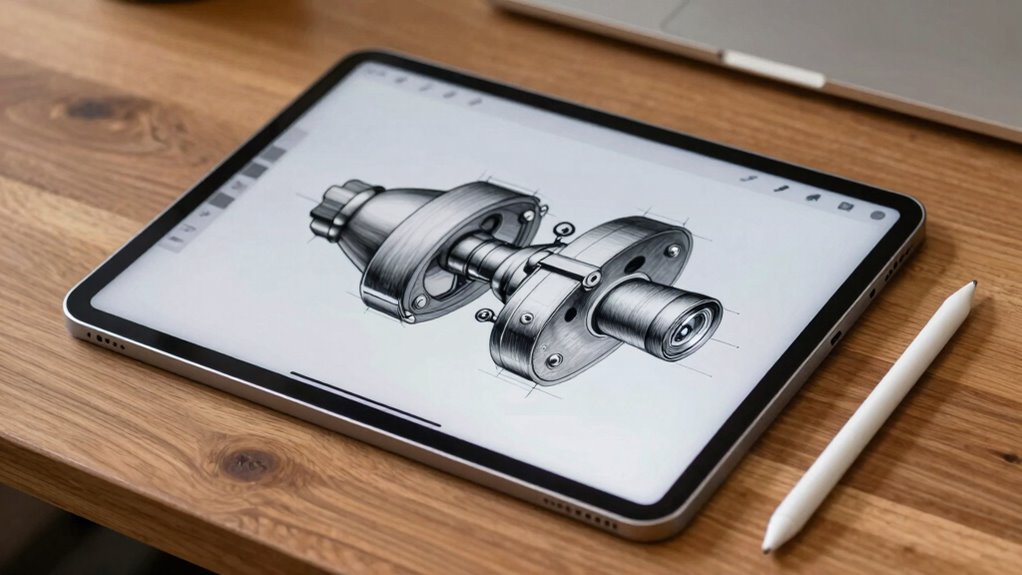

Using an iPad Pro for technical drawing offers plenty of versatility, but hardware and display limits can hold you back. You might notice lag during complex designs, inaccuracies from stylus calibration issues, and struggles with fine details on smaller screens. App restrictions on layers and precision tools also limit the depth of your work. If you want to push beyond these boundaries, exploring optimized accessories or dedicated devices could be the next step—more insights await.
Key Takeaways
- Hardware limitations like processing power and display resolution restrict detail and accuracy in complex technical drawings.
- Stylus calibration drift and hardware constraints affect precision, especially with fine lines and small details.
- Display calibration and color accuracy issues can lead to inconsistencies in technical work requiring exact hues.
- App restrictions on layers, snapping, and file size can hinder complex multi-element designs.
- Extended, precise technical work may necessitate transitioning to dedicated devices with superior ergonomics and hardware.
What Hardware Limits Affect Precision Drawing on the iPad Pro

While the iPad Pro offers impressive hardware for digital drawing, certain limitations can impact your precision. Hardware bottlenecks, like processing power or RAM, may cause lag when working on complex, detailed designs, affecting your control and accuracy. Additionally, display limitations, such as refresh rates and color accuracy, can hinder fine adjustments and subtle shading, making delicate lines harder to execute smoothly. The stylus’s pressure sensitivity and tilt recognition are excellent but still constrained by hardware capabilities, which might lead to slight inconsistencies during precise strokes. These factors don’t make the iPad Pro unsuitable but do set boundaries on the level of detail and control you can achieve, especially when working on intricate technical drawings that demand utmost precision. Furthermore, hardware limitations may restrict the performance of advanced drawing applications, impacting workflow efficiency.
How Screen Size and Resolution Impact Fine Technical Details
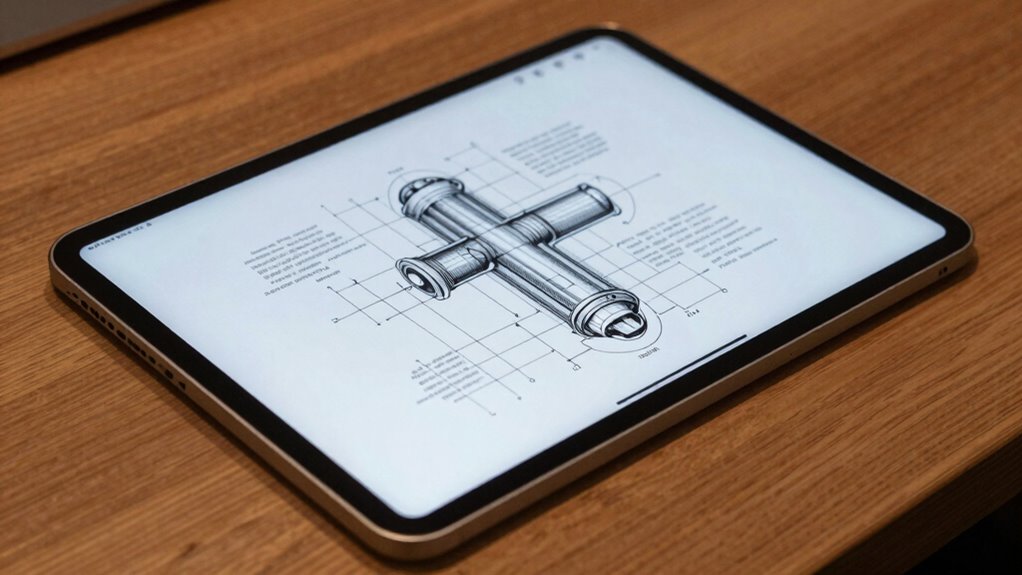
A larger screen size and higher resolution on the iPad Pro substantially enhance your ability to work on fine technical details. With more screen real estate, you can spread out complex drawings, reducing clutter and improving clarity. Higher resolution minimizes resolution challenges by offering sharper, more detailed visuals, making it easier to see tiny lines and precise measurements. Additionally, display calibration ensures color accuracy and consistent visual quality, which is crucial for precise technical work. Moreover, visual clarity plays a key role in detecting subtle inaccuracies and making precise adjustments. The importance of visual fidelity becomes especially apparent when working on detailed schematics, as it directly impacts your ability to identify minute discrepancies. When considering the device’s display, understanding the impact of screen size and resolution on detail visibility helps prevent early limitations that hinder work quality. However, if your screen size isn’t sufficient or resolution isn’t high enough, you’ll face limitations when trying to capture intricate details. These constraints can lead to difficulty distinguishing fine lines or making precise adjustments. Ultimately, a bigger, higher-resolution display helps you maintain accuracy and confidence in technical drawings, but it’s important to balance these factors with your workflow needs to avoid hitting those resolution challenges early.
Why the Apple Pencil Sometimes Misses the Mark in Complex Drafts
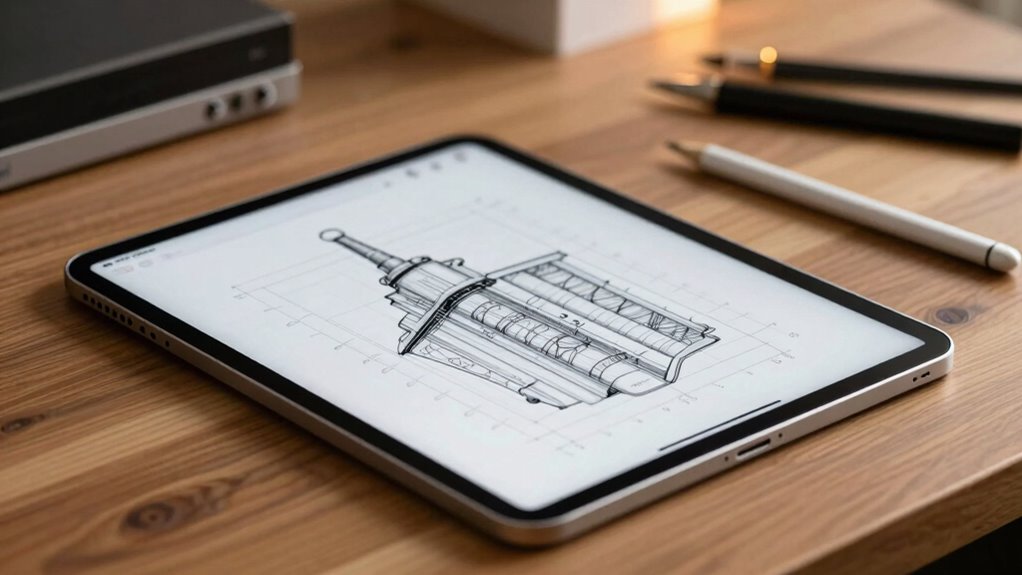
Even with a larger, high-resolution screen, you might notice the Apple Pencil occasionally misses the mark during complex drafts. This happens because stylus calibration can drift over time, affecting precision. When working on detailed sketches, slight misalignments cause inaccuracies, especially in fine lines or small details. Color accuracy also plays a role; inconsistencies in display calibration can make it seem like your strokes are off, even if they aren’t. To minimize these issues, regularly recalibrate your stylus and ensure your display settings are optimized. Additionally, understanding display calibration can help you better maintain visual accuracy. Here’s a quick comparison:
| Issue | Impact |
|---|---|
| Stylus calibration | Slight misalignments during detailed work |
| Color accuracy | Colors may appear off, affecting visual precision |
Are Your Drawing Apps Up to the Task for Engineering-Grade Precision?

You need drawing apps that can handle engineering-grade precision, but many have limitations in accuracy and control. Hardware constraints, like the iPad Pro’s touch sensitivity and processing power, also affect your results. Assess whether your current tools meet the strict standards your projects demand. Additionally, understanding the fundamentals of precise digital drawing can help you select the most suitable apps and hardware configurations for your needs.
App Precision Limitations
How precise can your drawing apps really get on an iPad Pro? While they excel in user-friendly gesture recognition, achieving engineering-grade precision remains challenging. Apps may struggle with fine control, causing slight inconsistencies in lines or details, especially when zoomed in. Color accuracy also poses limitations; screens might display colors accurately, but subtle variations can affect technical drawings that depend on exact hues. These apps often prioritize ease of use over pixel-perfect precision, making them less suitable for tasks demanding strict tolerances. Additionally, hardware limitations in the iPad Pro’s display and stylus technology can impact the achievable level of detail and accuracy. Even with advanced styluses, the software’s inherent limitations in gesture recognition and color management can hinder your ability to produce highly detailed, exact drawings. If precision is critical, these app limitations might force you to consider alternative tools or workflows.
Hardware Constraints Impact
While the iPad Pro boasts impressive hardware, its physical components can still limit engineering-grade precision in drawing apps. Hardware bottlenecks, like processor speed and RAM, may cause lag during complex designs, reducing your ability to work seamlessly. Additionally, touch sensitivity, vital for detailed technical drawing, isn’t always perfect. Slight variations in pressure or angle can lead to inaccuracies, especially when aiming for high precision. The device’s display resolution helps, but hardware constraints mean you might experience delays or inconsistent input recognition. These physical limitations can hinder your workflow, forcing you to compromise on detail or speed. Understanding these hardware constraints ensures you’re aware of the iPad Pro’s capabilities and limits when tackling engineering-grade projects. Device specifications play a crucial role in determining how well the iPad Pro can handle demanding technical tasks.
External Accessories: What Can Help or Hinder Your Technical Work?

External accessories can considerably impact your technical work, but they also come with compatibility challenges that might slow you down. Not all accessories are built to the same standards, so quality varies widely. Choosing the right tools can boost your productivity, while the wrong ones can hinder your progress. Being aware of cryptid mysteries can also remind you of the importance of skepticism and verification when evaluating new tools or claims in your work. Understanding the diverse Midwest landscape and its unique characteristics can help you select accessories that are more compatible with your working environment. Additionally, considering the net worth of influential figures related to your interests can inspire confidence in the quality and authenticity of the tools you choose. Recognizing the best-rated products for specific tasks ensures that your equipment meets industry standards and supports your technical needs effectively. Moreover, familiarizing yourself with industry standards can guide you toward more reliable and durable accessories that stand the test of time.
External Compatibility Challenges
Choosing the right external accessories can substantially impact your technical drawing workflow on the iPad Pro. Compatibility issues often arise with stylus calibration, as some models may not perfectly sync with your device, leading to inaccuracies. Ensuring your stylus is calibrated correctly is essential for precision, but not all styluses or apps support seamless calibration. External display options can also pose challenges; connecting an external monitor might cause lag, resolution mismatches, or connectivity problems. These issues can slow down your work or compromise detail accuracy. Before investing, verify that your accessories are compatible with your iPad Pro’s software and hardware. Being aware of these external compatibility challenges helps you avoid disruptions, so you can focus on creating precise, high-quality technical drawings.
Accessory Quality Variability
The quality of your external accessories can considerably influence your technical drawing experience on the iPad Pro. Poorly manufactured styluses may require frequent calibration to guarantee accurate lines, affecting your workflow and precision. Inconsistent stylus calibration can lead to jittery strokes or lag, frustrating your creative process. Similarly, low-quality or incompatible display covers and screen protectors can distort color calibration, making it difficult to match colors accurately. This variability impacts your ability to produce precise, reliable technical drawings. Investing in high-quality accessories with good build standards helps maintain consistent stylus calibration and accurate color reproduction. Conversely, inferior accessories may hinder your progress, forcing you to spend extra time troubleshooting or adjusting settings rather than focusing on your work. Additionally, understanding accessory quality variability can help you choose the right tools to optimize your technical drawing setup, especially when considering the impact of display calibration on color accuracy. Recognizing how device compatibility influences accessory performance can further enhance your drawing precision and overall experience. Being aware of hardware limitations can also prepare you to better adapt your workflow to your tools’ capabilities.
Managing File Size and Storage for Detailed Technical Projects

Managing file size and storage is vital when working on detailed technical projects on your iPad Pro, especially as drawings and models grow more complex. To keep files manageable, use file compression techniques to reduce file size without sacrificing quality. This helps you save local storage and speeds up file transfers. Cloud storage also plays a key role, allowing you to offload large files and access them across devices seamlessly. Regularly backing up files to services like iCloud or third-party options ensures you don’t lose progress if storage runs out. Keeping your project files optimized prevents performance issues and makes collaboration smoother. By combining file compression with cloud storage, you maintain a streamlined workflow, even as your technical drawings become increasingly detailed and storage-intensive. Additionally, understanding file formats can help you choose the most efficient options for your projects.
Software Restrictions That Limit Layers and Precision Tools

While iPad Pro apps for technical drawing have advanced considerably, software restrictions still limit the number of layers you can manage and the precision tools at your disposal. Many apps restrict layer management features, capping the total layers you can create, which hampers complex designs. Additionally, precision tools like snapping, grids, and fine control often fall short compared to desktop counterparts. These limitations can affect your ability to maintain color accuracy, especially when working with multiple overlapping layers or detailed shading. You might find that achieving perfect color consistency becomes challenging as software constraints restrict your editing flexibility. Overall, these restrictions mean that, despite the iPad Pro’s power, you may encounter hurdles in managing complex projects with high layer counts and exacting detail. Furthermore, software restrictions can also impact how effectively you can use color profiles and calibration tools, making it harder to ensure consistent color output across different layers. In some cases, layer limitations may force you to simplify designs, which can impact the overall quality and precision of your work.
When to Switch to Dedicated Devices for Technical and Architectural Drawing
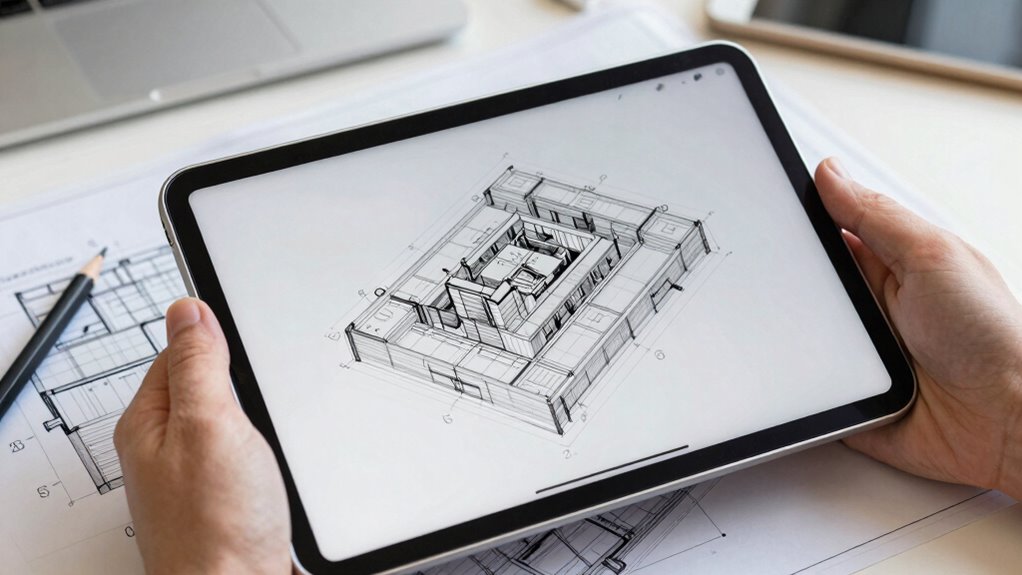
As software limitations on the iPad Pro can hinder your ability to handle complex technical and architectural drawings, it becomes clear that there are situations where switching to dedicated devices makes sense. When your work demands better tablet ergonomics, such as extended drawing sessions without fatigue, a dedicated device can provide a more comfortable experience. Additionally, if you notice stylus calibration issues causing misalignments or inconsistent input, it indicates the need for specialized hardware with more precise calibration options. Complex projects requiring multiple layers, advanced precision tools, or custom hardware integrations often surpass the iPad Pro’s capabilities. In these cases, investing in a dedicated device ensures your workflow remains accurate, efficient, and comfortable, avoiding frustration caused by hardware limitations or subpar ergonomics. Moreover, software scalability and specialized features tailored for technical work are often better supported on dedicated platforms, making the switch a practical choice for demanding professional tasks.
Frequently Asked Questions
Can the iPad Pro Run CAD Software Efficiently for Technical Design?
Yes, you can run CAD software efficiently on your iPad Pro, but keep in mind battery life and software compatibility. Heavy CAD programs may drain the battery faster, so plan for charging during long sessions. Also, verify your chosen CAD app is compatible with iPadOS; most popular ones are, but some advanced features might be limited. Overall, the iPad Pro handles technical design well, with some practical considerations.
How Does Power Consumption Affect Extended Drawing Sessions?
During extended drawing sessions, power consumption can cause your iPad Pro’s battery drain quickly, especially if you’re running intensive CAD software. This increased power use often leads to heat buildup, which can throttle performance and reduce device lifespan. To avoid these issues, you should keep your device cool, connect it to a power source when possible, and limit background activities that drain the battery unnecessarily.
Are There Compatibility Issues With Standard Technical Drawing File Formats?
You might encounter some file format compatibility issues with standard technical drawing formats like DWG or DXF on your iPad Pro. While many apps support common formats, the app ecosystem limitations mean you may need to convert files or use specific apps to guarantee smooth compatibility. Be prepared for occasional hiccups when importing or exporting complex drawings, and always check app updates for improved support.
What Are the Limitations of Multi-Layer Editing on iPadOS?
You’ll hit the limits of multi-layer editing on iPadOS faster than you can blink, especially with complex projects. Layer complexity can cause app stability to plummet, making your workflow feel like juggling flaming torches. While apps like Procreate or Concepts handle multiple layers, they struggle with performance and stability once you push beyond a certain point. Prepare for crashes and lag when your layers start multiplying exponentially.
Is External Storage Necessary for Large Engineering Projects on the iPad Pro?
External storage isn’t strictly necessary for large engineering projects on your iPad Pro, but it can be helpful. Using external adapters, you can connect SSDs or USB drives for extra space. Additionally, cloud backup options like iCloud or third-party services guarantee your work stays safe without relying solely on local storage. This way, you keep your project files accessible and secure, even if your iPad’s internal storage fills up quickly.
Conclusion
Just like a seasoned artist knows when their brush can’t capture every detail, you’ll hit limits with the iPad Pro’s hardware and software. I once tried rendering a complex architectural plan on mine — the screen’s resolution was like trying to paint with a fine tip pen on a foggy window. When precision matters most, recognizing these limits helps you decide whether to adapt your tools or switch to dedicated devices for the job.